Use Winston from Claude, ChatGPT and other AI tools
You can ask Winston from inside the AI tools you already use. Connect Claude, ChatGPT, VS Code, Cursor or Claude Code once, and it can send a question to your workspace's Winston and bring the answer back. The connection is yours: each person connects their own tools, with their own access.
Before you start
- You need a Winston account in the workspace you want to use.
- Your AI tool must support custom connectors, sometimes called MCP servers. On some business plans an admin of that tool has to allow them first.
- Winston works with Claude, ChatGPT, Claude Code, VS Code and Cursor. Other tools may be refused when they try to sign in.
- Any member can connect. You do not need to be an Owner or Admin.
1. Copy your Winston address
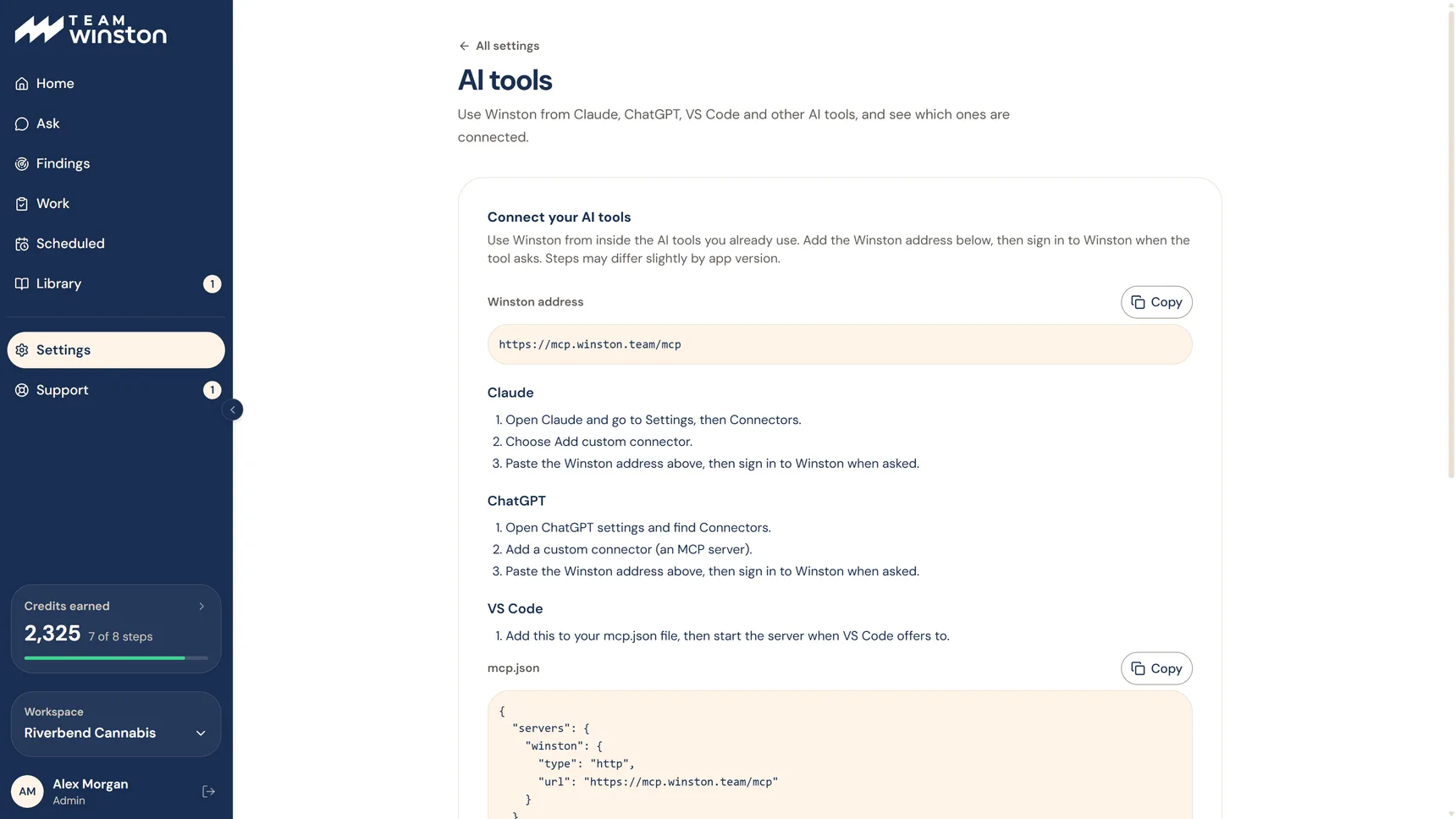
Open Settings and choose AI tools. Under Winston address, choose Copy. The address is the same for everyone:
https://mcp.winston.team/mcp
2. Add Winston to your AI tool
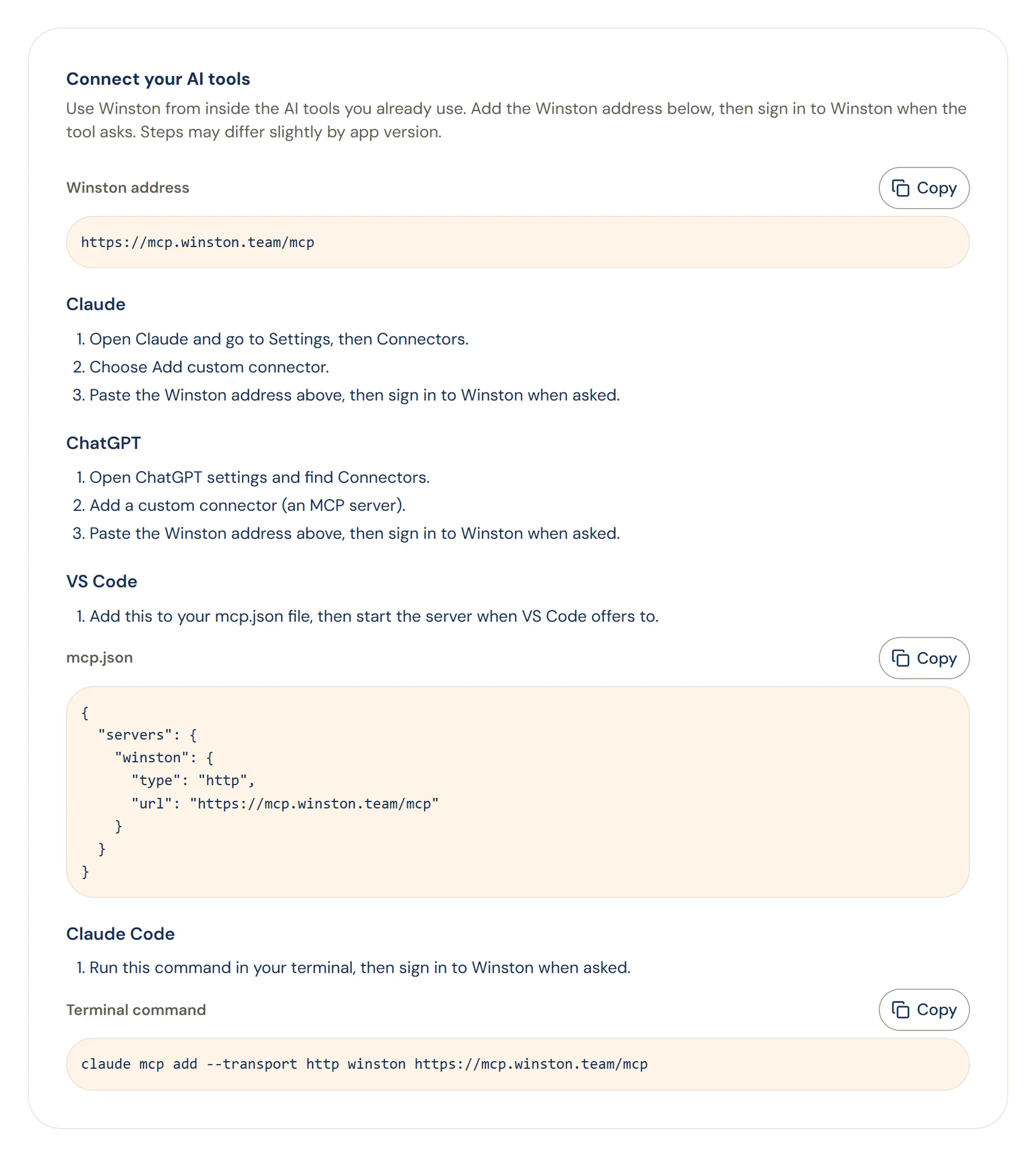
The same card lists the steps for each tool. The mcp.json block for VS Code and the terminal command for Claude Code have their own Copy buttons, with the address already filled in.
Claude
- Open Claude and go to Settings, then Connectors.
- Choose Add custom connector.
- Paste the Winston address as the connector's address. If Claude asks for a name, use Winston.
- Save it and connect. Claude opens the Winston approval page in your browser; sign in to Winston if asked.
ChatGPT
- Open ChatGPT settings and find Connectors.
- Add a custom connector (an MCP server).
- Paste the Winston address, then sign in to Winston when asked.
VS Code
Add this to your mcp.json file, then start the server when VS Code offers to:
{
  "servers": {
    "winston": { "type": "http", "url": "https://mcp.winston.team/mcp" }
  }
}
Cursor
Cursor's file uses a different layout. Add this to .cursor/mcp.json in your project, or to ~/.cursor/mcp.json to use Winston in every project, then sign in to Winston when Cursor asks:
{
  "mcpServers": {
    "winston": { "url": "https://mcp.winston.team/mcp" }
  }
}
Claude Code
Run this in your terminal, then sign in to Winston when asked:
claude mcp add --transport http winston https://mcp.winston.team/mcp
3. Approve the connection
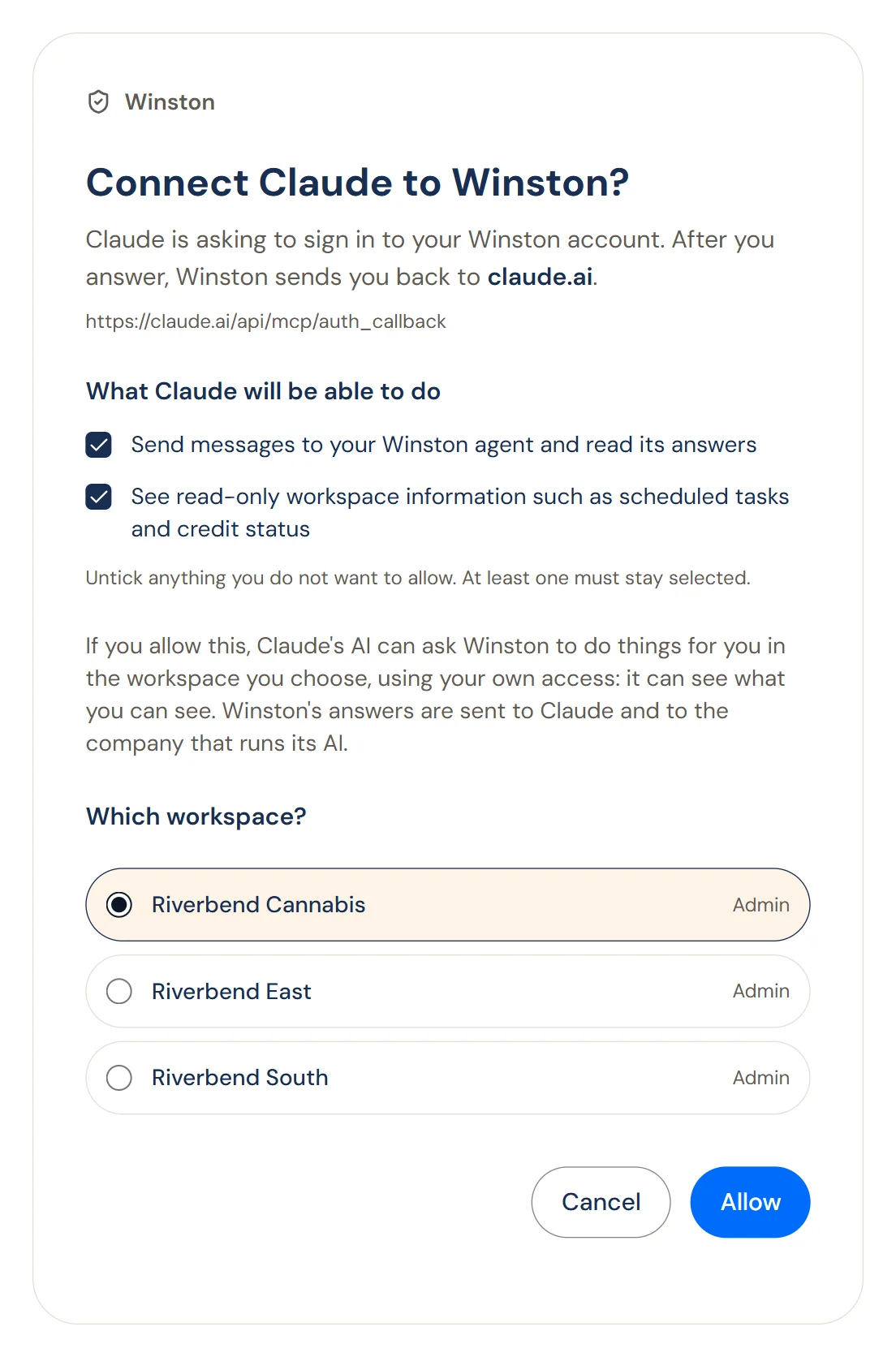
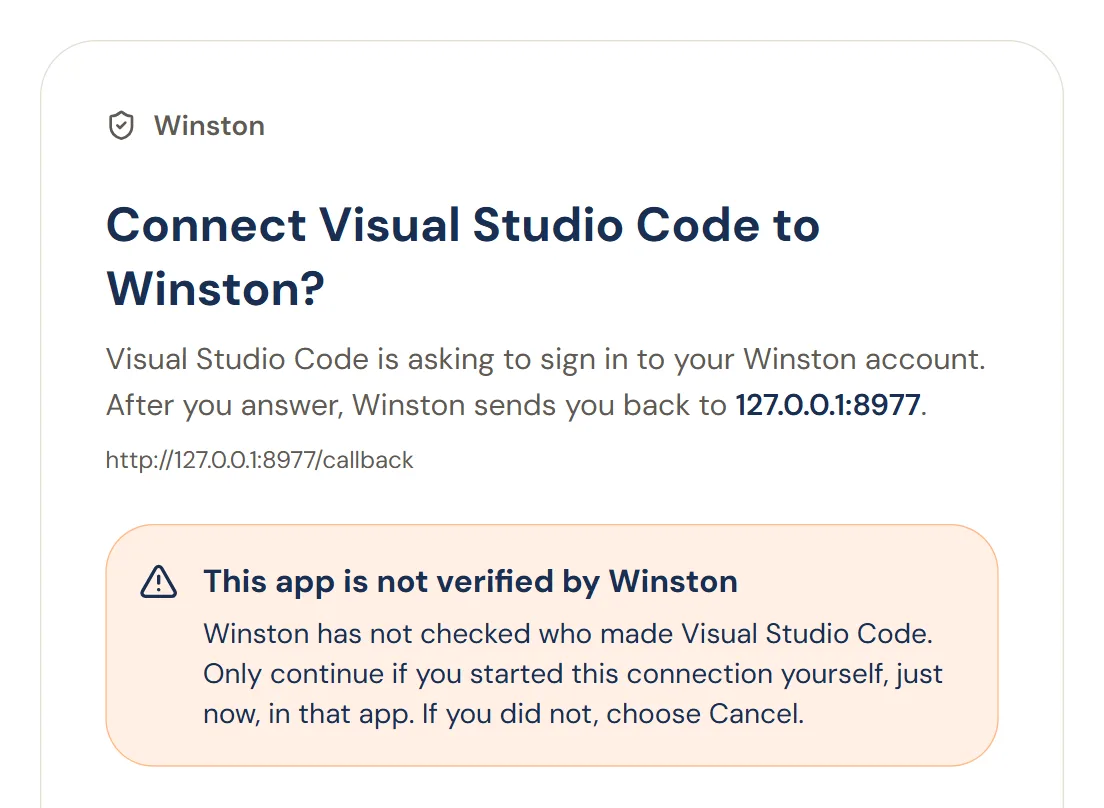
Your AI tool opens a Winston page headed Connect <app> to Winston? You see this page for every new app, even if you are already signed in to Winston. Your AI tool never sees your Winston password.
- Check the app name is the one you just set up, and where Winston says it will send you back to. For Claude that is claude.ai. For an app that runs on your own computer, such as VS Code or Claude Code, it is an address that starts with
127.0.0.1orlocalhost. If you did not start this connection, choose Cancel. - Claude, ChatGPT and Claude Code are verified by Winston. Any other app, VS Code and Cursor included, shows This app is not verified by Winston. That is expected for those apps. If you see it on something that calls itself Claude or ChatGPT, choose Cancel.
- Leave both permissions ticked: Send messages to your Winston agent and read its answers, and See read-only workspace information such as scheduled tasks and credit status. If you untick the second, the app cannot list scheduled tasks.
- Under Which workspace?, pick one. A connection works with one workspace; to use another, connect again and pick that one.
- Choose Allow.
4. Try it
In your AI tool, ask What Winston tools are available? You should see:
Then ask something real, the way you would in Chat: Ask Winston for yesterday's top five products. Your AI tool waits up to 45 seconds; if Winston needs longer, the tool is told it is still working and collects the answer when it is ready. Winston stops a request after 15 minutes. See Asking Winston for how to scope a request.
Winston asks before it acts
From an AI tool, Winston does not send an email or a message, post to a channel, create or change a scheduled task, or change data in your POS or another connected system straight away. It says exactly what it would do and waits for a clear yes in a later message. Instructions hidden in text you paste, such as a supplier email or a web page, are treated as content, not as requests from you.
Where your conversations live
- Conversations you start from an AI tool are kept apart from your dashboard chats, Slack, Teams, iMessage and scheduled tasks. They do not appear in the dashboard's chat list, and your AI tool cannot open those other conversations.
- Winston's answers come back only to your AI tool. They are not posted to Slack, Teams or email as well.
- When your AI tool reads back a conversation, it gets the messages, not the steps Winston took behind the scenes.
- Commands that start with
/do not work here. Ask in plain words instead.
Limits
Winston works on up to four requests at once per workspace, across Chat, Slack, Teams, iMessage and AI tools together. When it is busy, your request waits its turn and your AI tool is told it is queued. Requests use your workspace's credits; if the workspace is out of credits or suspended, Winston says so and does not start.
Who can see what
- Members see only their own connected apps and their own AI tool conversations.
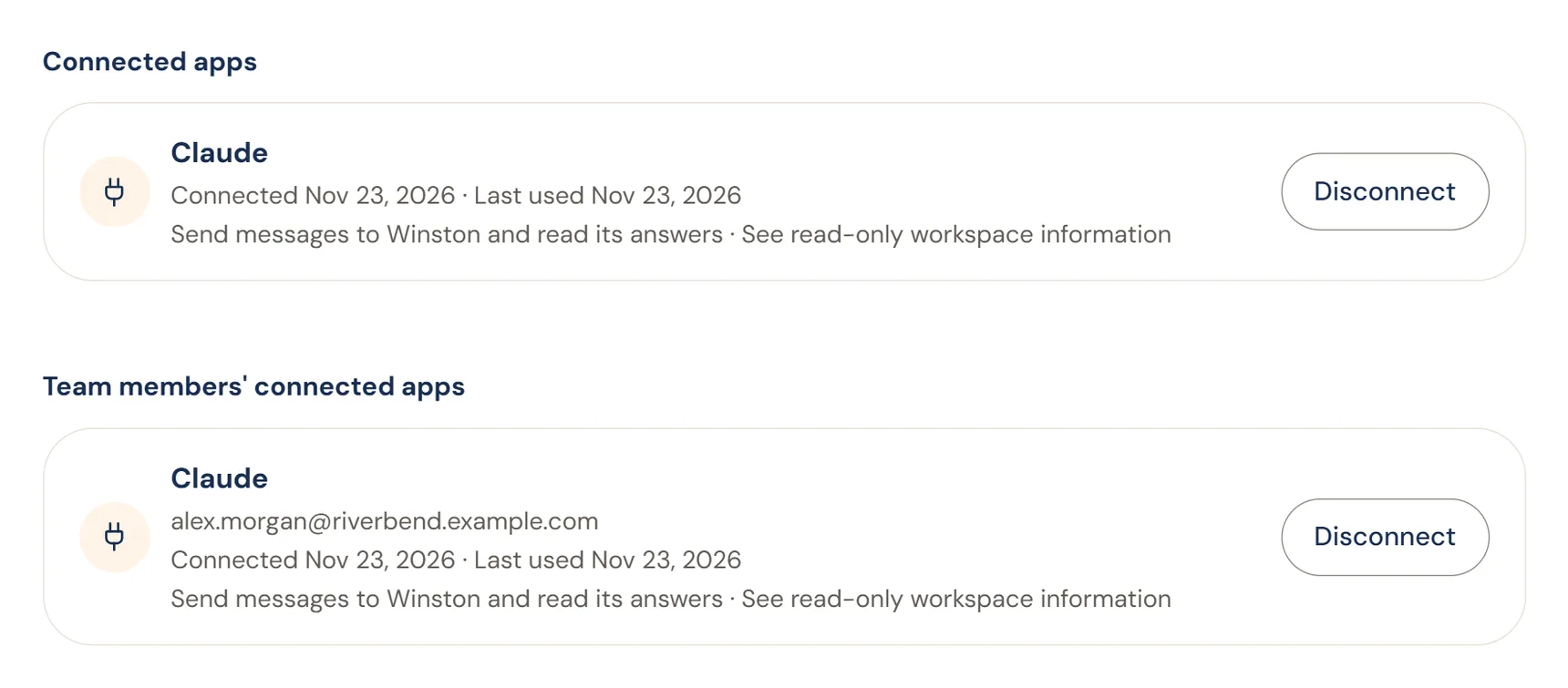
- Owners and Admins also see Team members' connected apps, can disconnect any of them, and can read every AI tool conversation in the workspace.
- Winston answers with your own access: an AI tool sees what you can see in that workspace. If your role changes, the connection follows within about a minute.
- Winston's answers go to your AI tool and to the company that runs it, under that company's terms.
Disconnect
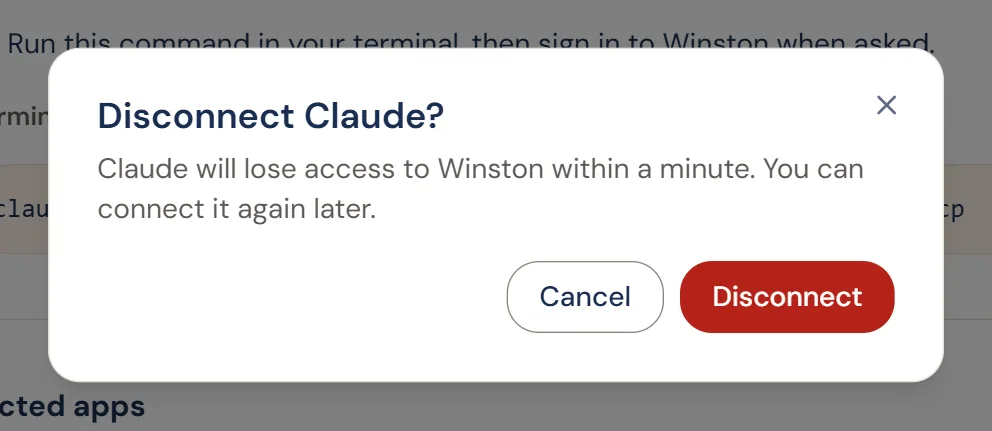
Open Settings → AI tools, choose Disconnect next to the app, and confirm. It loses access within a minute. You can connect it again later. Removing someone from the workspace disconnects all of their apps.
A connection lasts up to 30 days from when you approved it. After that your AI tool asks you to approve the Winston page again; nothing else is lost.
If something goes wrong
For the other ways to reach Winston, see Connect your tools, Use Winston in Slack and Text Winston by iMessage.