Start here

Connect Klaviyo

Connecting Klaviyo lets Winston answer questions about your email and SMS marketing: who is on a list or segment, how a campaign or flow performed, and what a customer received. You create a read-only private API key in Klaviyo, then paste it into Winston. This page shows each screen.

Before you start

  • You need to be an Owner or Admin in Winston.
  • You need a Klaviyo login that can create private API keys. If you don't see Create Private API Key in step 1, ask the owner of your Klaviyo account to create the key or change your role.
The connection belongs to the Winston workspace, not only to you. Anyone in the workspace can ask Winston about the Klaviyo data the key can read. A read-only key lets Winston look, never send, edit or delete.

1. Create a read-only key in Klaviyo

In Klaviyo, open Settings → API keys and choose Create Private API Key. Don't use the Public API Key / site ID at the top of the page: it's the six-character code for sign-up forms and doesn't work in Winston.
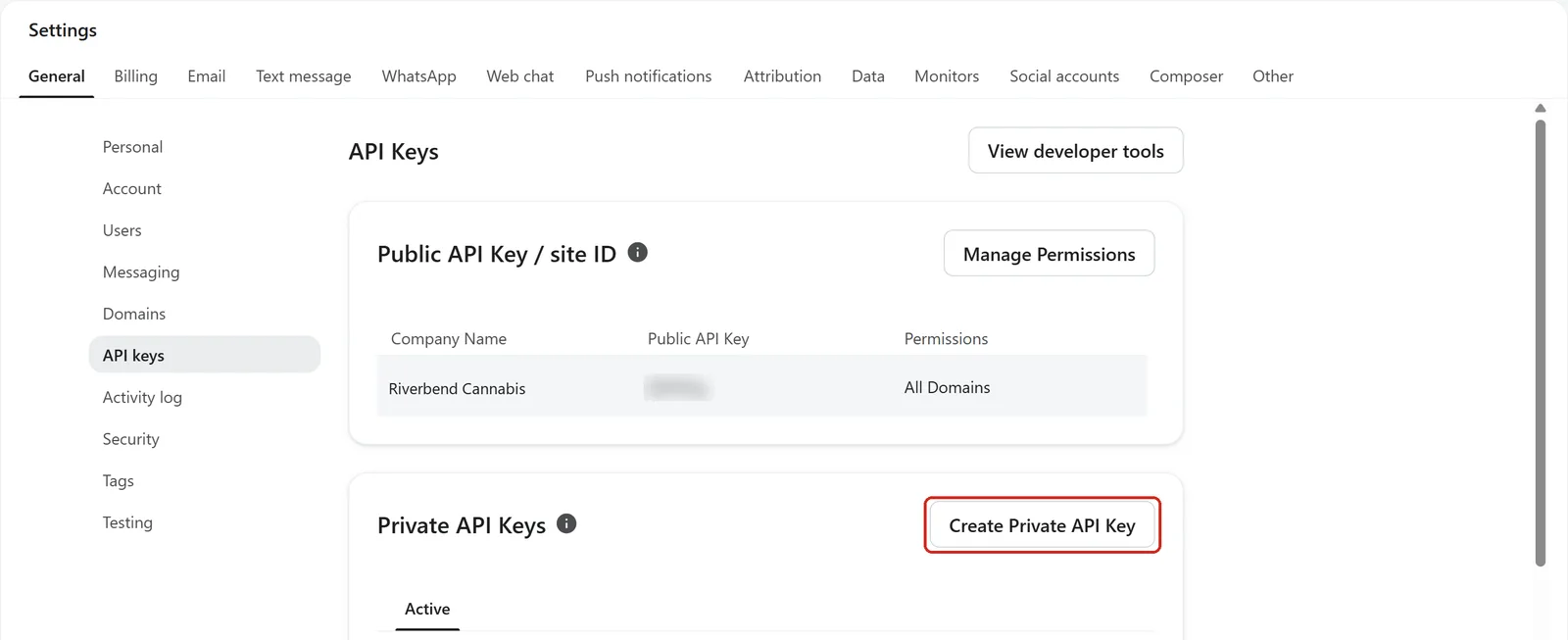
Klaviyo's Settings, API keys page with the Public API Key / site ID table and the Create Private API Key button outlined under Private API Keys
Settings → API keys. Choose Create Private API Key.

Name the key something you'll recognize, such as Winston. Under Select Access Level, choose Read-Only Key, then choose Create. Klaviyo starts on Custom Key with every scope set to No Access, so a key created without changing this can't read anything.
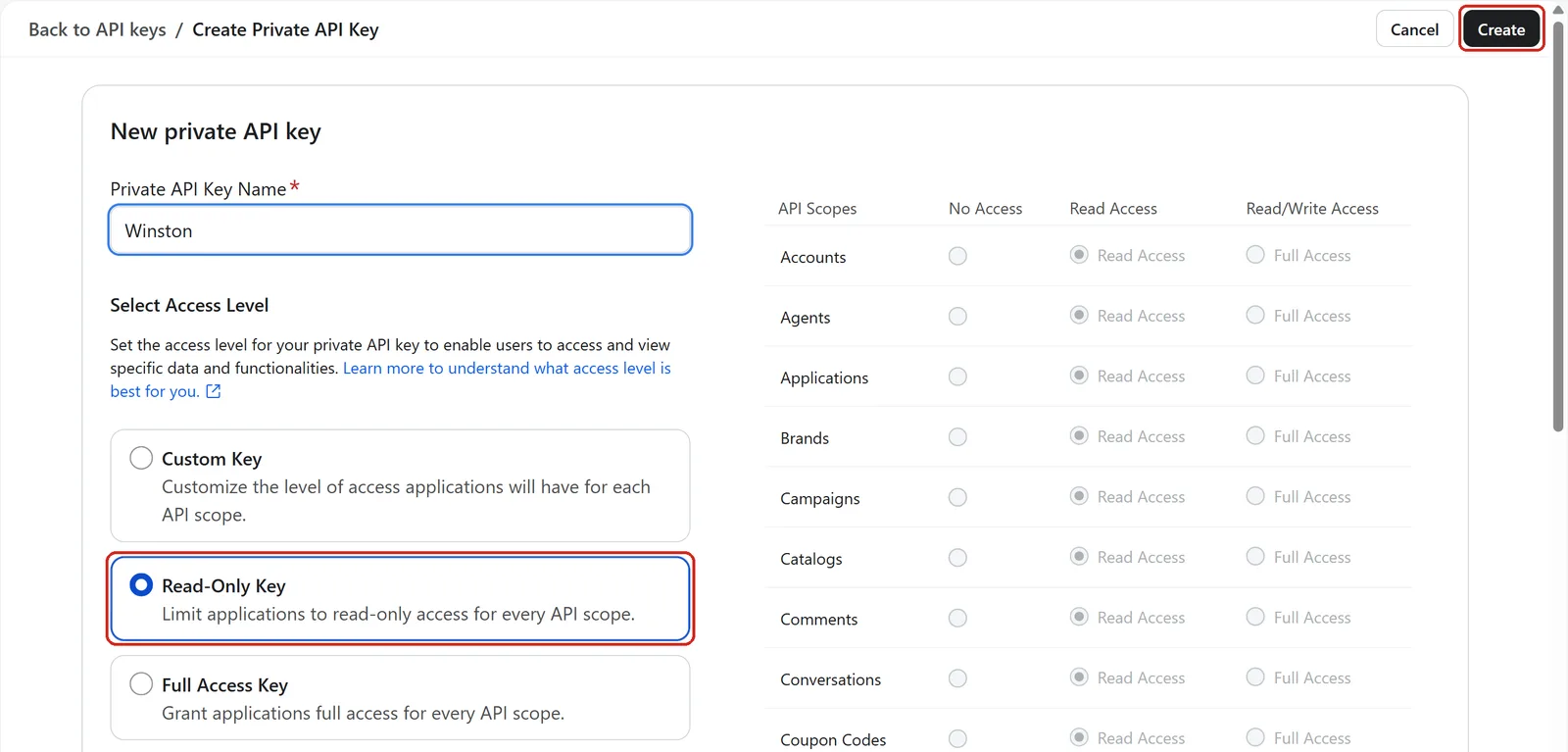
Klaviyo's New private API key form with the name Winston, Read-Only Key selected and outlined, every scope on the right set to Read Access, and the Create button outlined
Name it, choose Read-Only Key, then Create.

Klaviyo shows the new key, starting with pk_, once. Choose the copy button next to it and go straight on to the next step. If you close the page before pasting the key into Winston, delete the key and create a new one.
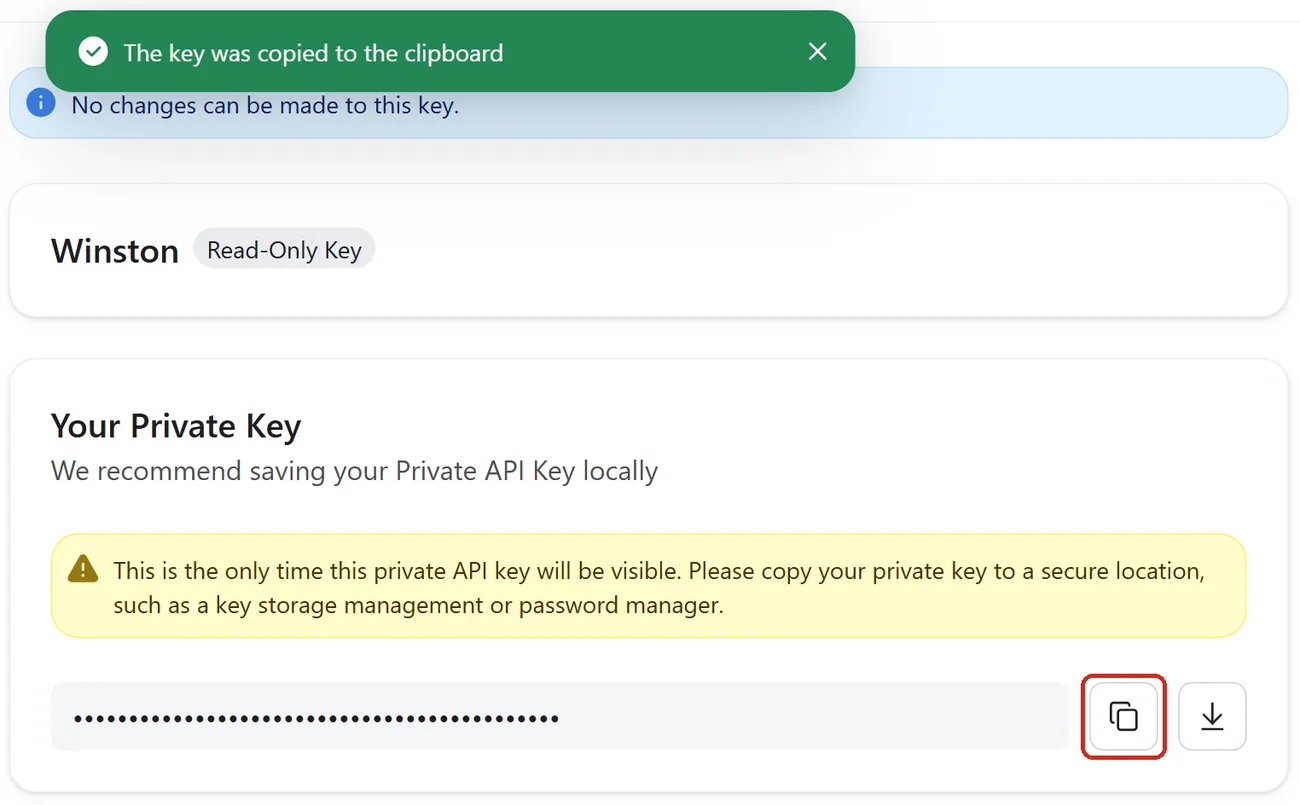
Klaviyo's Private API Key Confirmation page for the Winston Read-Only Key, warning that this is the only time the key will be visible, with the key hidden as dots, the copy button outlined and a toast saying the key was copied to the clipboard
Klaviyo shows the key once. Copy it.
Treat the key like a password: paste it only into Winston's Klaviyo dialog, never into Chat, an email or a support message.

2. Connect it in Winston

In Winston, open Settings → Connections, find the Klaviyo card (under Marketing, or type "Klaviyo" into the search box) and choose Connect.
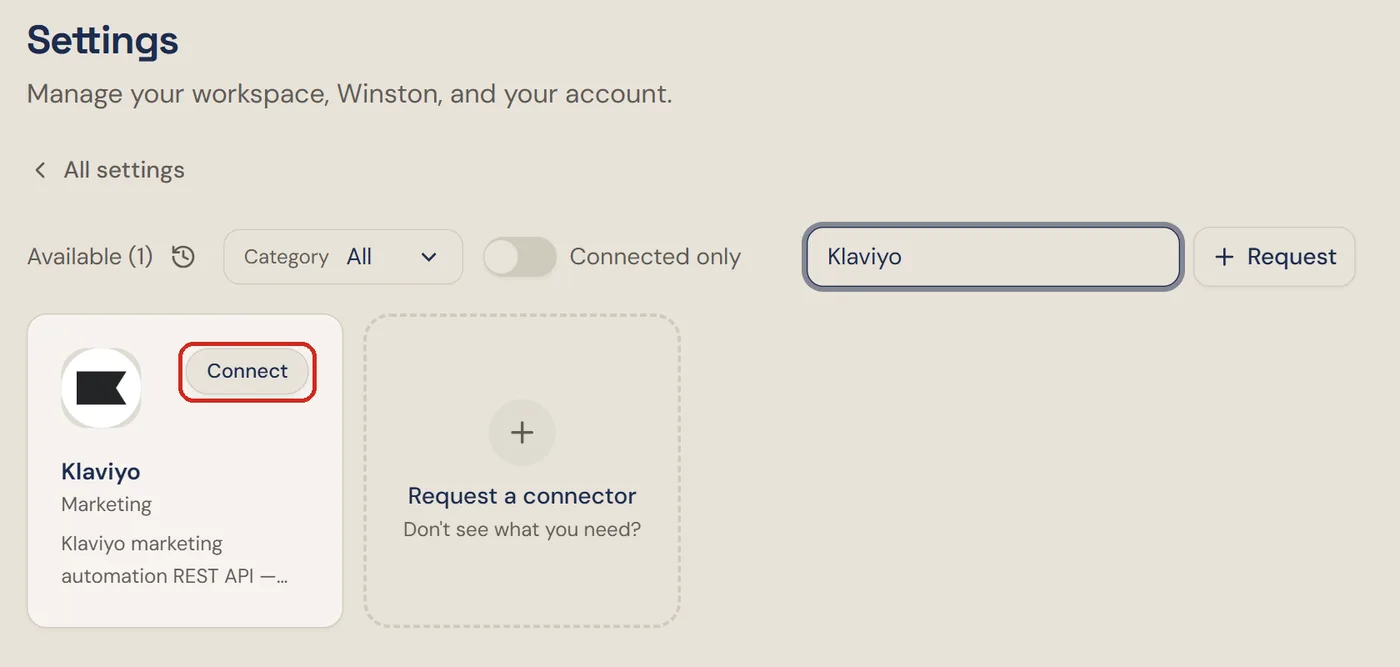
The Connections screen in Winston searched for Klaviyo, with the Klaviyo card's Connect button outlined
Settings → Connections. Find Klaviyo and choose Connect.

Paste the key into Private API Key and choose Connect.
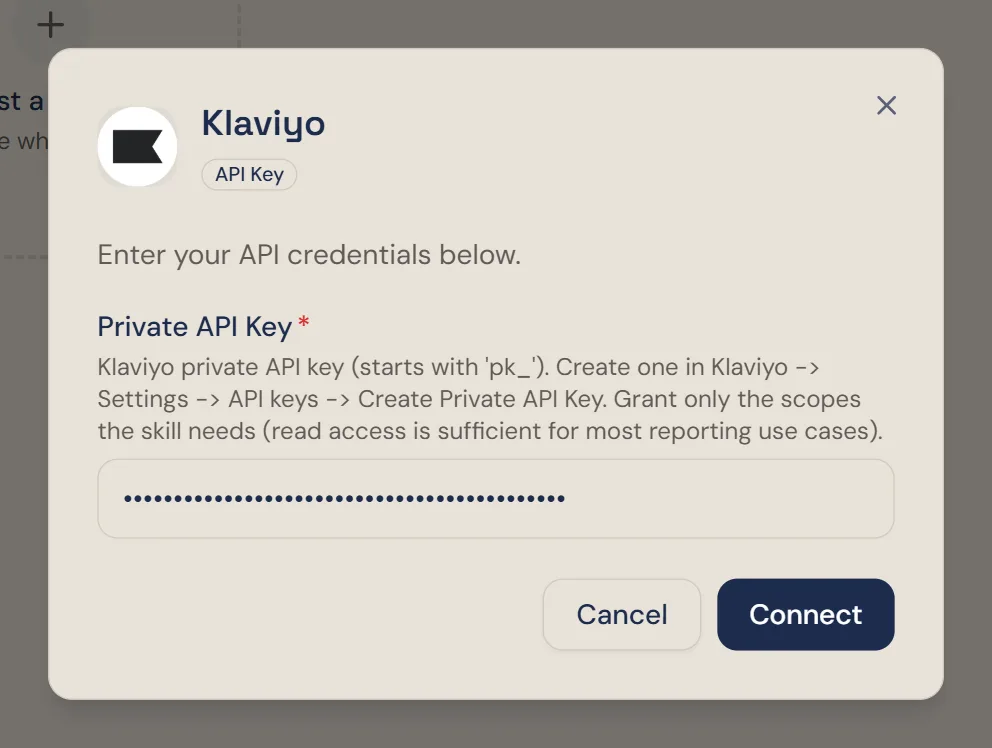
Winston's Klaviyo dialog with an API Key badge, the private API key pasted in and shown as dots, and Cancel and Connect buttons
Paste the key and choose Connect.

3. Check it is connected

The dialog closes and the Klaviyo card shows Connected. Nothing else needs to be set up.
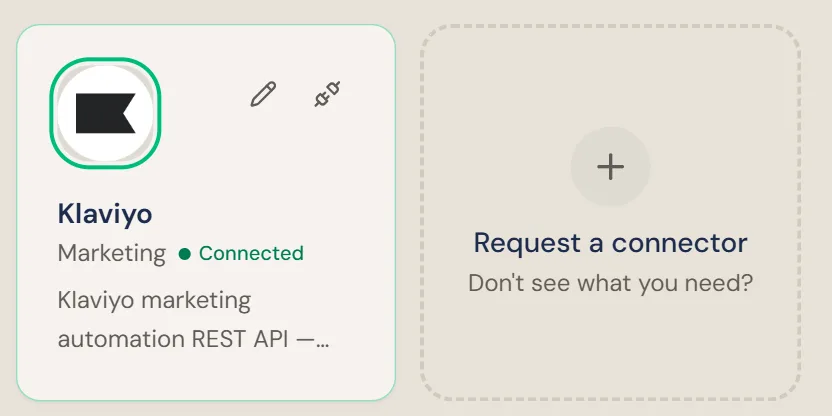
The Klaviyo card on the Connections screen with a green Connected badge and edit and disconnect icons
The Klaviyo card after connecting. The pencil replaces the key; the plug icon disconnects.

Then ask Winston something only Klaviyo knows, for example "Which Klaviyo campaigns had the best open rate last month?" Asking about Klaviyo works like any other question in Chat; see Asking Winston.

Which access level to choose

Klaviyo optionUse it when
Read-Only KeyRecommended. Winston can read lists, segments, profiles, campaigns, flows, metrics, catalogs and coupons, and run campaign and flow reports. It can't send, edit or delete anything.
Custom KeyYou want Winston to see less, for example only campaigns, flows and metrics. Set each scope Winston needs to Read Access; questions about anything left on No Access will fail.
Full Access KeyNot needed. Winston doesn't change your Klaviyo account today, and a full-access key could send messages or delete profiles if it leaked.

Replace the key

If the key is lost, leaked or deleted, create a new read-only key in Klaviyo as above. Then choose the pencil on the Klaviyo card, paste the new key and choose Save Changes. Delete the old key under Settings → API keys in Klaviyo afterwards; it stops working straight away.
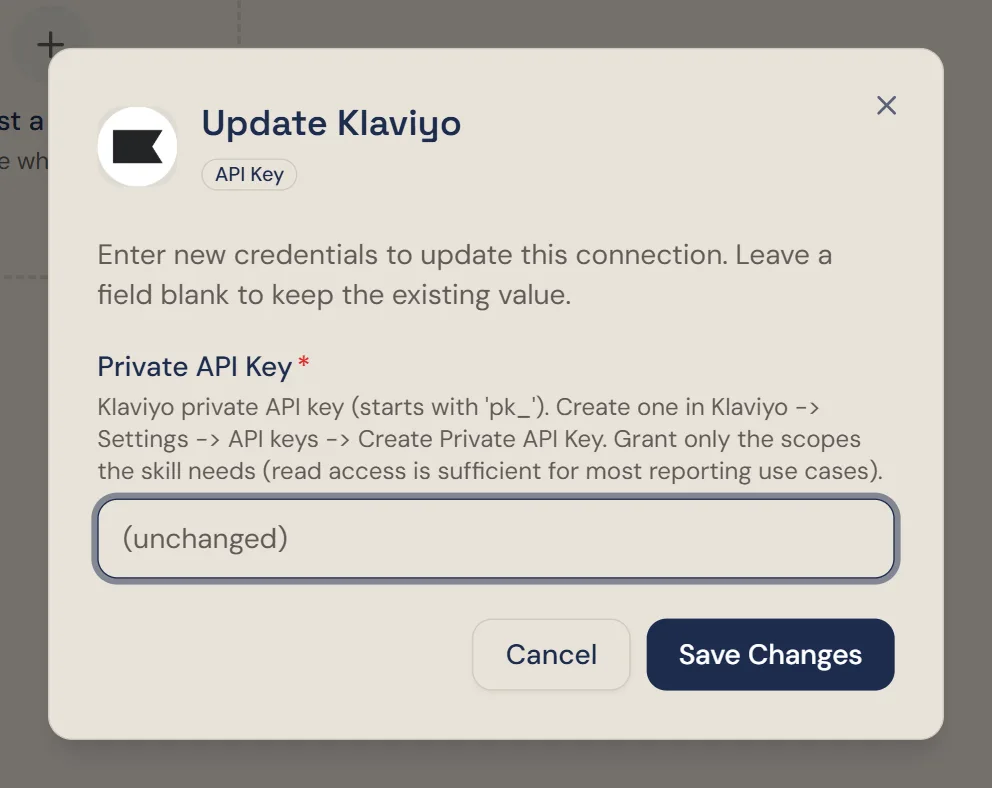
Winston's Update Klaviyo dialog, explaining that a blank field keeps the existing value, with a Private API Key field and a Save Changes button
Update Klaviyo. Paste the new key; leaving the field blank keeps the current one.

Disconnect

To stop Winston reading Klaviyo, choose the plug icon on the Klaviyo card and confirm Disconnect. This applies to the whole workspace.
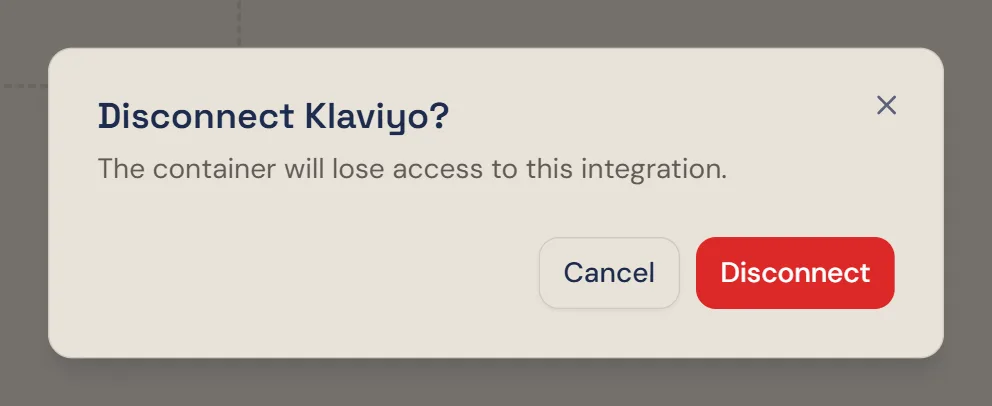
The confirmation dialog titled Disconnect Klaviyo?, with Cancel and Disconnect buttons
Disconnecting is workspace-wide. Confirm, and the card goes back to Connect.

Disconnecting in Winston doesn't change anything in Klaviyo. To make sure the key can't be used again, delete it under Settings → API keys in Klaviyo.

If something does not work

What you seeWhat to do
No Create Private API KeyYour Klaviyo role can't create private keys. Ask the owner of your Klaviyo account to create the key or change your role.
Connect failsCheck you pasted the private key, which starts with pk_, not the six-character public key or site ID.
Some questions failThe key is a Custom Key without read access to that area. Create a Read-Only Key and paste it with the pencil on the Klaviyo card.
Stopped workingKlaviyo questions worked before and now don't. The key was probably deleted in Klaviyo. Create a new read-only key and paste it with the pencil on the Klaviyo card.

For other connections, see Connect your tools. Anything else, see Troubleshooting or contact Support from the dashboard.