Use Winston in Slack
Winston works in Slack in two ways. It can send you notifications, and it can answer when you message it directly or mention it in a channel. Both start with a Slack app that you create for your workspace; this page takes you through it one screen at a time.
The Bot Token lets Winston act in Slack: post messages and read the conversations it has been added to. The App-Level Token keeps a live connection open so Slack can pass new messages to Winston as they arrive. Without it, Winston can talk but cannot hear.
Before you start
- You need to be an Owner or Admin in Winston.
- You need permission to install apps in your Slack workspace. If your workspace requires approval, a Slack admin approves the install at step 6.
- Allow about ten minutes.
1. Create the Slack app from the manifest
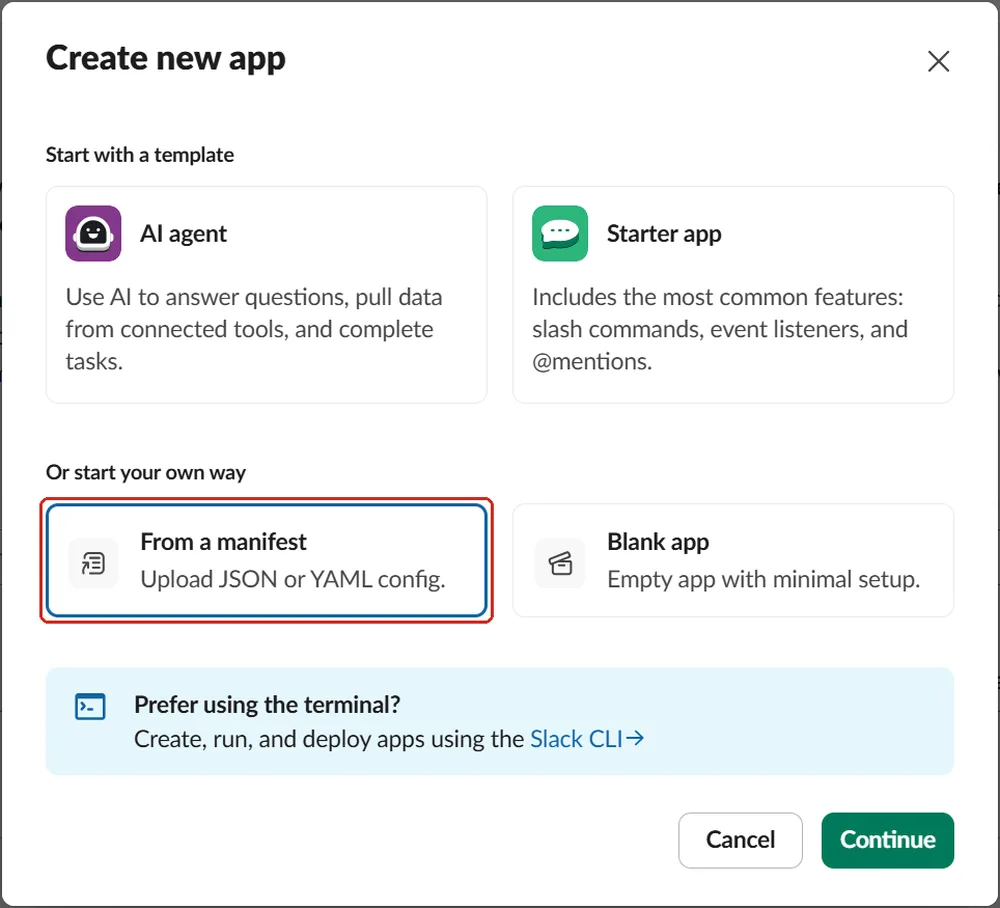
Go to api.slack.com/apps, sign in to your workspace and choose Create an App. Pick From a manifest. A manifest is a short block of settings that sets up the app's permissions, events and messaging in one step, so you do not have to tick each one.
On the JSON tab, replace everything in the manifest box with the text below. Under the box, choose your Workspace, then Next. Slack shows a summary of what the app can do; choose Create.
{
  "display_information": {
    "name": "Winston",
    "description": "Ask Winston about your business from Slack.",
    "background_color": "#2e3a59"
  },
  "features": {
    "app_home": {
      "home_tab_enabled": false,
      "messages_tab_enabled": true,
      "messages_tab_read_only_enabled": false
    },
    "bot_user": { "display_name": "Winston", "always_online": true }
  },
  "oauth_config": {
    "scopes": {
      "bot": [
        "app_mentions:read", "channels:history", "channels:read", "chat:write",
        "groups:history", "im:history", "im:read", "im:write",
        "mpim:history", "users:read"
      ]
    }
  },
  "settings": {
    "event_subscriptions": {
      "bot_events": [
        "app_mention", "message.channels", "message.groups",
        "message.im", "message.mpim"
      ]
    },
    "interactivity": { "is_enabled": true },
    "org_deploy_enabled": false,
    "socket_mode_enabled": true,
    "token_rotation_enabled": false
  }
}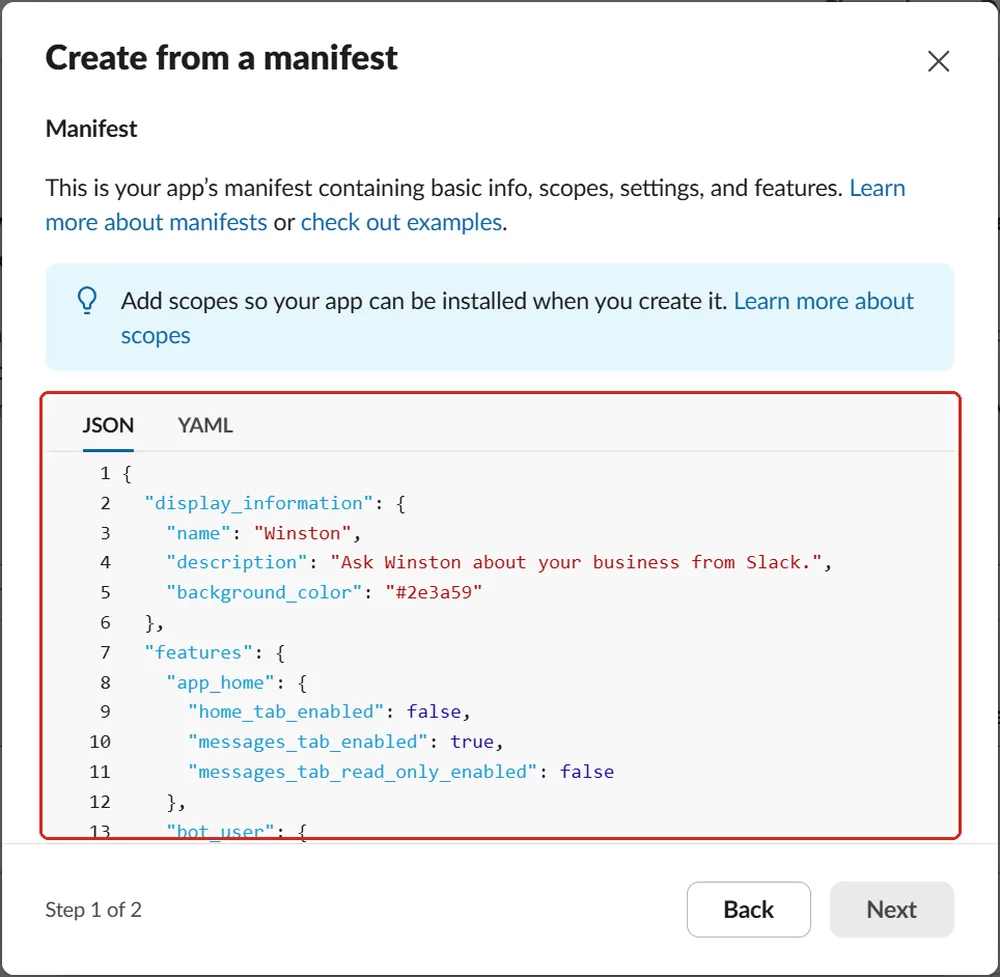
The manifest names the app Winston. You can rename it, for example to your company name, before you create it.
2. Create the App-Level Token
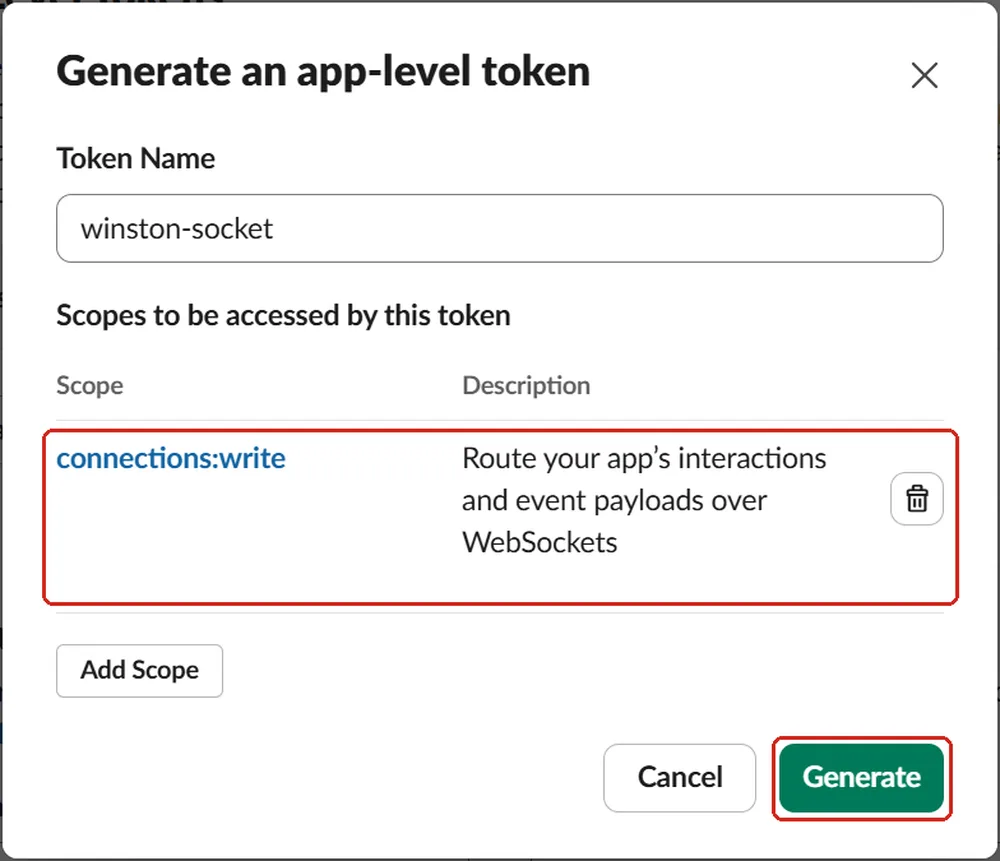
Skip this step if you only want notifications. In the app's settings open Basic Information, scroll to App-Level Tokens and choose Generate Token and Scopes. Give it any name, add the scope connections:write, and generate it.
3. Install the app and copy the Bot Token
Open Install App and choose Install to your workspace.
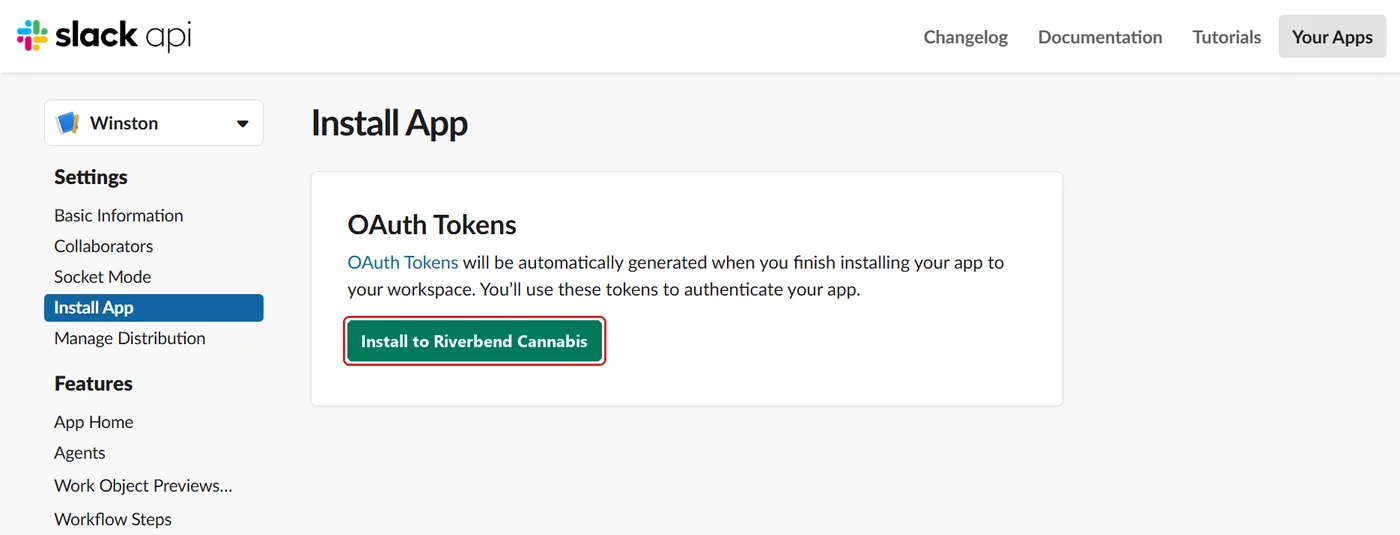
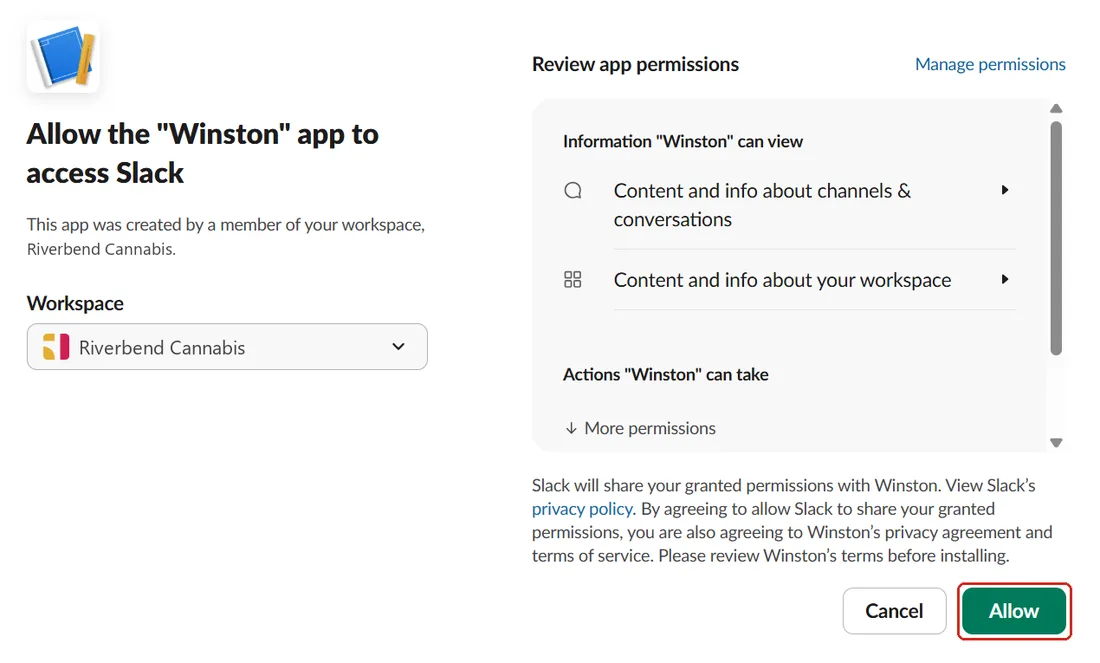
Slack lists what the app will be able to see and do. Check that the workspace at the top is the right one, then choose Allow.
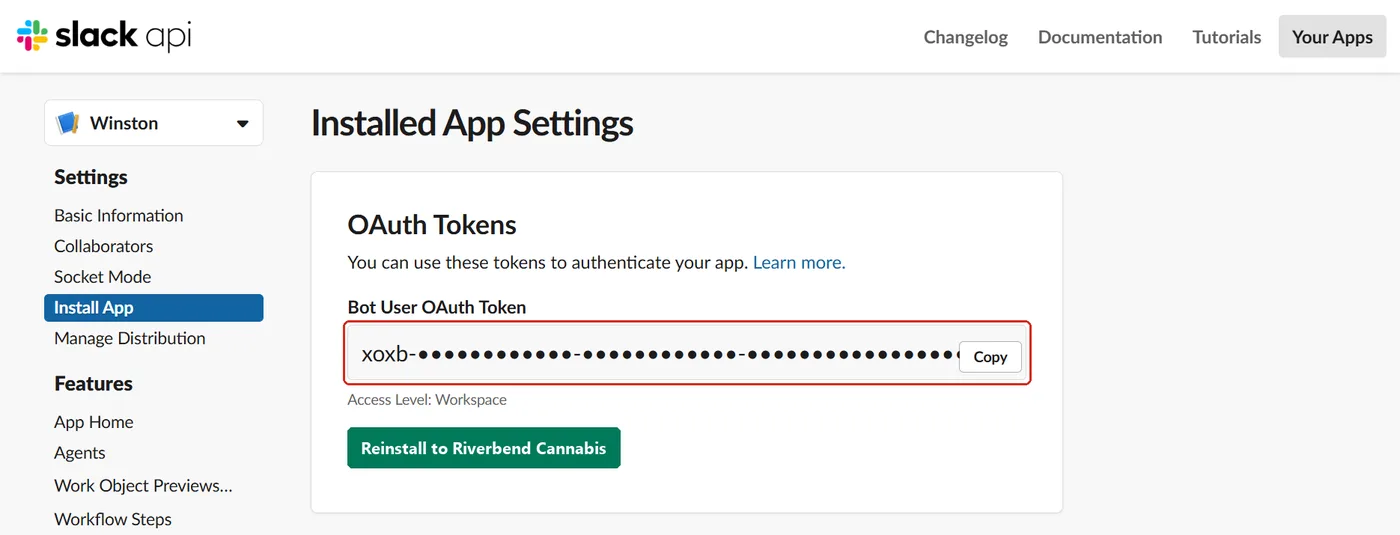
Back on Install App, copy the Bot User OAuth Token. It starts with xoxb-.
4. Connect it in Winston
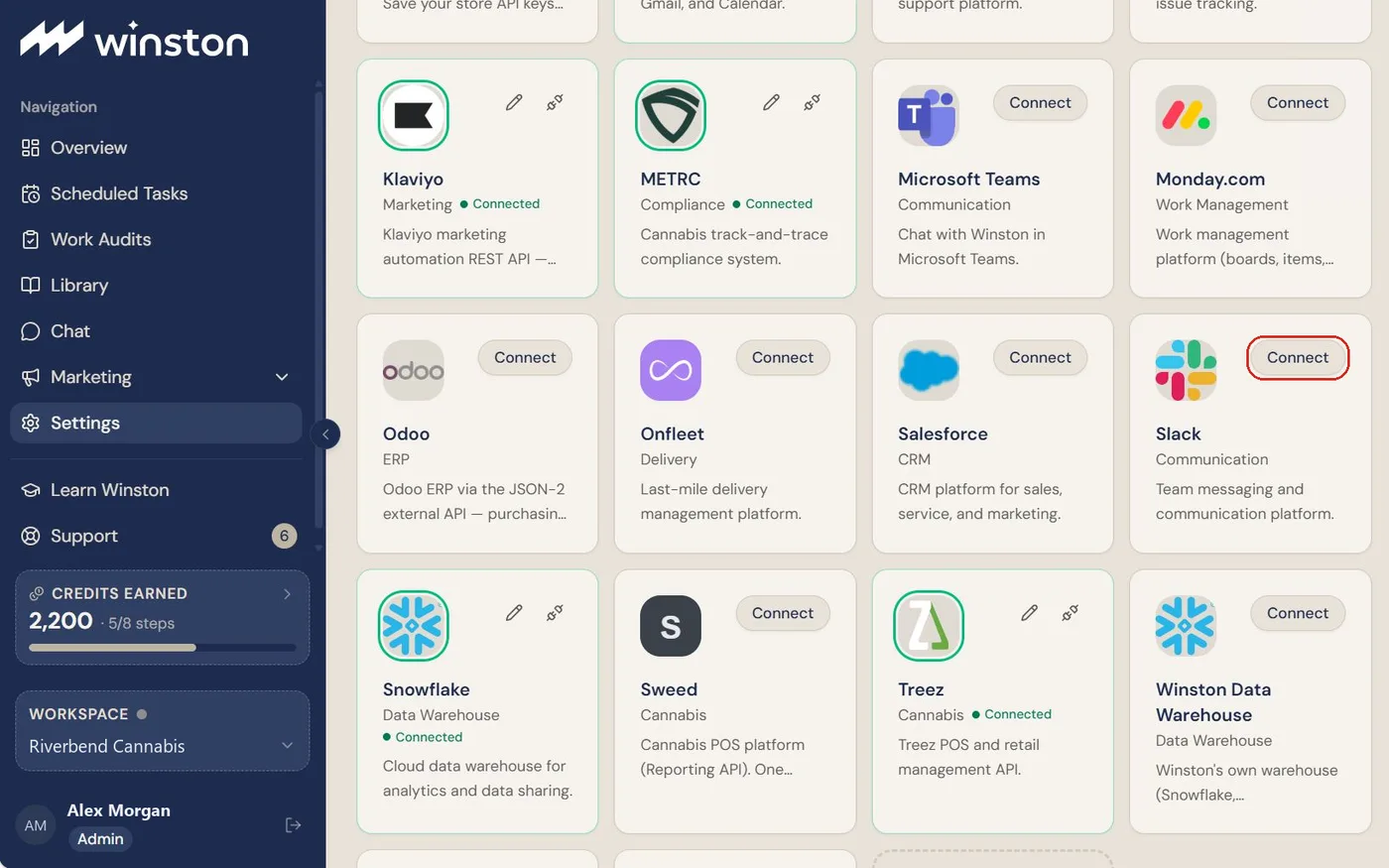
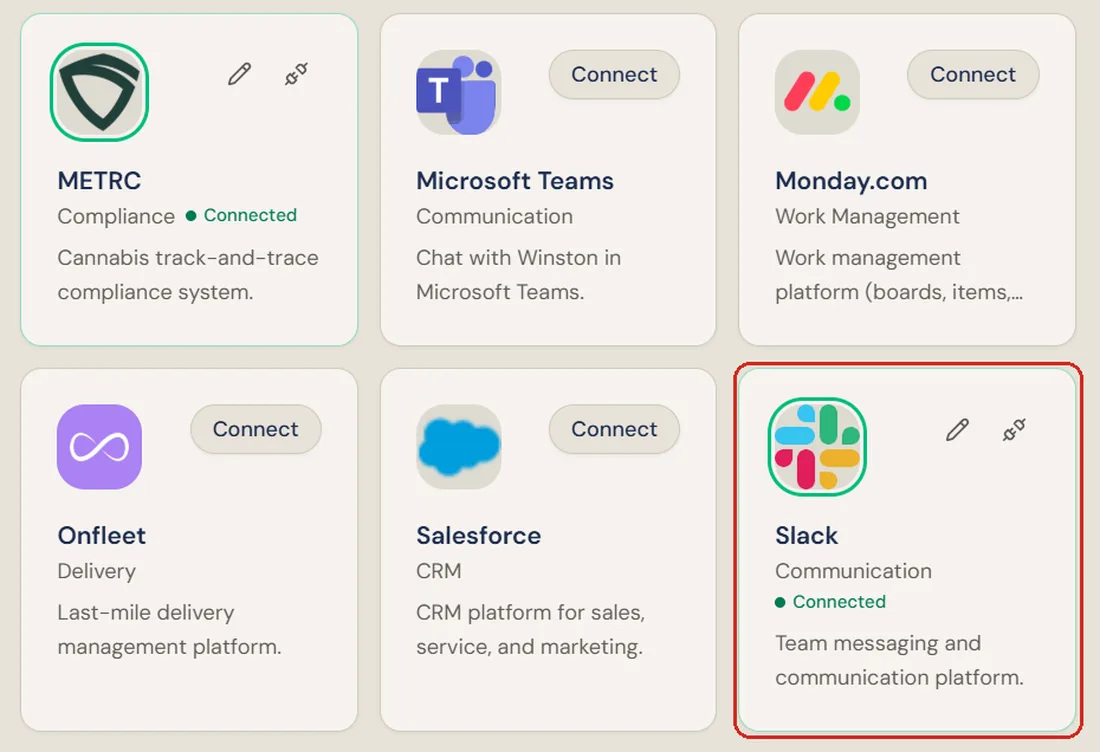
In Winston, open Settings → Connections and choose Connect on the Slack card.
Paste the Bot Token, and the App-Level Token if you want chat. Notification Channel is optional: leave it blank and Winston sends notifications as direct messages, or enter a channel ID to post them there. Then choose Connect.
The Slack connection dialog with Bot Token, App-Level Token and Notification Channel, and the restart note.
Winston checks both tokens with Slack before saving anything, so a mistyped token or a token from a different app is refused with a message. When you include an App-Level Token, Winston turns chat on, which restarts it for a few seconds. Anyone in the middle of a conversation in Winston may need to resend their last message.
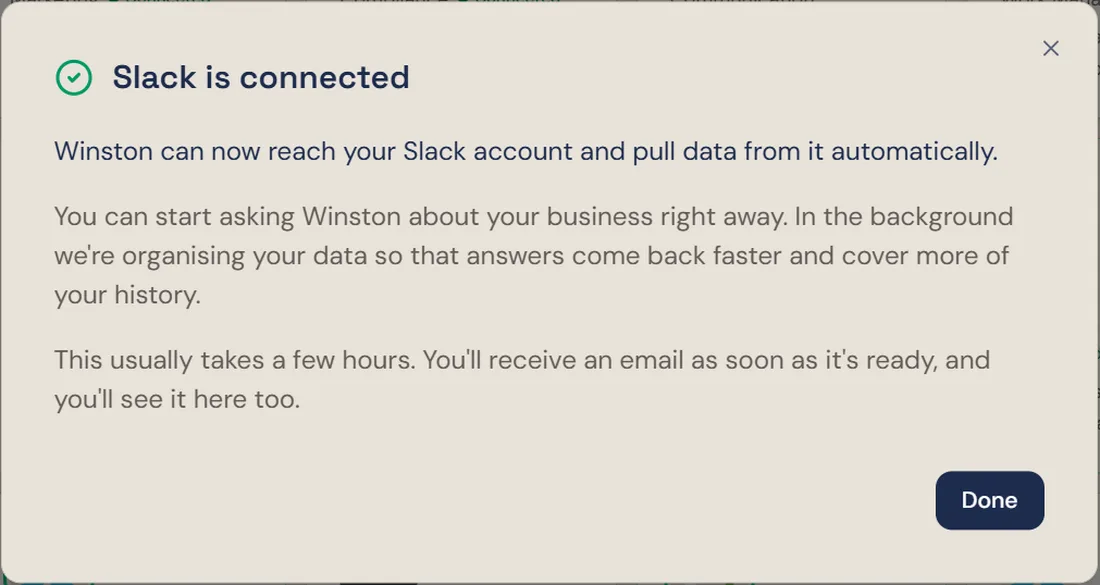
The Slack card shows Connected. With an App-Level Token it also shows Activating Slack chat… and then Slack chat on.
5. Message Winston in Slack
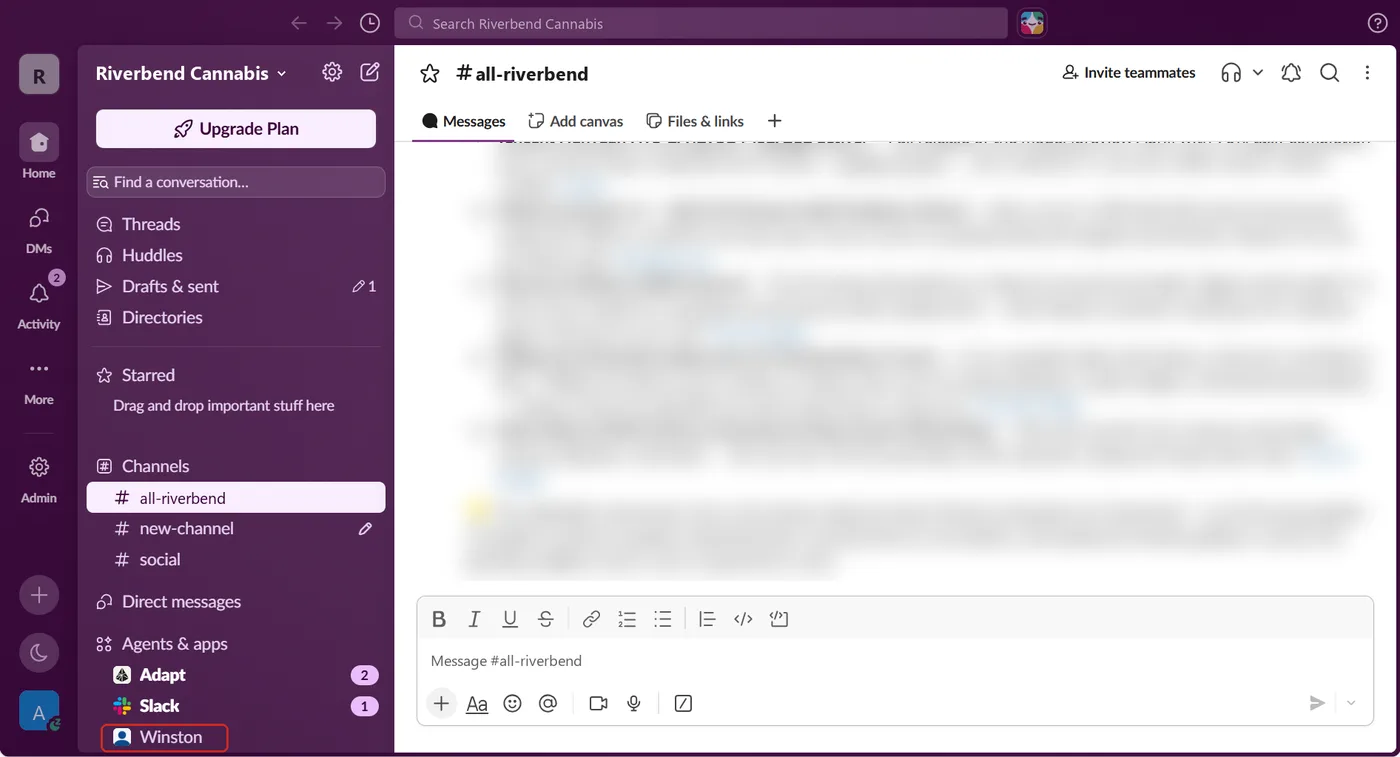
In Slack, Winston appears in the sidebar under Agents & apps. Open it to start a direct message.
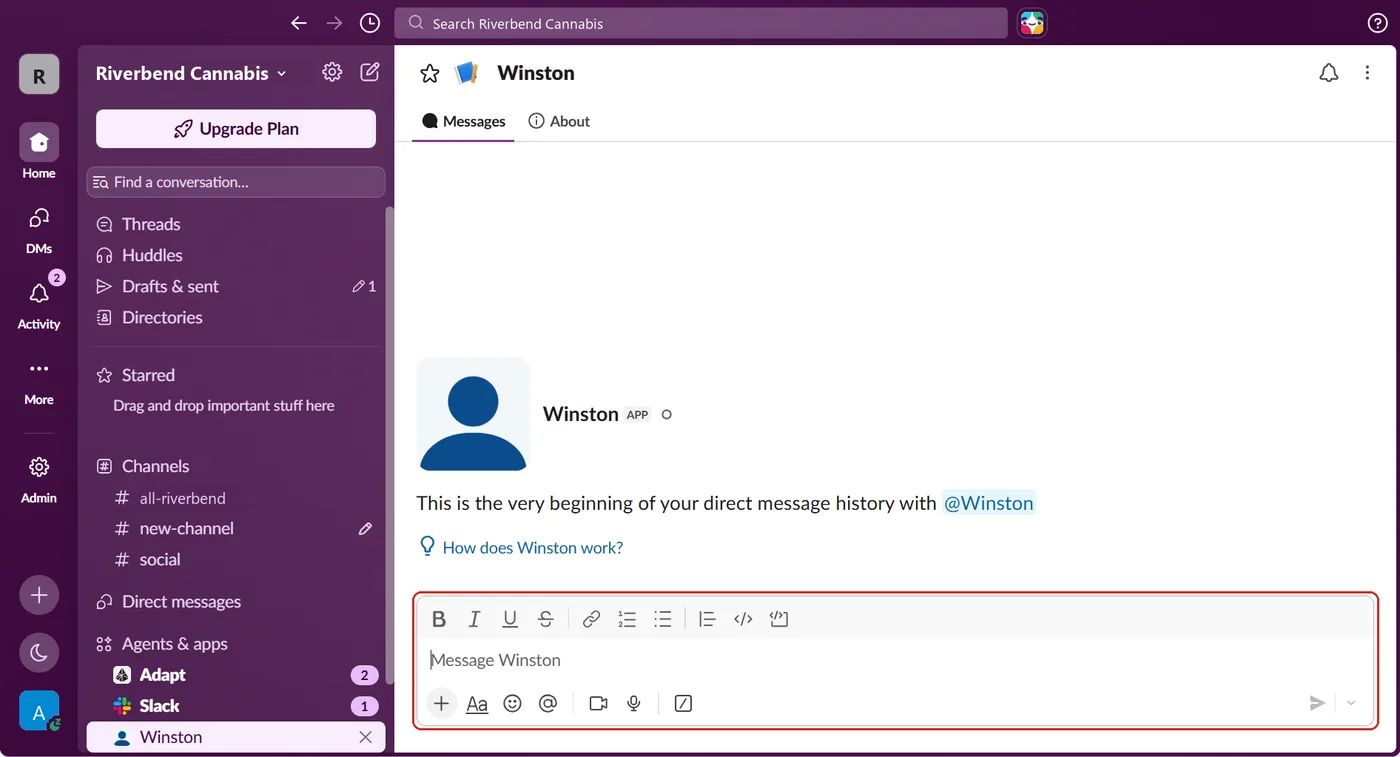
A direct message behaves like Chat in the dashboard: the same workspace, the same connected data and the same tools, and the same rules about what needs reviewing before anything happens. See Asking Winston and Review and approve.
Winston replying in a Slack direct message and naming its workspace.
To use Winston in a channel, add it first: type /invite @Winston in the channel. Then mention @Winston in a message and it replies in the thread.
A channel message mentioning @Winston, with Winston's reply in the thread.
If Winston does not reply
To stop using Slack, choose Disconnect on the Slack card. Winston removes both tokens and turns chat off. To remove the app from Slack as well, delete it at api.slack.com/apps. For scheduled posts into Slack, see Automation. For other connections, see Connect your tools.