Use Winston in Microsoft Teams
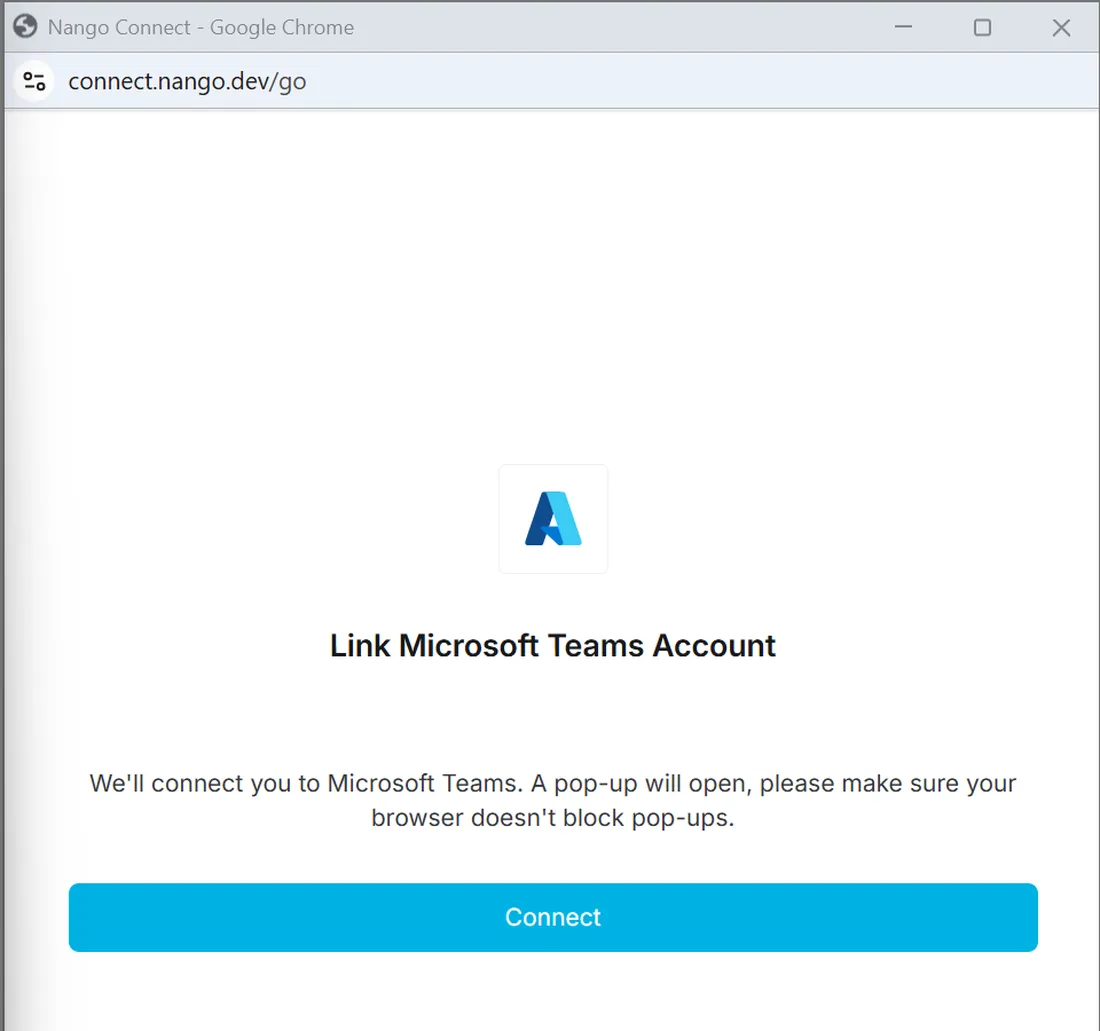
Connecting Microsoft Teams takes three parties: you, in Winston; whoever administers your Microsoft 365 tenant; and then everyone who wants to use it. Each step below shows what you should be looking at.
Connect it in Winston
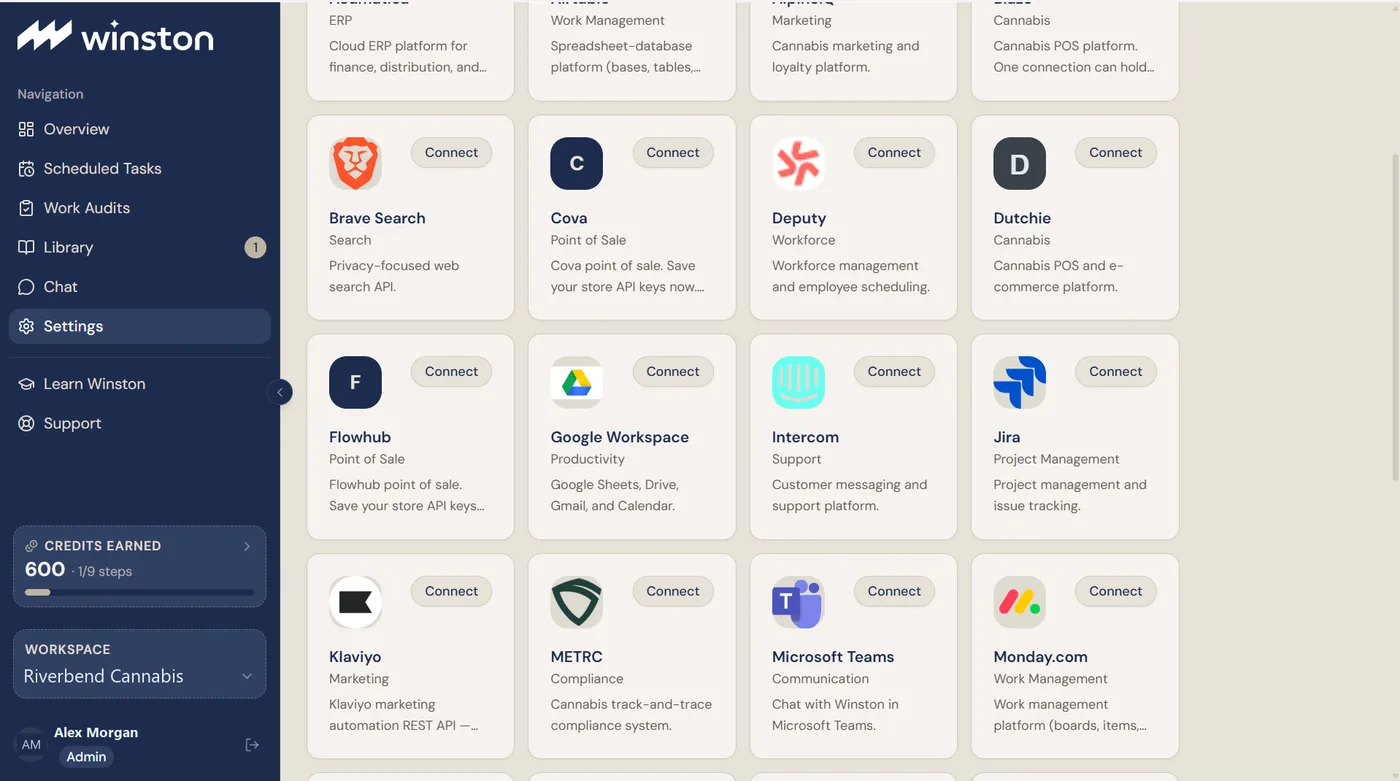
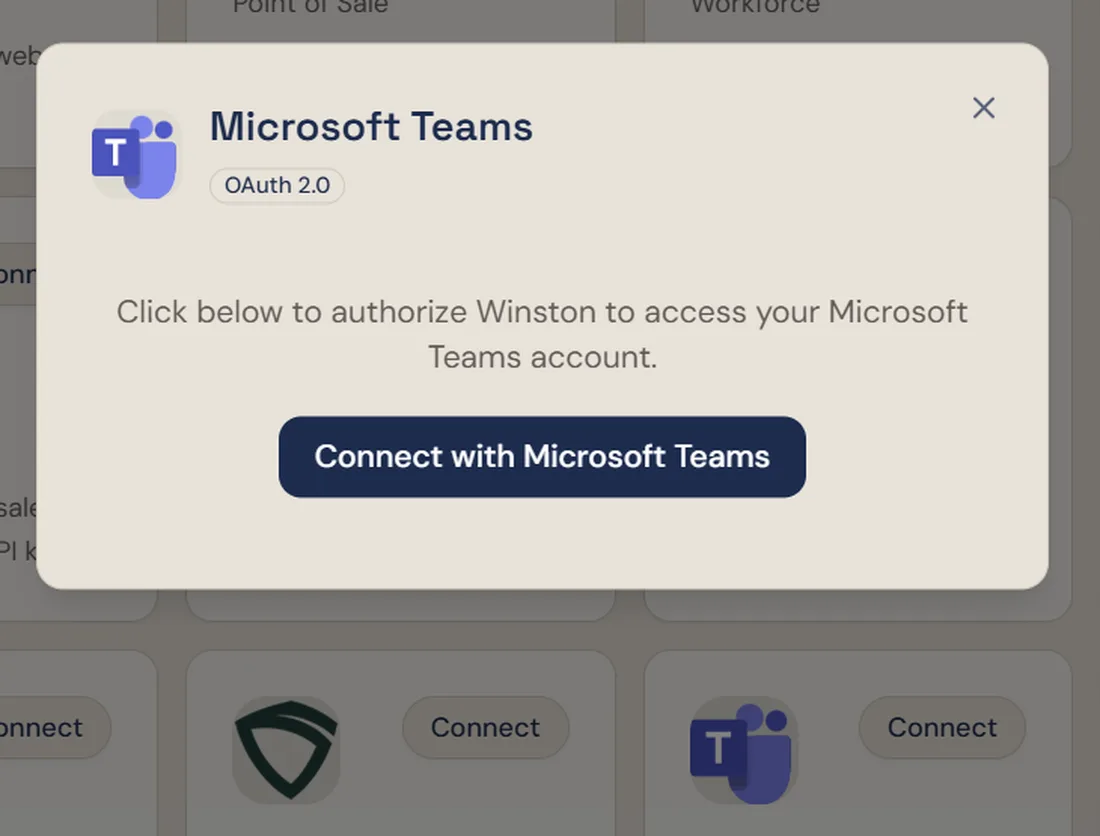
Open Settings → Connections and find the Microsoft Teams card. An Owner or Admin makes the connection.
Your Microsoft tenant has to approve it
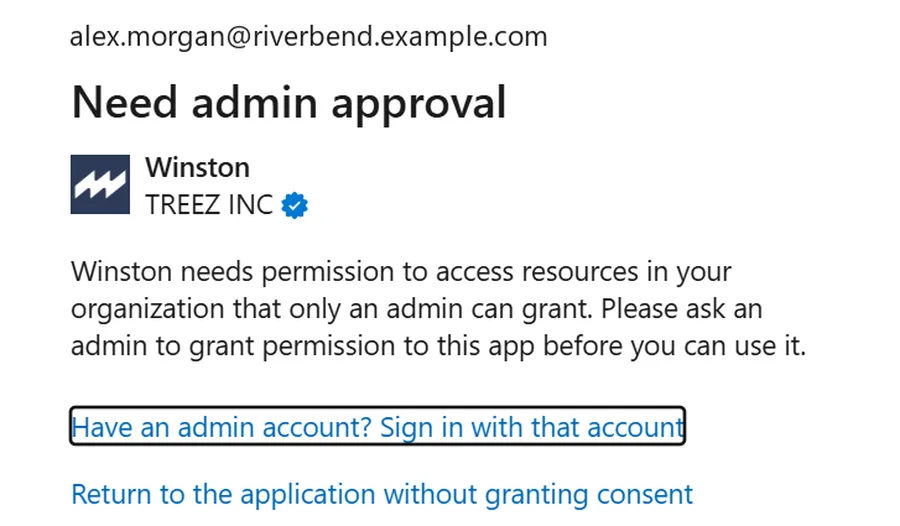
Winston asks for permissions that only a Microsoft 365 administrator can grant. If you are not one, Microsoft stops here and tells you so. This is a Microsoft control, not a Winston one; nothing is wrong with your workspace.
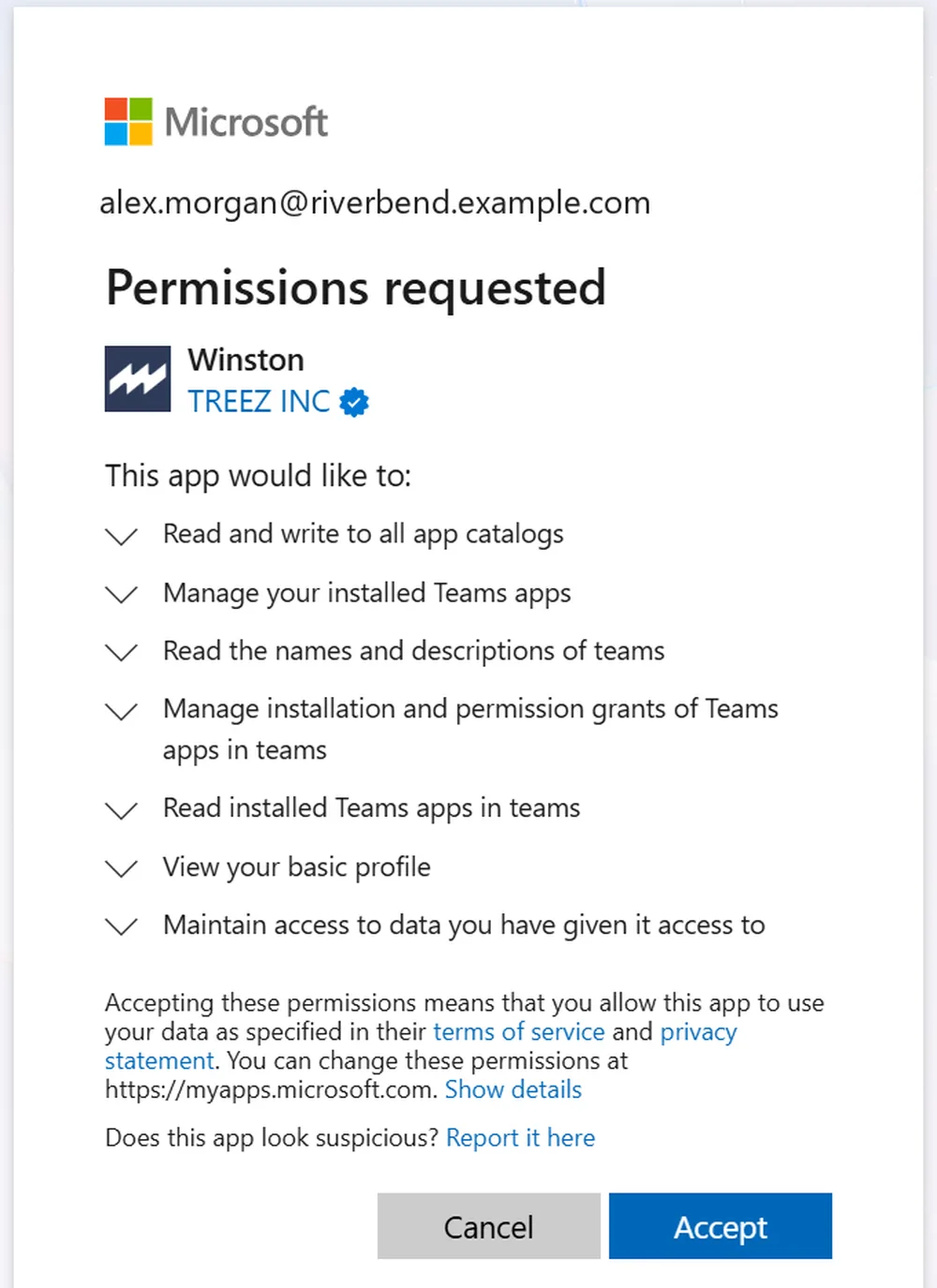
An administrator sees the consent screen instead. Check the publisher before accepting, and read what is being granted.
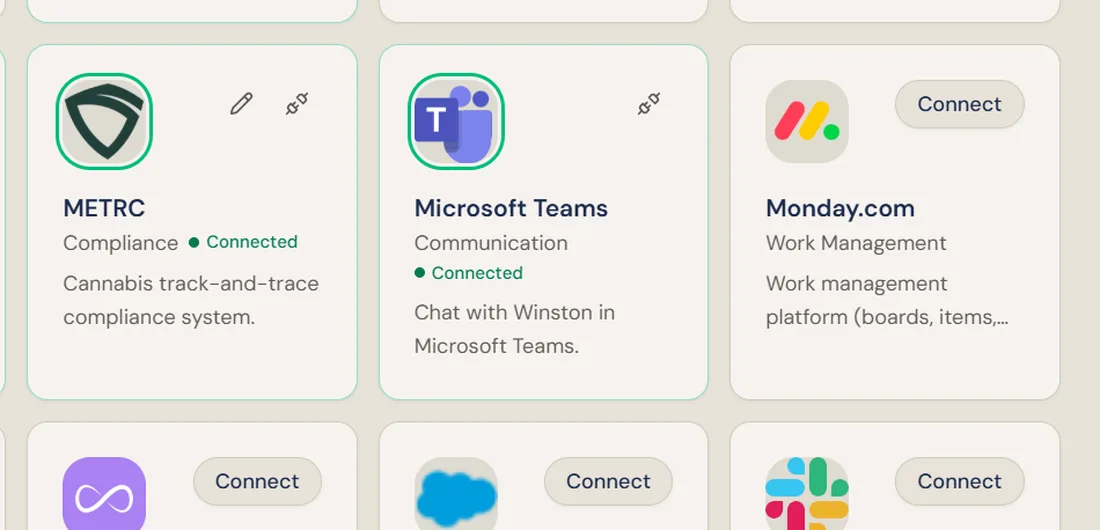
Back in Winston, the Microsoft Teams card shows Connected. As with any connection, Connected means the authorization succeeded; it does not by itself tell you which operations Winston supports there. See Connect your tools.
Make it available to your team
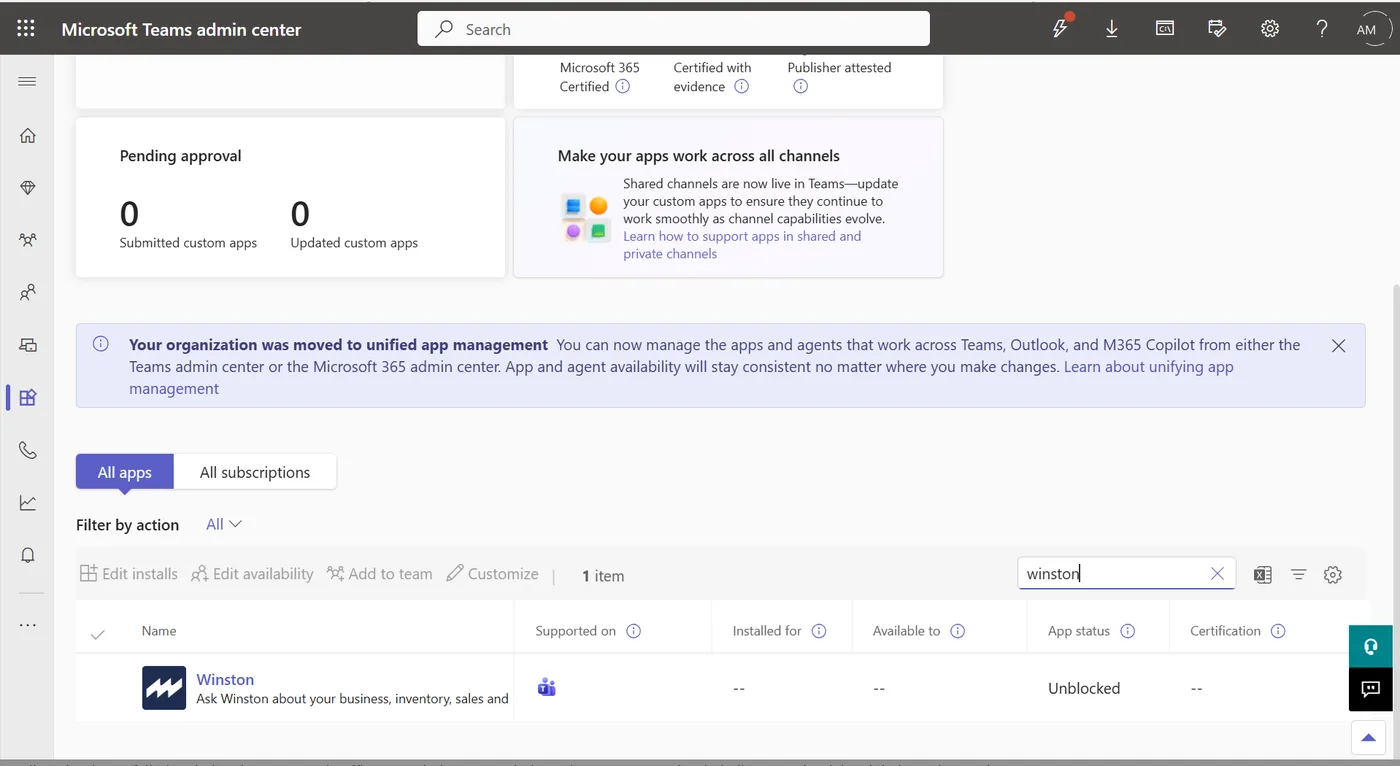
Connecting Winston to the tenant does not put it in anyone's Teams client. A Teams administrator controls that from the Microsoft Teams admin center, under Teams apps → Manage apps.
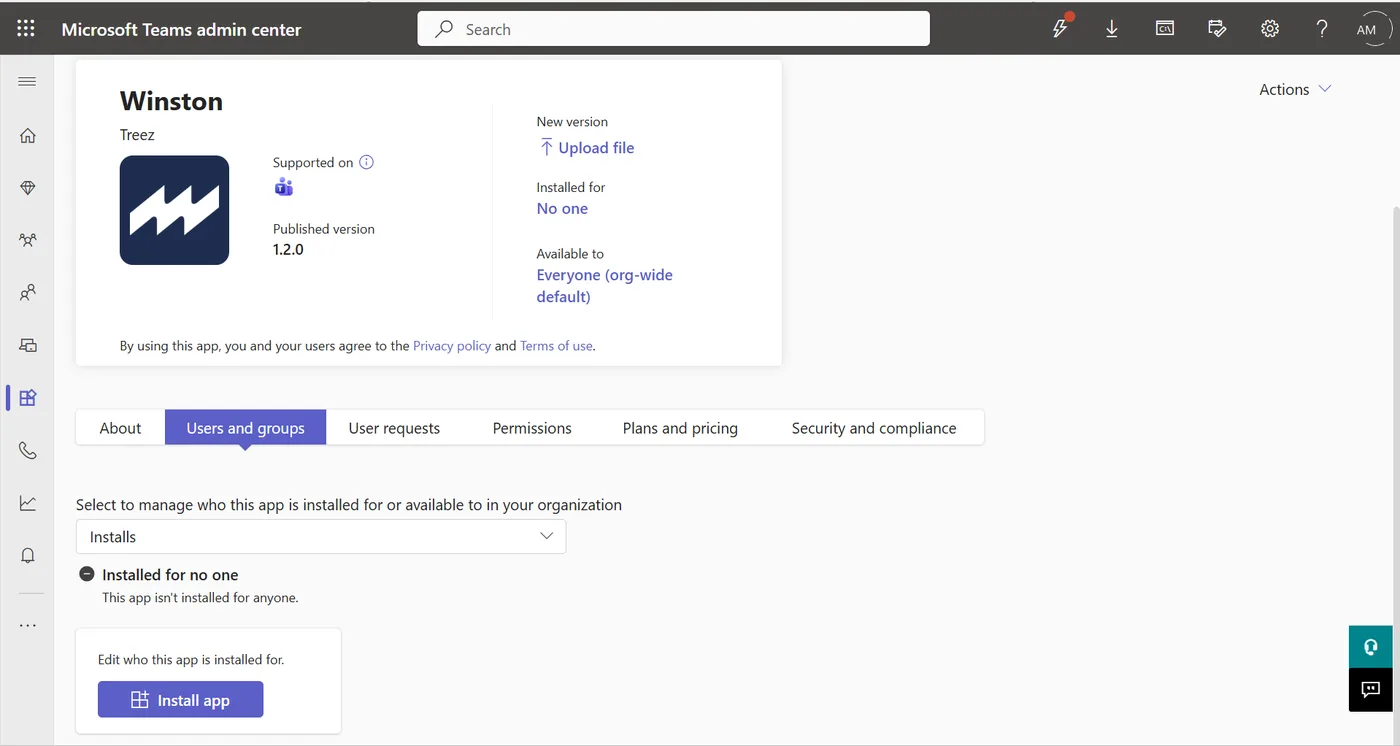
Two separate settings decide who gets it. Available to is permission: who may add Winston themselves. Install app is delivery: it puts Winston in those people's Teams so they do not have to find it.
Use it in Teams
Once it is available, Winston appears under Apps → Built for your org.
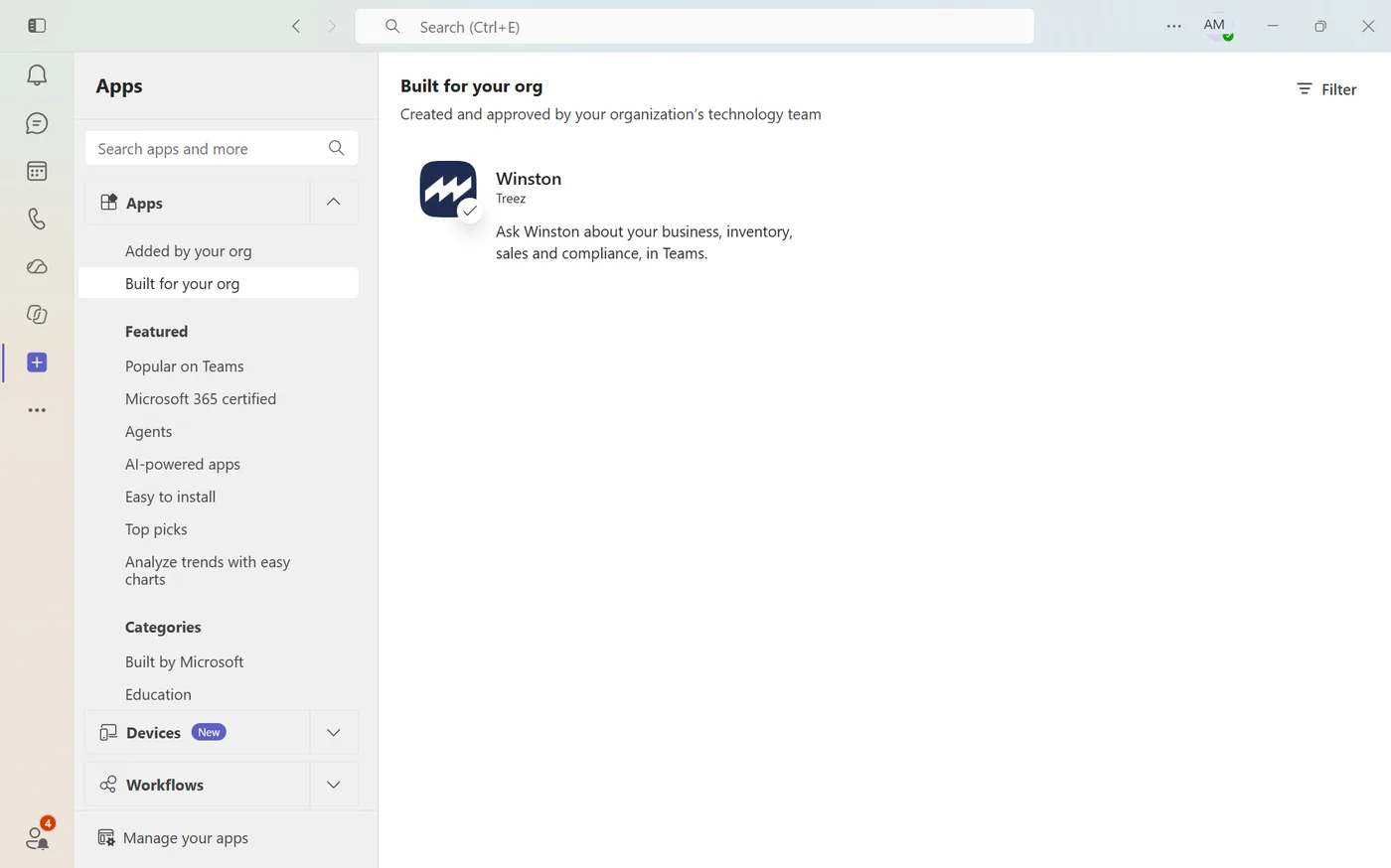
Opening it starts a direct chat. You can instead add it to a channel, so answers are visible to everyone in that channel rather than only to you.
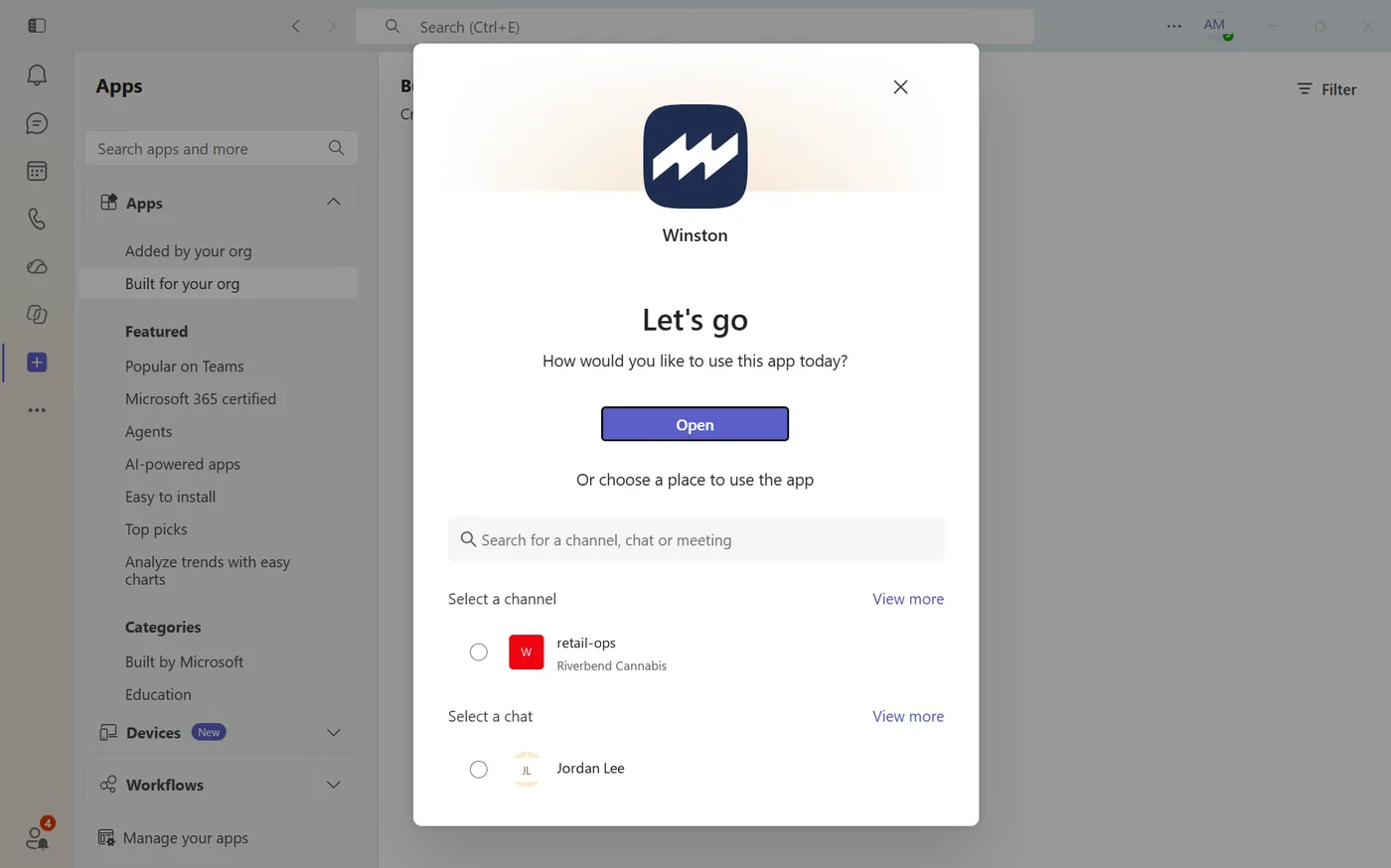
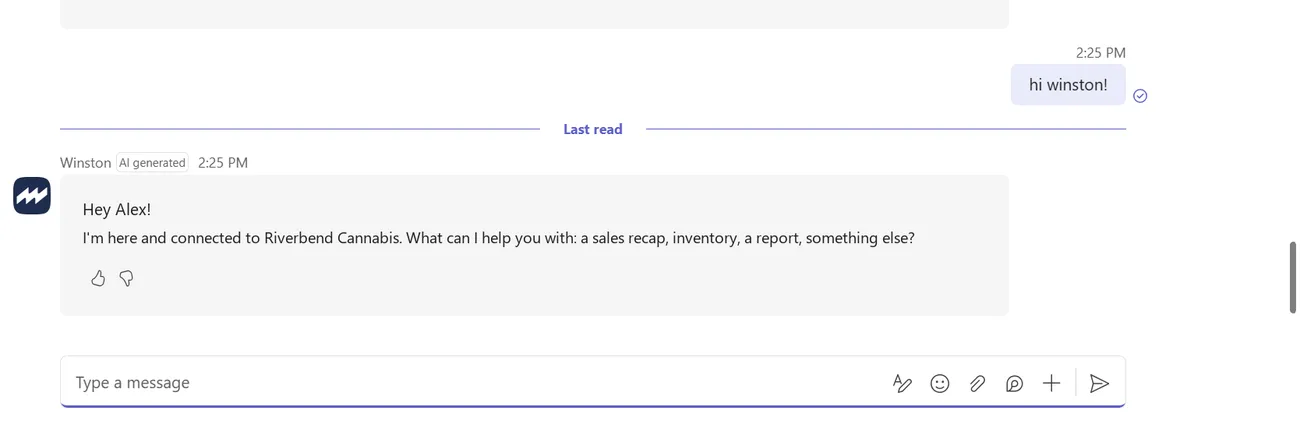
Ask it something
A direct message behaves like Chat in the dashboard: the same workspace, the same connected data, and the same rules about what needs reviewing before it happens. See Asking Winston and Review and approve.
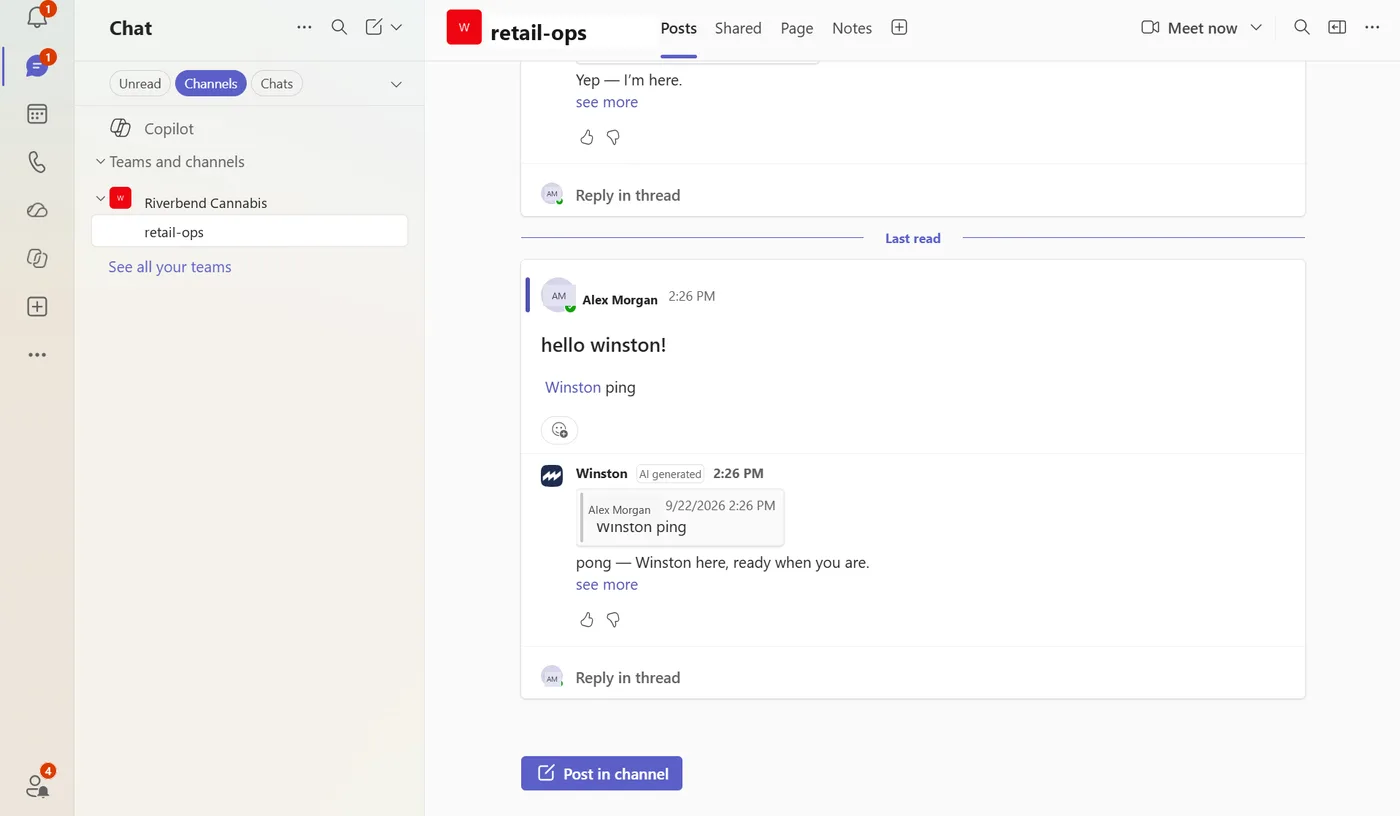
In a channel, mention Winston by name. It replies in the thread, where the whole team can read the answer and the evidence behind it.
To have Winston post into a channel on a schedule rather than on request, see Automation. If a connection stops working, an admin can reconnect it from Settings → Connections.