Connect Salesforce
Connecting Salesforce lets Winston work with your accounts, contacts, opportunities and other Salesforce records. You reset your security token in Salesforce, then enter it in Winston with your Salesforce password and login email. This page shows each screen.
Before you start
- You need to be an Owner or Admin in Winston.
- Decide which Salesforce user Winston should act as. Winston can see and do whatever that user can in Salesforce, no more. A dedicated user with access to only what Winston needs works best. An extra user may need its own Salesforce license.
- That user needs a Salesforce password. If you sign in to Salesforce with Google or another single sign-on, set a Salesforce password first under Settings → Change My Password.
- Your Salesforce edition needs API access. If you're not sure, ask your Salesforce admin.
1. Get your security token
Sign in to Salesforce as the user Winston should act as. Choose the avatar in the top right corner, then Settings. Under My Personal Information, choose Reset My Security Token, then Reset Security Token.
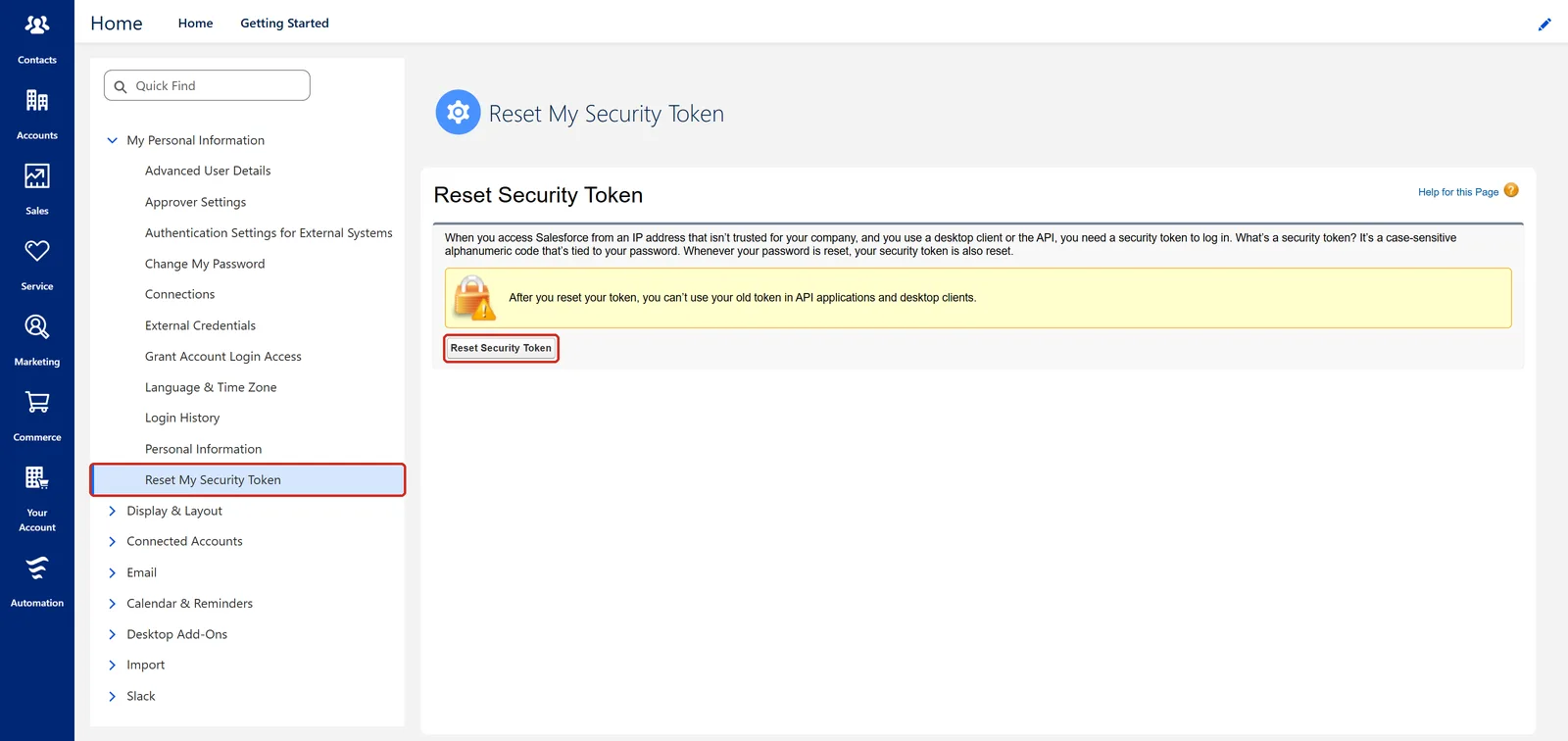
Salesforce emails the new token to the user's email address. It isn't shown on screen. Keep the email until you've entered the token in Winston.
2. Connect it in Winston
In Winston, open Settings → Connections, find the Salesforce card (under CRM, or type "Salesforce" into the search box) and choose Connect.
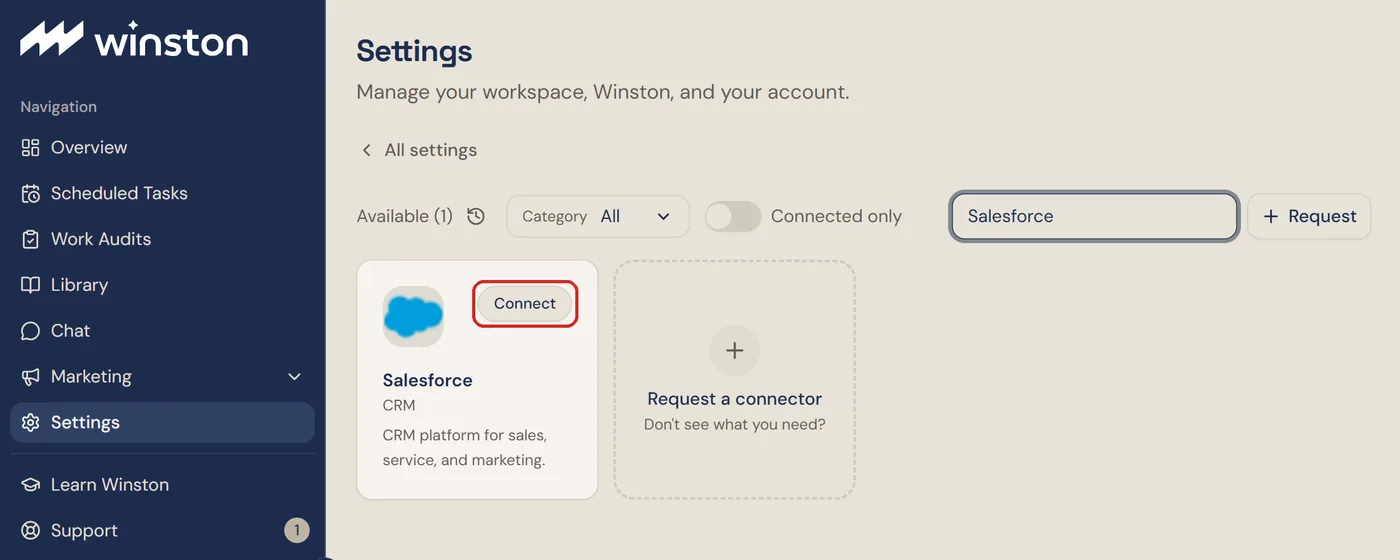
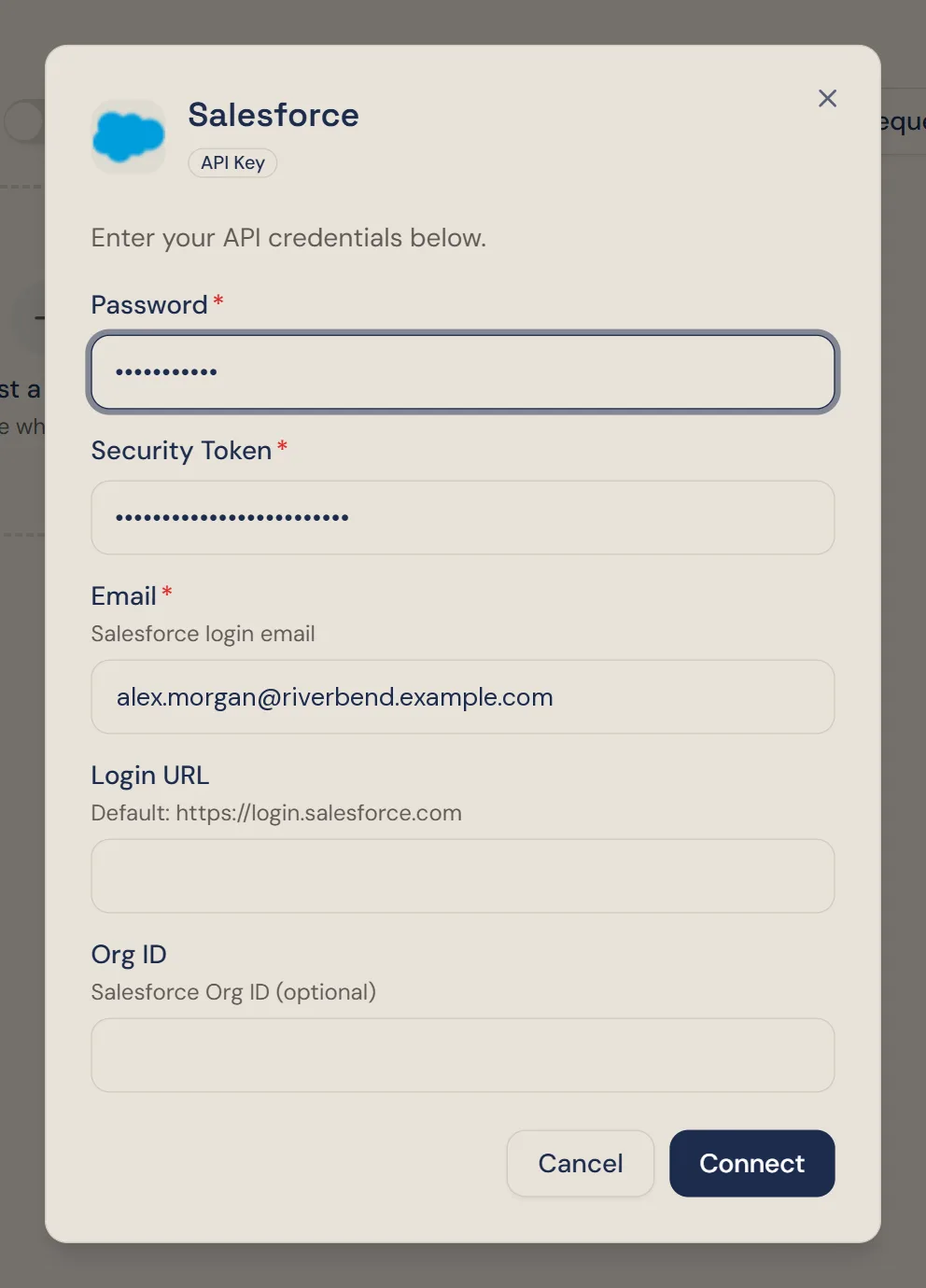
Fill in the dialog:
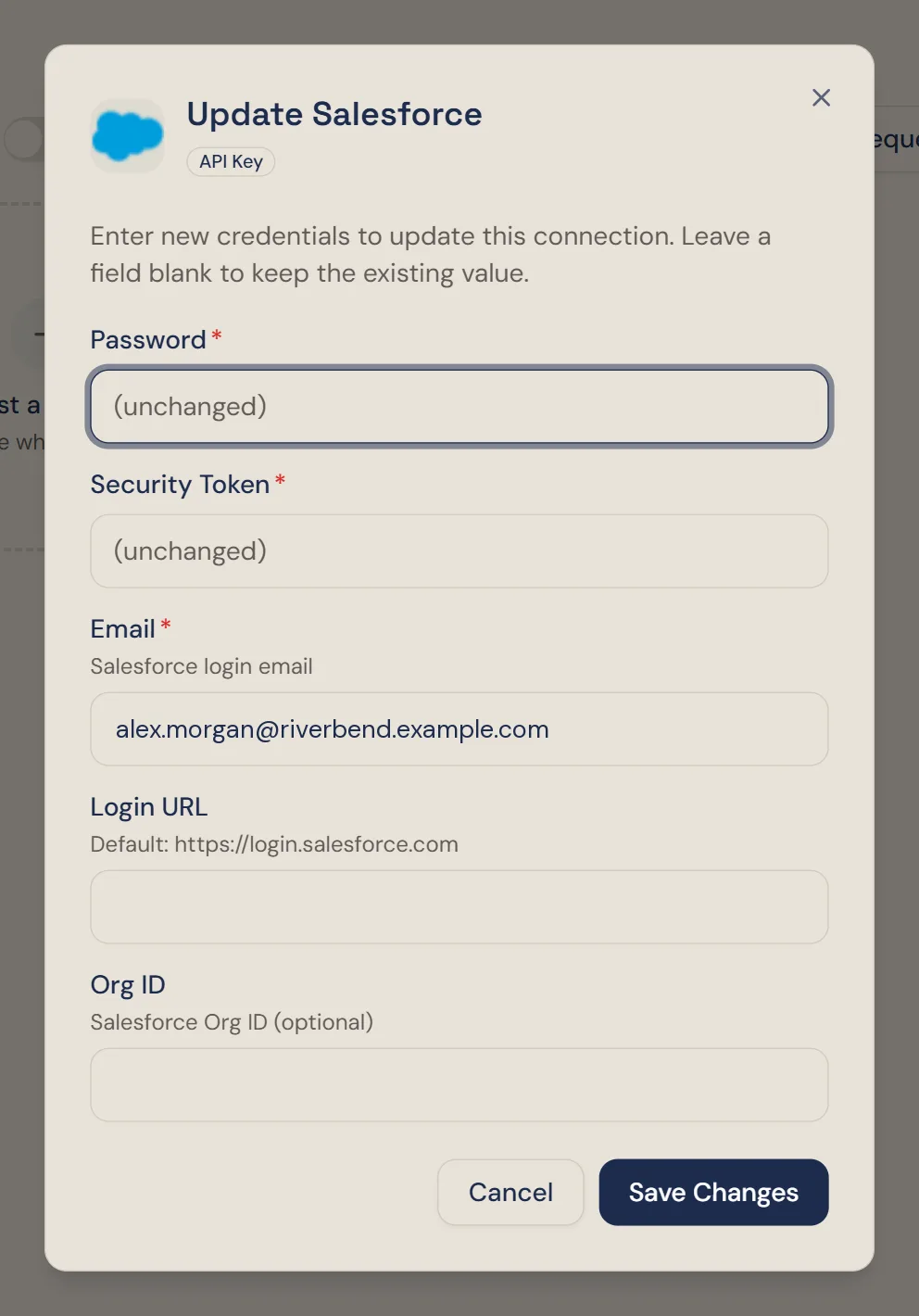
- Password: the Salesforce user's password.
- Security Token: the token from Salesforce's email.
- Email: the username you sign in to Salesforce with. It looks like an email address but isn't always the same as the user's email.
- Login URL: leave it empty for most companies. For a sandbox, enter https://test.salesforce.com. If your company only allows sign-in at its own address, enter that, such as https://yourcompany.my.salesforce.com.
- Org ID: optional. You can leave it empty.
Then choose Connect.
3. Check it is connected
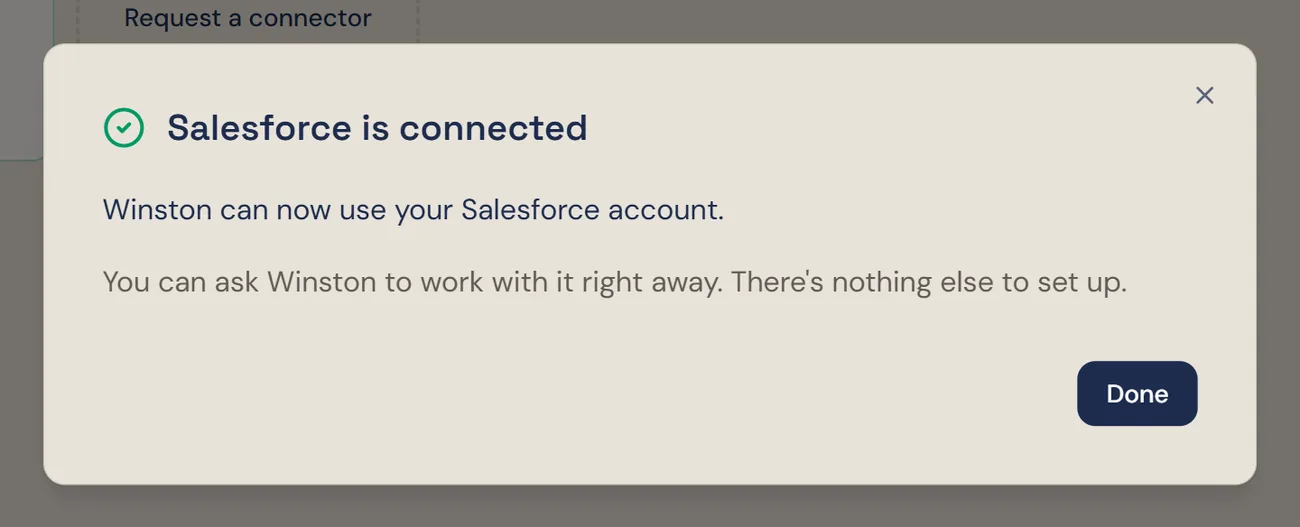
The dialog changes to Salesforce is connected. Choose Done. Nothing else needs to be set up.
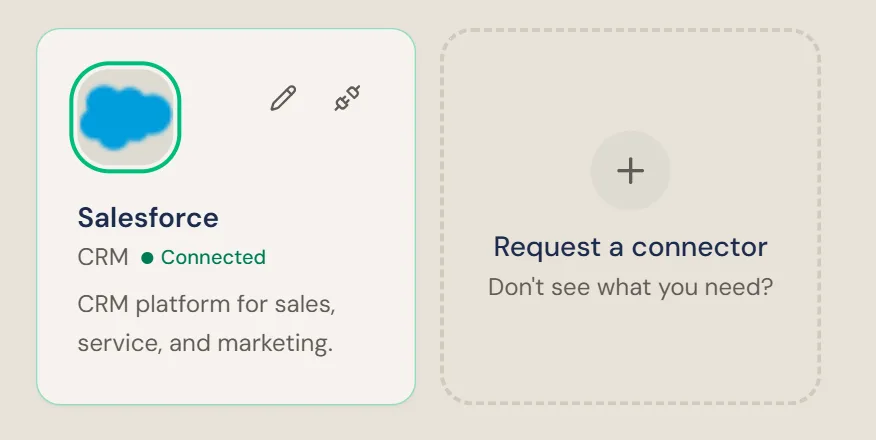
Then ask Winston a small read-only question in Chat to confirm it reached the right org, for example "Which Salesforce user are you connected as? List five of our accounts." If it names the wrong user, choose the pencil on the card and enter the right details.
Asking about Salesforce works like any other question in Chat, with the same rules about what needs reviewing before anything is created or changed. See Asking Winston and Review and approve.
Update the password or token
When the Salesforce password changes or expires, or the token is reset, Winston needs the new ones. Get a new token as above, then choose the pencil on the Salesforce card. Enter the new password and token and choose Save Changes. Fields you leave blank keep their current value.
Disconnect
To stop Winston using Salesforce, choose the plug icon on the Salesforce card and confirm Disconnect. This applies to the whole workspace.
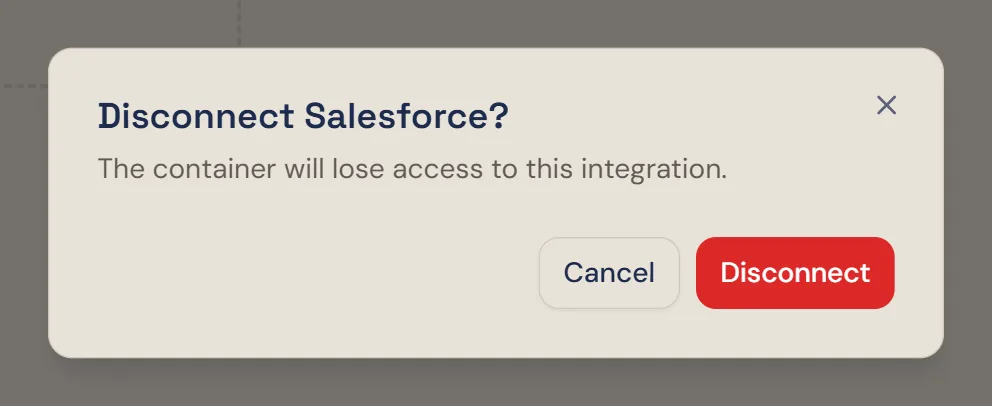
Disconnecting in Winston doesn't change anything in Salesforce. To make sure the saved details can't be used again, reset the security token in Salesforce.
If something does not work
For other connections, see Connect your tools. Anything else, see Troubleshooting or contact Support from the dashboard.