Start here

Connect Odoo

Connecting Odoo lets Winston work with your purchasing, inventory, accounting and other Odoo apps. You create an API key in Odoo, then paste it into Winston with your Odoo address. This page shows each screen.

Before you start

  • You need to be an Owner or Admin in Winston.
  • Decide which Odoo user Winston should act as. Winston can see and do whatever that user can in Odoo, no more. A dedicated user, for example "Winston", with access to only the apps Winston needs works best. An extra user may count toward your Odoo subscription.
  • Have your Odoo address to hand: the one you sign in at, such as https://yourcompany.odoo.com.
  • On your own Odoo server rather than Odoo Online, the server needs Odoo's JSON-2 external API (Odoo 19 or later).
The connection belongs to the Winston workspace, not only to you. Anyone in the workspace who asks Winston can have it read and change Odoo records with that user's access. Choose the user, and its access rights in Odoo, with that in mind.

1. Create an API key in Odoo

Sign in to Odoo as the user Winston should act as. Choose the avatar in the top right corner, then My Preferences.
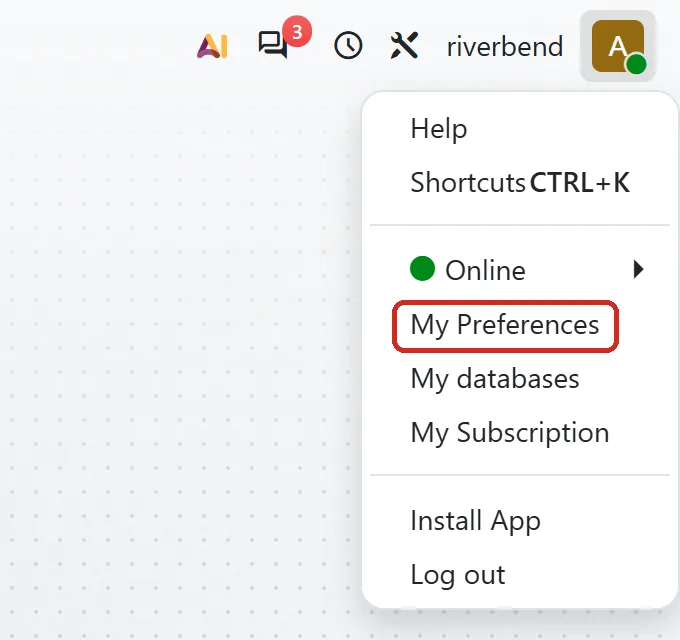
Odoo's user menu opened from the avatar in the top right corner, with My Preferences outlined
In Odoo, open the avatar menu and choose My Preferences.

Open the Security tab. Under API Keys, choose Create API Key. Keys this user already has are listed above the button.
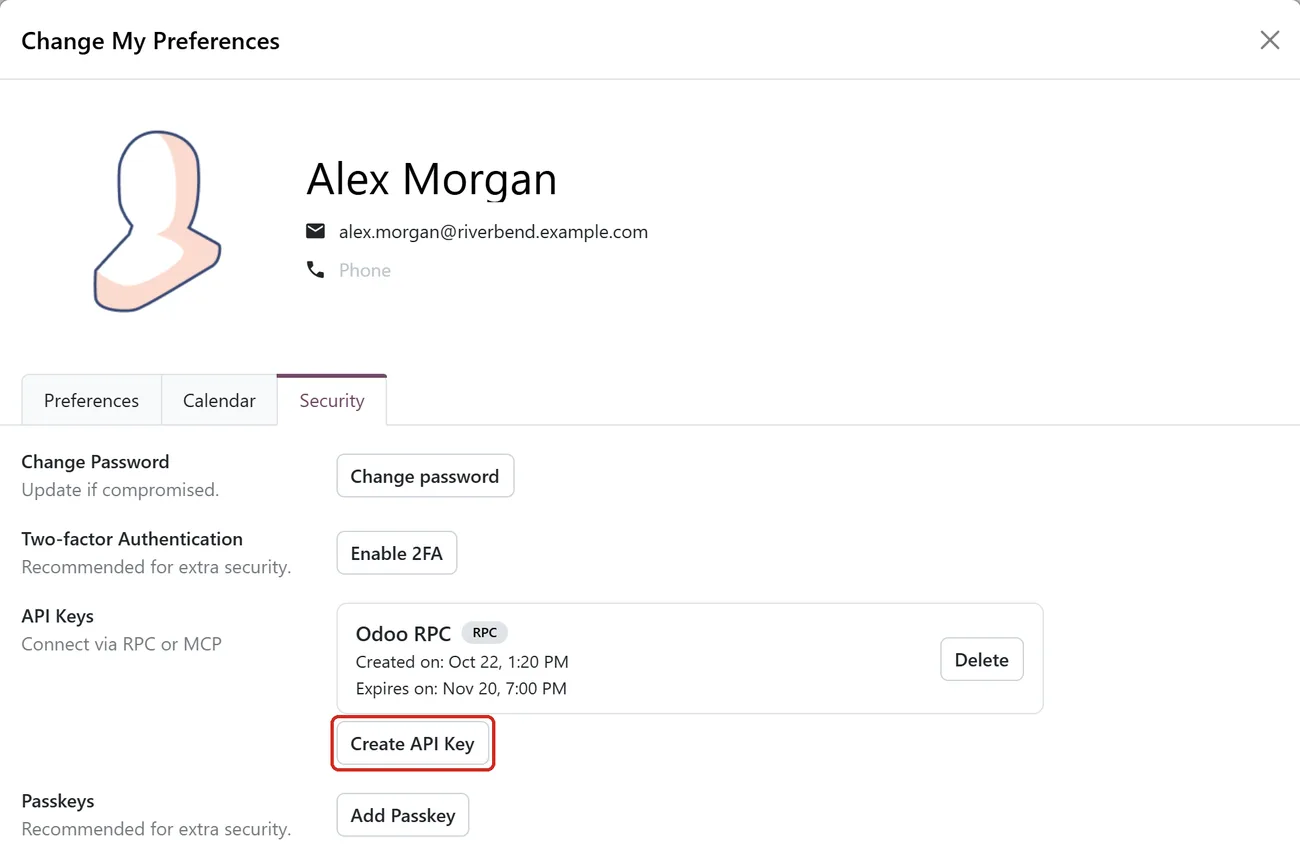
Odoo's Change My Preferences dialog on the Security tab, listing an existing RPC key under API Keys, with the Create API Key button outlined
My Preferences → Security. Create API Key is under API Keys.

Odoo asks for the user's own password first. Enter it and choose Confirm Password.
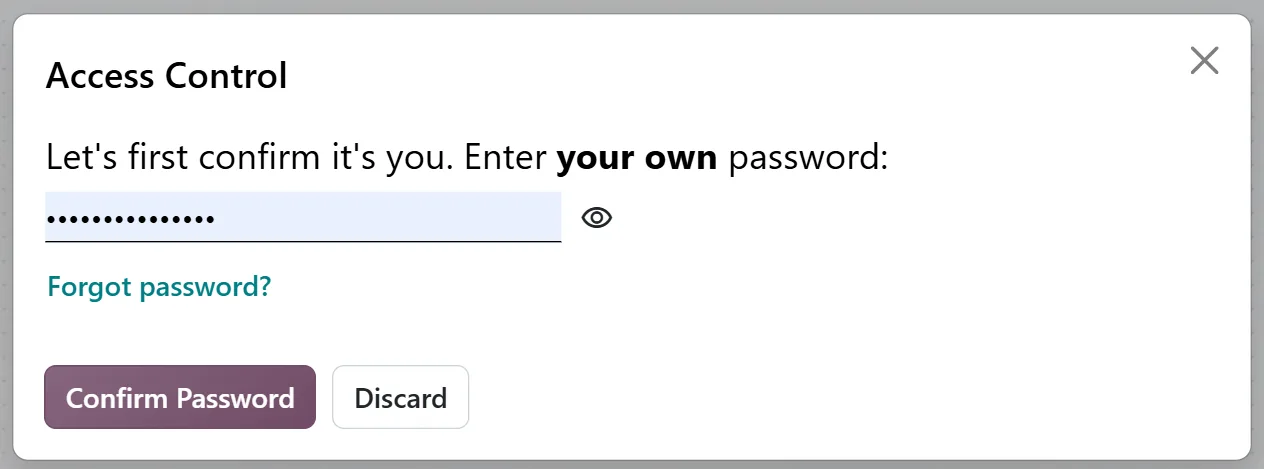
Odoo's Access Control dialog asking the user to confirm it is them by entering their own password
Odoo confirms it's you before it makes a key.

Give the key a name you'll recognize later, such as "Winston". Leave Scope on RPC: Winston can't connect with an MCP key. Choose how long the key lasts. When it expires, Winston loses access until you give it a new key, so pick a length you'll remember to renew, or Never. Then choose Create Key.
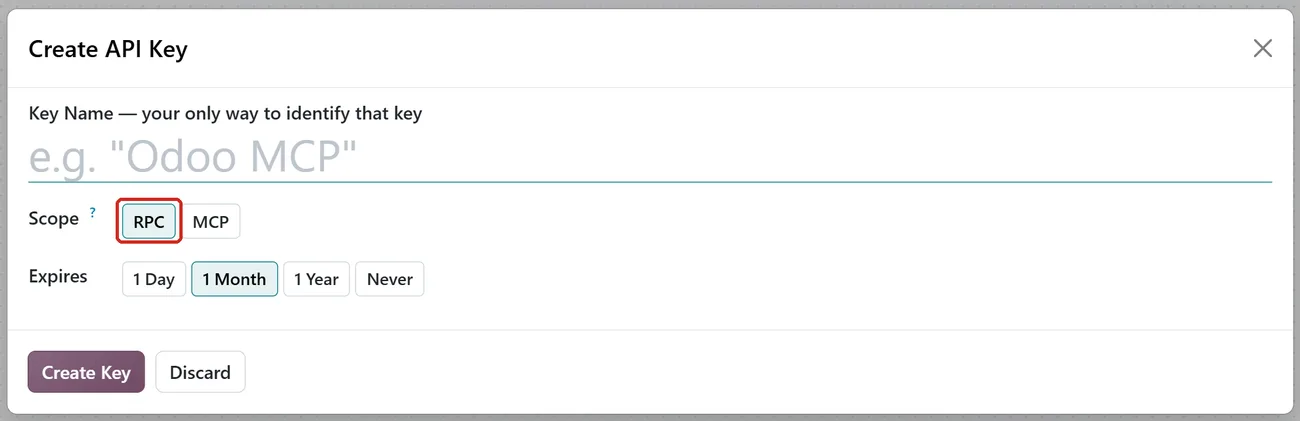
Odoo's Create API Key dialog with a Key Name field, Scope set to RPC (outlined) rather than MCP, and Expires options of 1 Day, 1 Month, 1 Year and Never
Name the key, keep the RPC scope, and choose when it expires.

Odoo shows the key once. Copy it with the copy button next to it and keep it somewhere safe until you've pasted it into Winston. Then choose Done, I have saved it. You can ignore the code sample under the key.
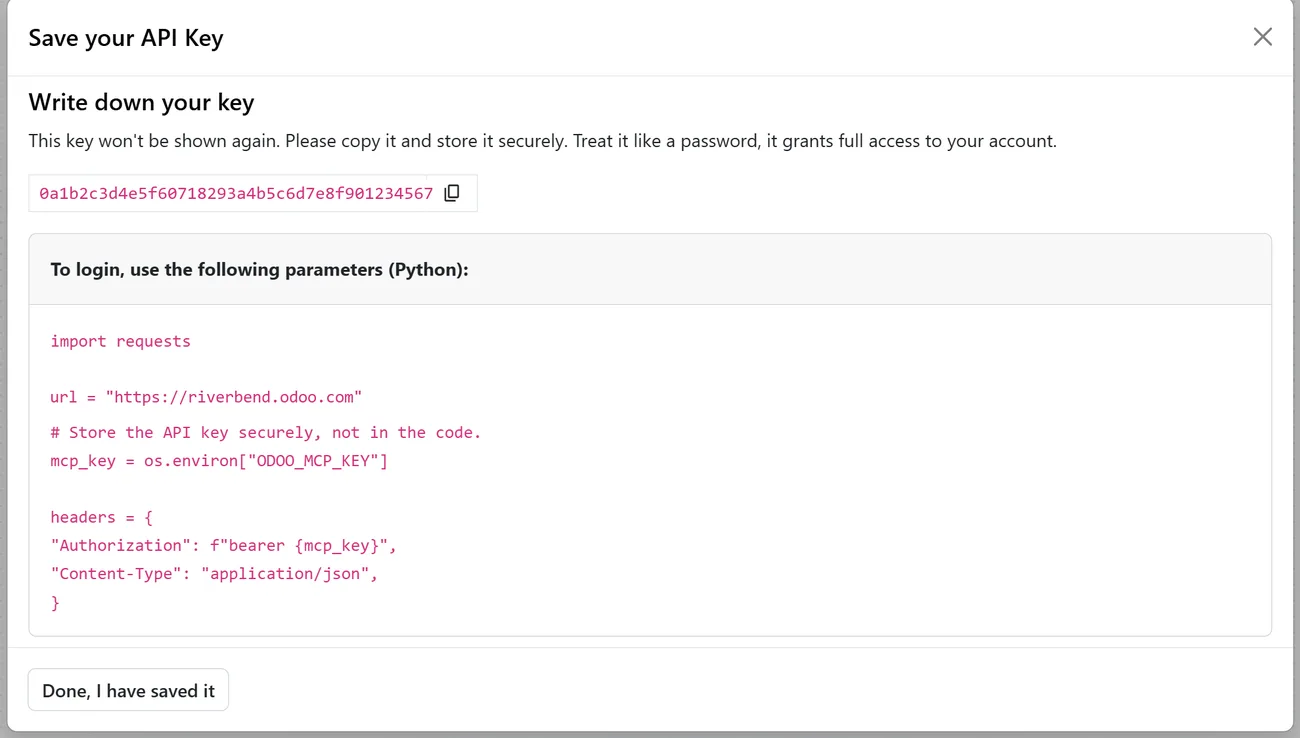
Odoo's Save your API Key dialog showing a new key with a copy button, a warning that it won't be shown again, and a Python code sample
The key is shown only once. Copy it before you close this.
Treat the key like a password: it can do anything the Odoo user can. Paste it only into Winston's Odoo dialog, never into Chat, an email or a support message.

2. Connect it in Winston

In Winston, open Settings → Connections, find the Odoo card (under ERP, or type "Odoo" into the search box) and choose Connect.
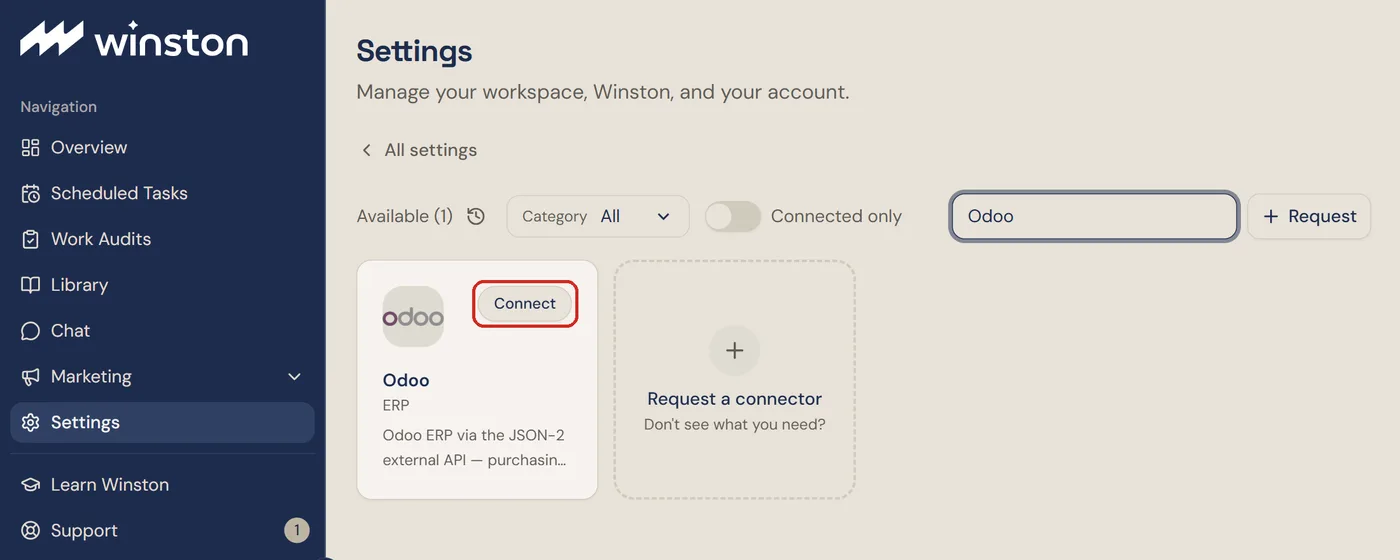
The Connections screen in Winston searched for Odoo, with the Odoo card's Connect button outlined
Settings → Connections. Find Odoo and choose Connect.

Fill in the dialog:

  • API Key: paste the key you copied from Odoo.
  • Odoo URL: your Odoo address, such as https://yourcompany.odoo.com, with nothing after it.
  • Database: leave it empty on Odoo Online. Only fill it in if you run your own Odoo server with more than one database on it.

Then choose Connect.
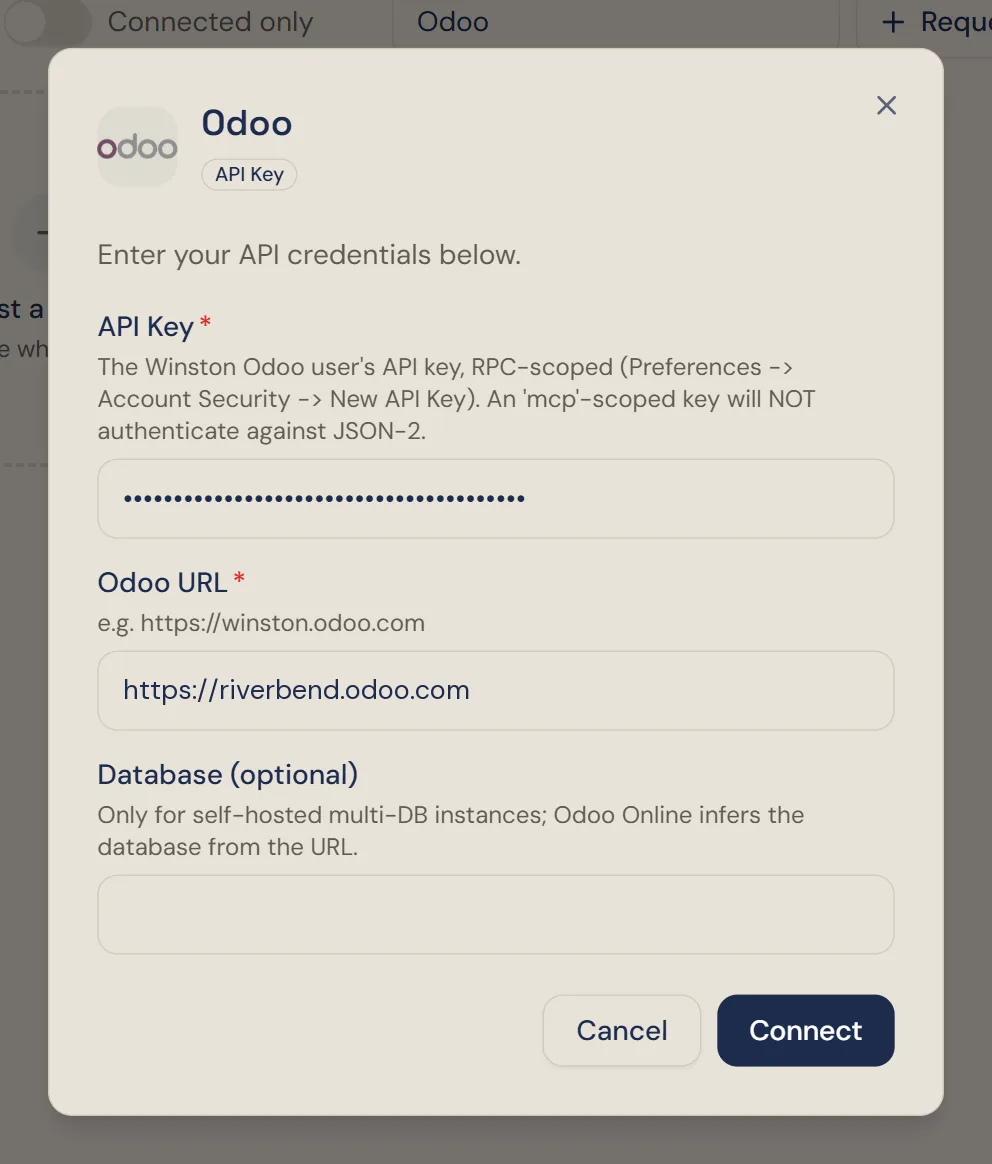
Winston's Odoo dialog with the API key pasted (shown as dots), the Odoo URL filled in as https://riverbend.odoo.com, and the Database field left empty
Paste the key, enter your Odoo address, and choose Connect.

3. Check it is connected

The dialog changes to Odoo is connected. Choose Done. Nothing else needs to be set up.
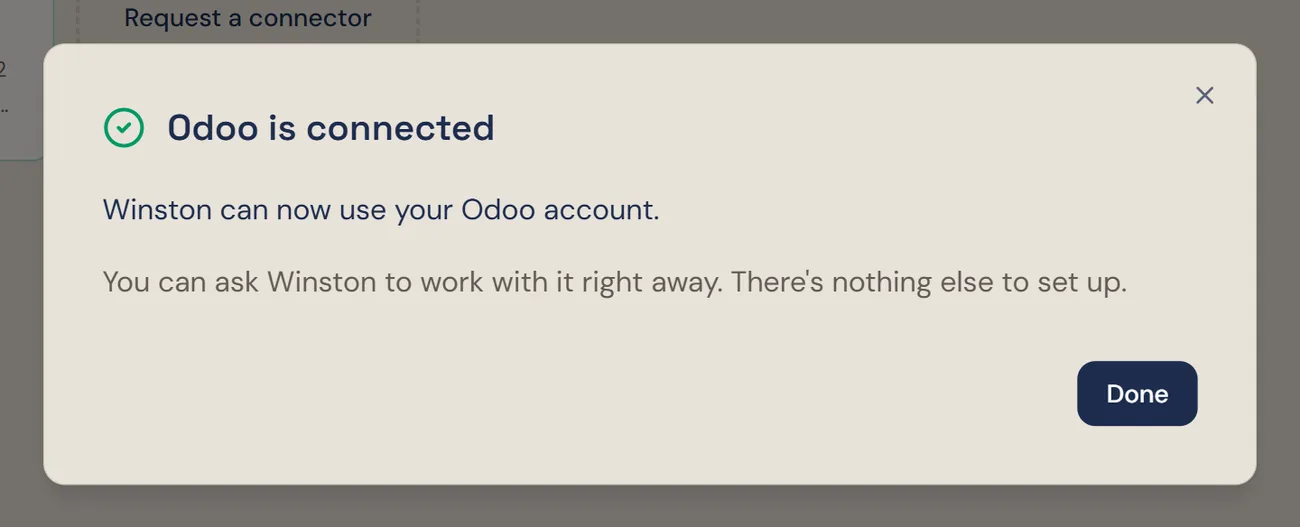
Winston's dialog headed Odoo is connected, saying Winston can now use your Odoo account, with a Done button
Winston confirms the connection. Choose Done.
The Odoo card on the Connections screen with a green Connected badge and edit and disconnect icons
The Odoo card after connecting. The pencil changes the key or address; the plug icon disconnects.

Then ask Winston a small read-only question in Chat to confirm it reached the right database, for example "Which Odoo user are you connected as? List five of our vendors." If it names the wrong user or database, choose the pencil on the card and enter the right key and address.

Asking about Odoo works like any other question in Chat, with the same rules about what needs reviewing before anything is created or changed. See Asking Winston and Review and approve.

Replace the key

When a key expires, is deleted in Odoo, or you want Winston to act as a different Odoo user, create a new key as above. Then choose the pencil on the Odoo card. Paste the new key and choose Save Changes. Fields you leave blank keep their current value.
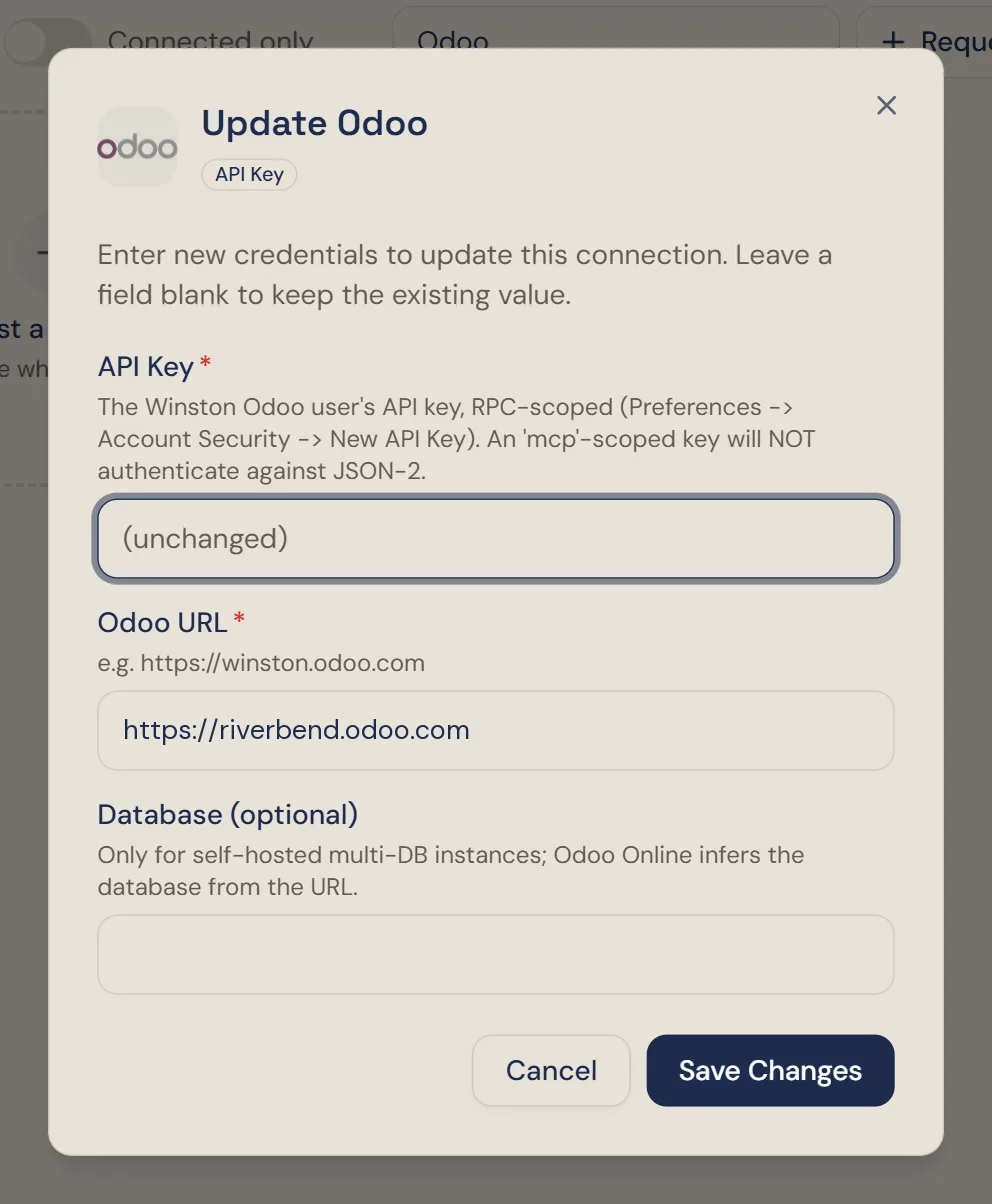
Winston's Update Odoo dialog, explaining that blank fields keep the existing value, with API Key, Odoo URL and Database fields
Update Odoo. Fill in only what changes; blank fields keep their current value.

Disconnect

To stop Winston using Odoo, choose the plug icon on the Odoo card and confirm Disconnect. This applies to the whole workspace.
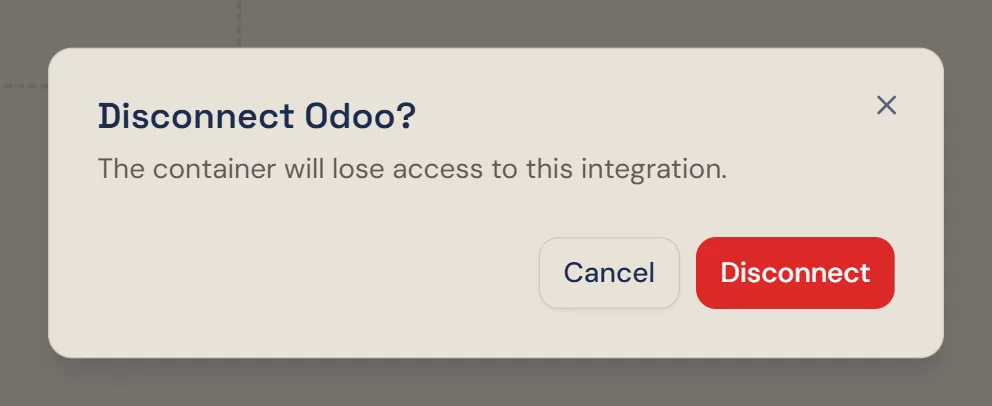
The confirmation dialog titled Disconnect Odoo?, with Cancel and Disconnect buttons
Disconnecting is workspace-wide. Confirm, and the card goes back to Connect.

Disconnecting in Winston doesn't delete the key in Odoo. To make sure it can't be used again, delete it in Odoo under My Preferences → Security → API Keys.

If something does not work

What you seeWhat to do
Key rejectedConnect fails or Winston says the key was refused. Check it is an RPC key, not MCP, and that you copied all of it. If in doubt, create a new RPC key in Odoo and paste that.
Stopped workingWinston could use Odoo before and now can't. The key may have expired or been deleted in Odoo. Create a new key and paste it with the pencil on the Odoo card.
"Database blocked"Your Odoo address shows this, or a subscription page, in the browser. The Odoo database itself is unavailable, for example after a trial or subscription ends. Sort it out with Odoo; Winston works again once the database is back.
Missing recordsWinston says it can't see purchase orders, products or another part of Odoo. The Odoo user behind the key doesn't have access to that app. Give the user access in Odoo under Settings → Users, then ask again.
Wrong databaseCheck the Odoo URL. On your own server with several databases, also fill in Database. Fix it with the pencil on the Odoo card.

For other connections, see Connect your tools. Anything else, see Troubleshooting or contact Support from the dashboard.