Quick start
Start with one useful question or finding. You do not need to learn the whole product first.
1. Open the right workspace
If you were invited, use the sign-in instructions in the invitation. If you are setting up a new business, follow the signup flow and complete the requested setup details. Check the workspace name before using connected business data.
A sign-in link from email lands on a page with a Continue to Winston button; nothing is used up until you press it. If the page says Link already opened, your mail security probably followed the link first. Use Send a new link on that page. Treez users see a Sign in with Treez option. If you sign in and have no workspace but an invitation is waiting for your address, Winston offers it before the signup flow; take it rather than creating a duplicate workspace. A Treez user whose organization already has a workspace is told so, with the owner's email address to ask for an invitation.
A new workspace starts with a welcome conversation already open in Chat, and a Treez workspace gets a second one about its brands. They are created for you after signup; reading them costs nothing, and credits are only used once you send a message in one.
A workspace is your company's Winston account. Stores are locations within it. If you belong to several workspaces, their data and settings are separate.

2. Choose your starting point
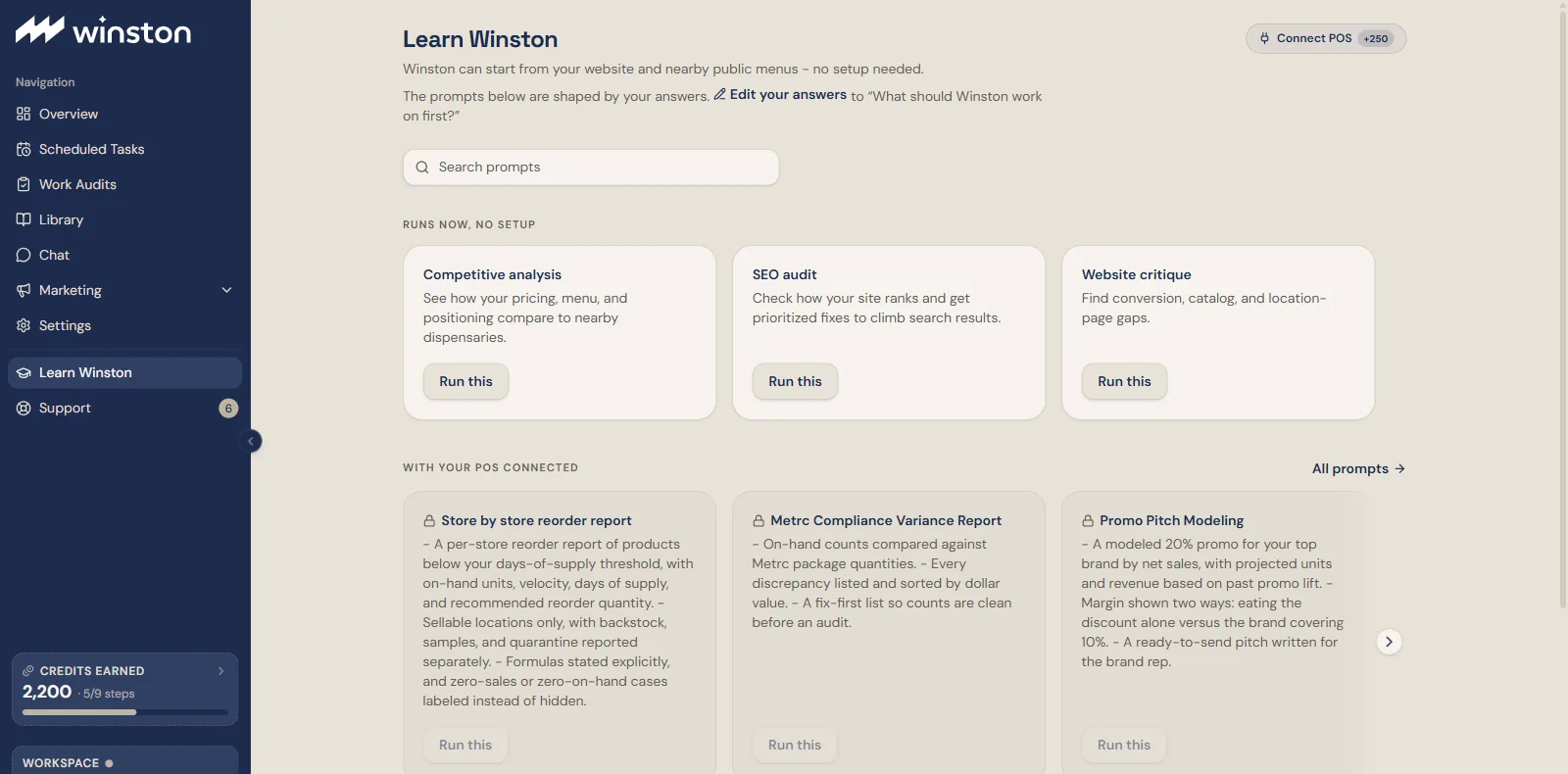
3. Review the result
Check the store, time period, timezone, source date and missing information. Ask about any estimate or unexplained number. A useful follow-up is:
The time needed depends on the task and sources. Follow progress in the same conversation; do not start a duplicate run just because a large report takes longer.
4. Keep something useful
If you need a file or shared report, request the format and intended audience. Review the proposed action and destination before approval. Check the resulting file or destination afterwards.
Later, turn a method you trust into a skill or scheduled task. Review Usage before repeating work frequently. The Credits earned bar in the left menu opens Earn credits, which lists setup steps that add to your balance.
Next: Start your day with Overview.