Choose what Winston watches
Use Overview's monitoring settings to focus the page on the parts of the business that matter to you.
Change the monitoring areas
Open Overview → Edit beside Watching. Select the available areas you want Winston to check. The list can include inventory, sales and margin, customers, promotions, controls, buying and vendors, holidays, and Winston's findings.
An available area still needs the right data. A monitor marked Coming soon is not active just because a related system is connected.
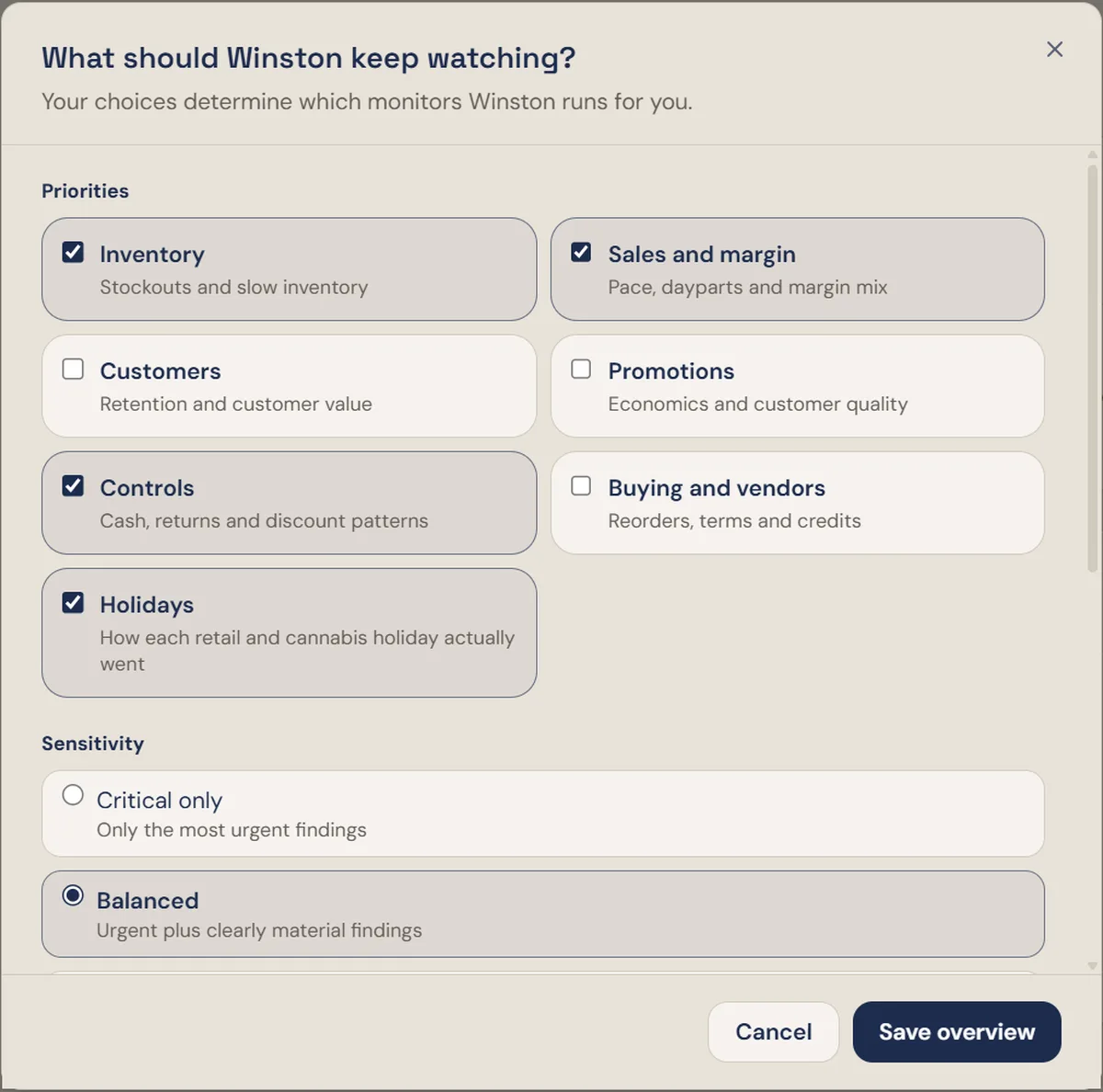
Choose sensitivity
Higher sensitivity can surface more findings. It does not guarantee a card for every record or create monitors for unsupported data.
Add a standing instruction
Use the note to describe a specific priority or exclusion. Be clear about the store, item and condition. For example:
An instruction is a request for Winston to interpret. It is not proof that a matching rule has been saved or can be supported. After Save overview, read the confirmation and any explanation of what changed. Reopen Edit to check the saved text. If no applied changes are shown, ask for clarification before relying on the new behavior.
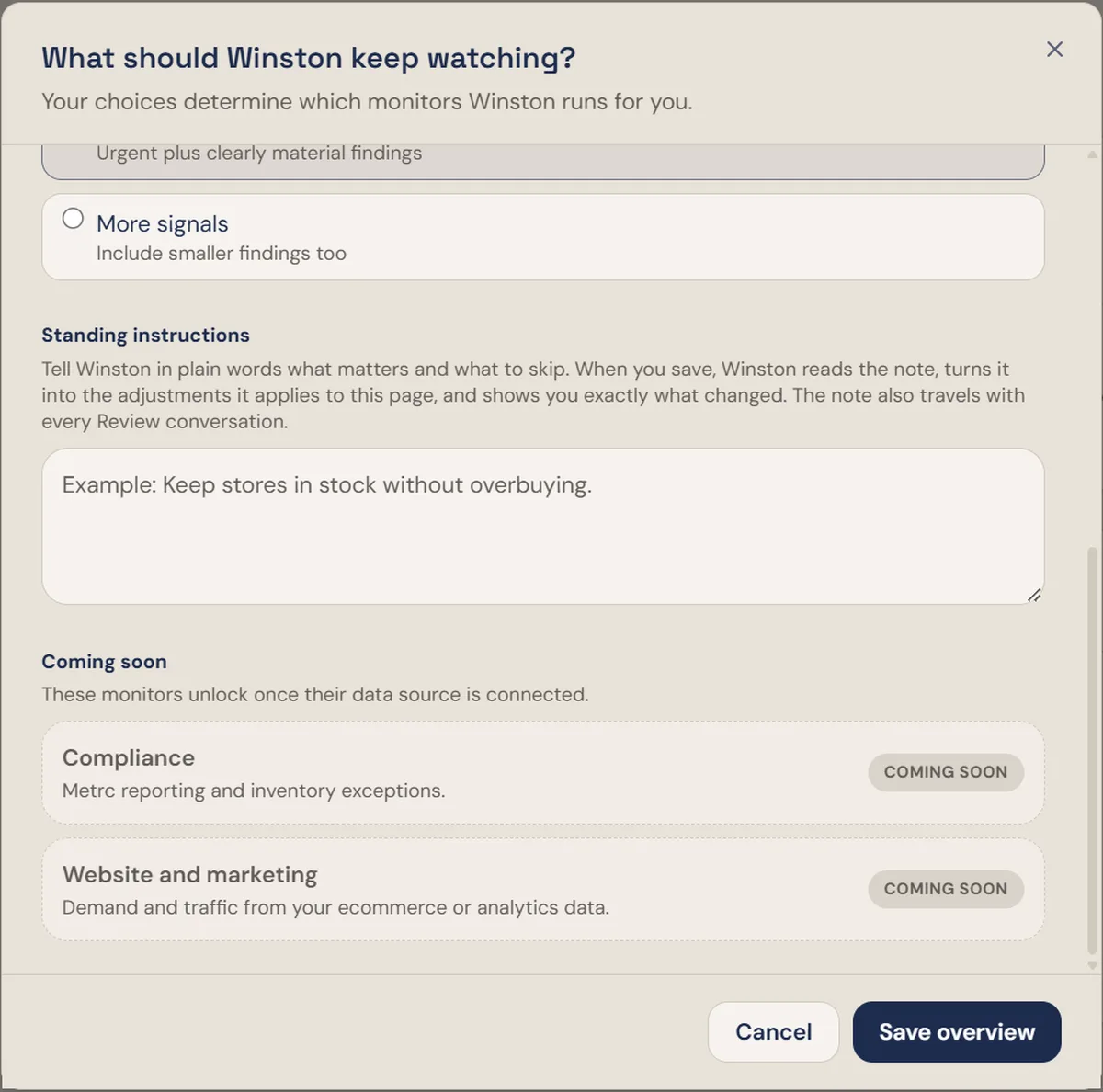
Standing instructions also provide context to card-review conversations. They are different from a one-off chat message and from a scheduled task.
What reaches you
Choose what, on the email banner, opens Your checks: every check listed, with a Show switch and an Email switch. The panel is explicit that Winston runs all of them every hour whichever way you set them, and that the switches only decide what reaches you. Email can send serious findings straight away or hold them for a daily summary at a time you pick. With nothing switched on, it sends no email at all.
If the note could not be applied
Open Edit and read the error. Make the request more specific and save again. If it still fails, stop retrying and contact Support with the workspace, note text, error and time. Do not paste API keys or unrelated customer information into the report.
Use Cancel to close the settings without saving edits.
For a new kind of recurring check, see Request a custom monitor. A monitoring note does not automatically create a new data connection, skill or scheduled task.