Connect Intercom
Connecting Intercom lets Winston look up your conversations, contacts and companies and report on them. You create a small internal app in Intercom's Developer Hub, then paste its access token into Winston. This page shows each screen.
Before you start
- You need to be an Owner or Admin in Winston.
- You need to be able to create apps in your Intercom workspace, which normally means being an Intercom admin.
- Decide what Winston should be able to do. Reading conversations and contacts needs far less access than replying to customers.
1. Create an app in Intercom's Developer Hub
In Intercom, open the Developer Hub (Settings → Integrations → Developer Hub, or go to app.intercom.com/a/apps/_/developer-hub). Choose New app, name it Winston, check the workspace is yours and choose Create app.
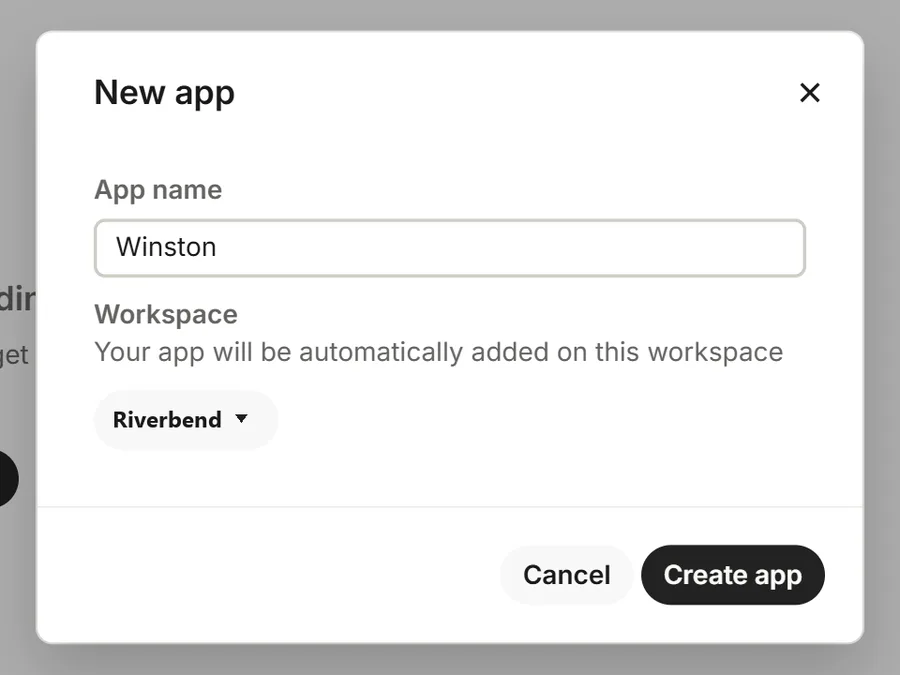
2. Limit its permissions and copy the token
In the new app, open Authentication. The Access token for your workspace is at the top, with an eye to show it and a button to copy it. Below it is the list of Permissions.
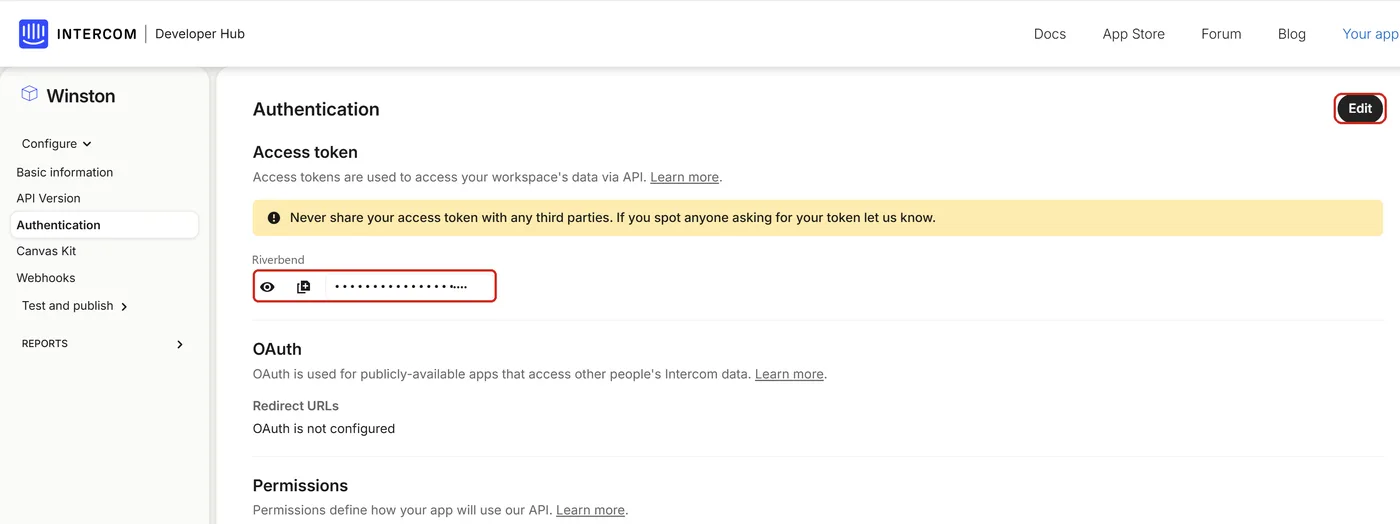
Intercom gives a new app almost every permission, including writing, deleting and replying to customers. Choose Edit, keep only what Winston needs and choose Save. For reporting these six are enough, and Winston has been checked with exactly these: Read conversations, Read and list users and companies, Read one user and one company, Read admins, Read tags and Read tickets. Add write permissions only if Winston should update contacts or reply to customers.
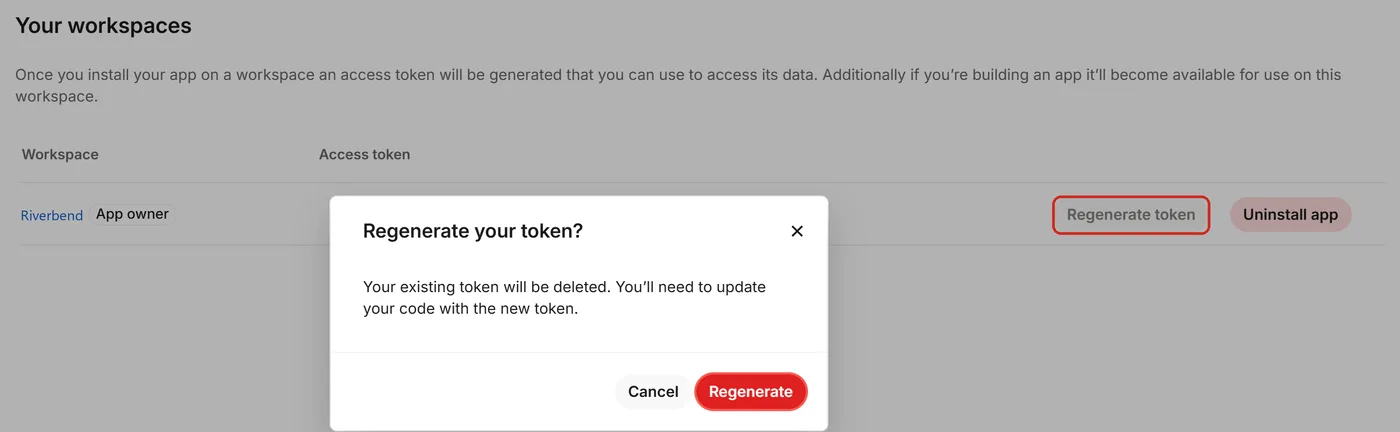
To regenerate, open Test and publish → Your workspaces in the app's menu, choose Regenerate token next to your workspace and confirm with Regenerate. The old token stops working at once. Then go back to Authentication and copy the new token.
3. Paste it into Winston
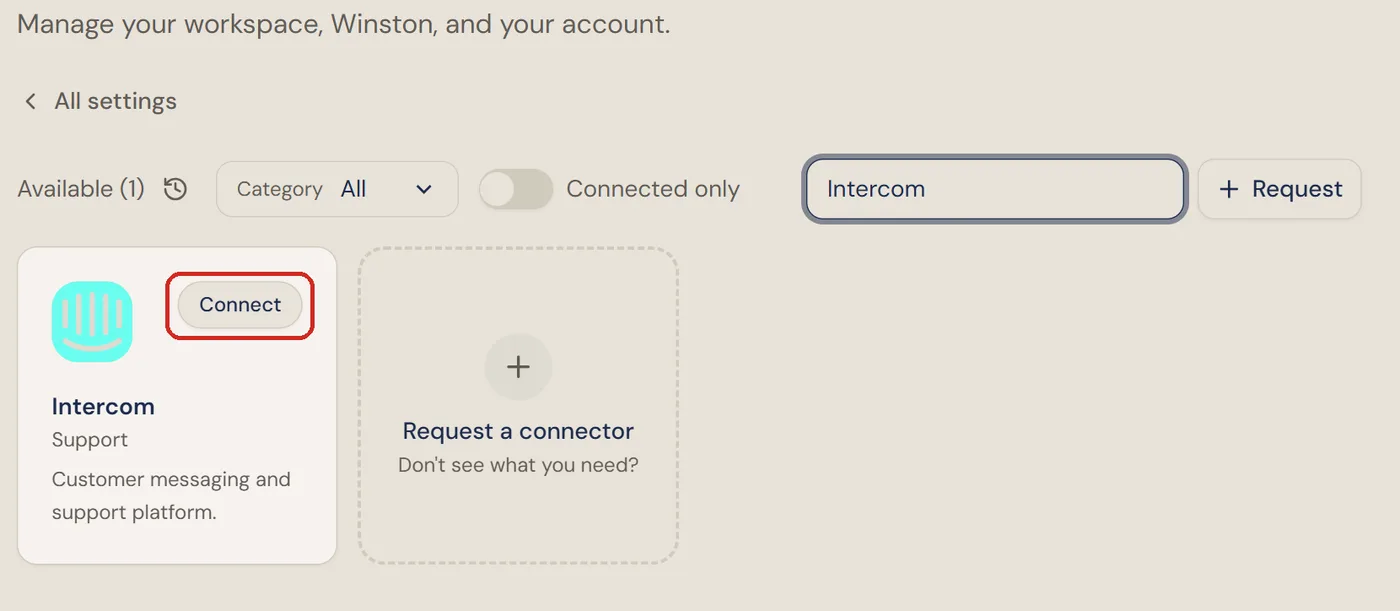
In Winston, open Settings → Connections, find the Intercom card (under Support, or type "Intercom" into the search box) and choose Connect.
Paste the token into Access Token and choose Connect. Winston shows it only as dots.
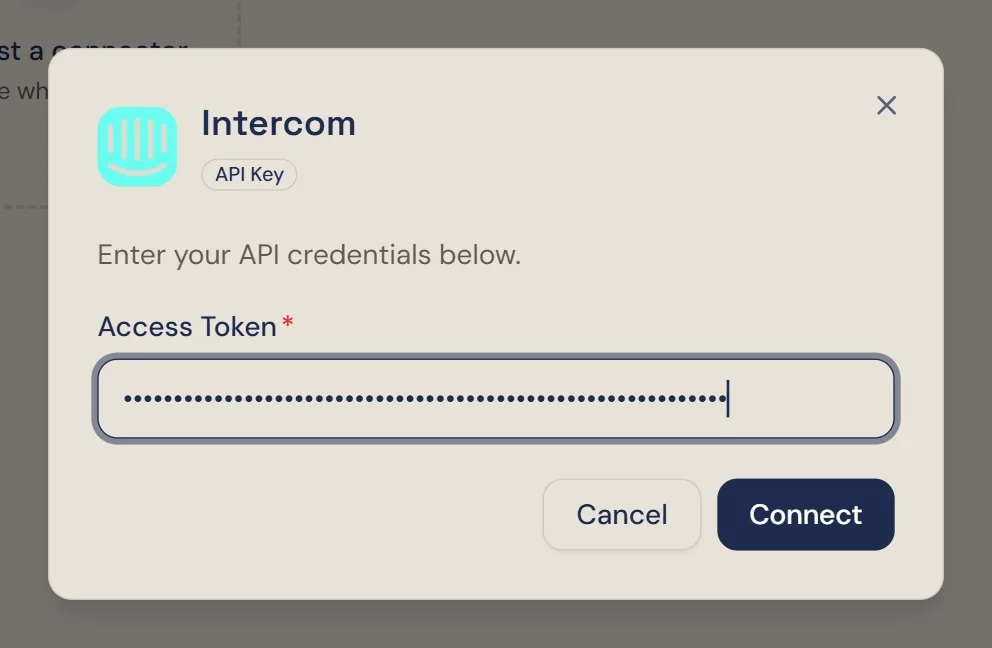
4. Check it is connected
Winston checks the token with Intercom and confirms with Intercom is connected. Choose Done.
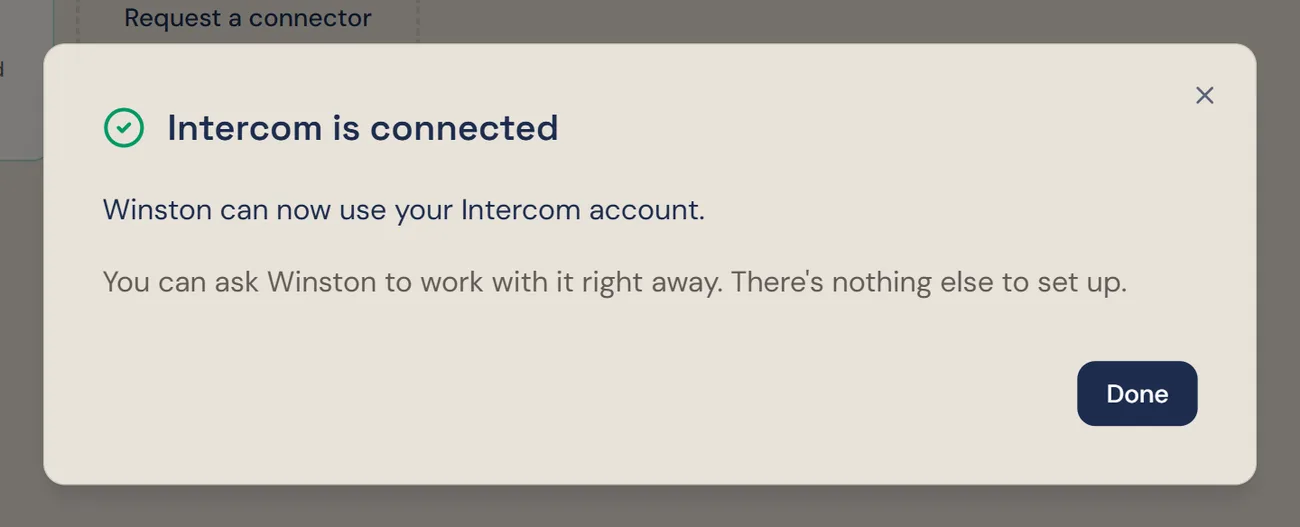
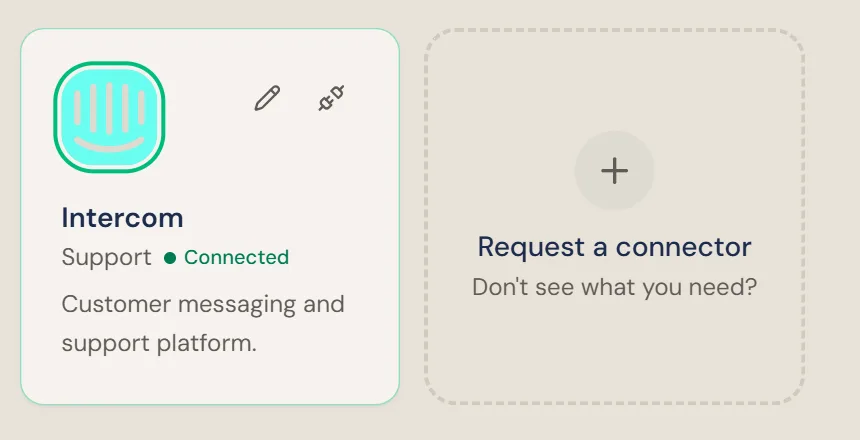
Then ask Winston a small read-only question in Chat, for example "Which Intercom workspace are you connected to, and how many open conversations can you see?" Winston names the workspace and counts the conversations.
Replace the token
If the token is regenerated or the app is deleted, Winston's connection stops working, even though the card still shows Connected; Winston then reports that Intercom refused the token. This includes regenerating after a permission change. Choose the pencil on the Intercom card, paste the new token into Access Token and choose Save Changes.
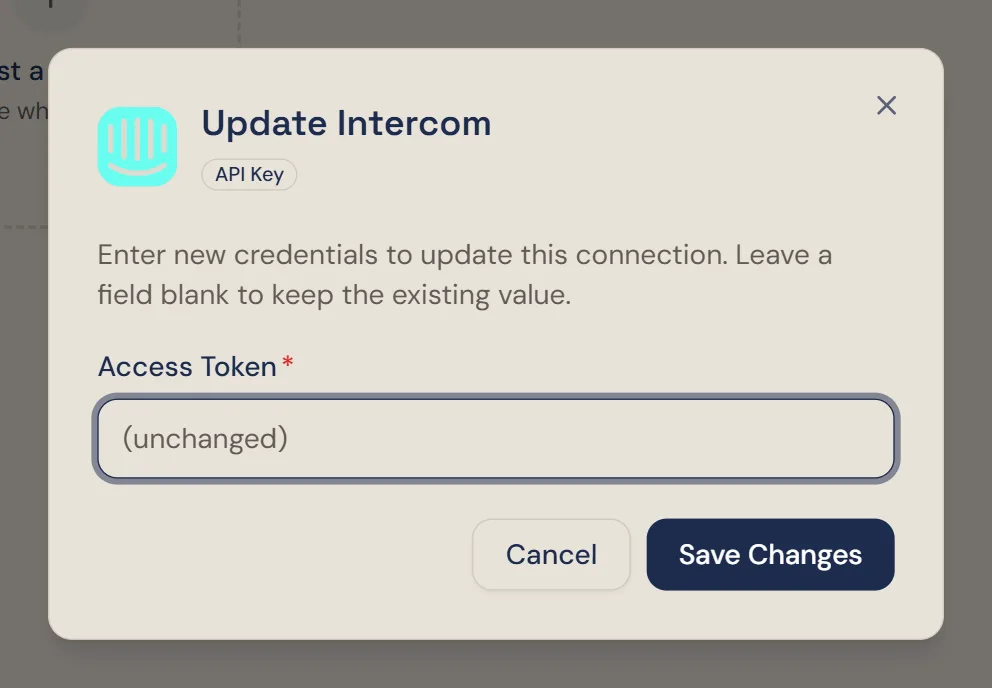
Disconnect
To stop Winston using Intercom, choose the plug icon on the Intercom card and confirm Disconnect. This applies to the whole workspace.
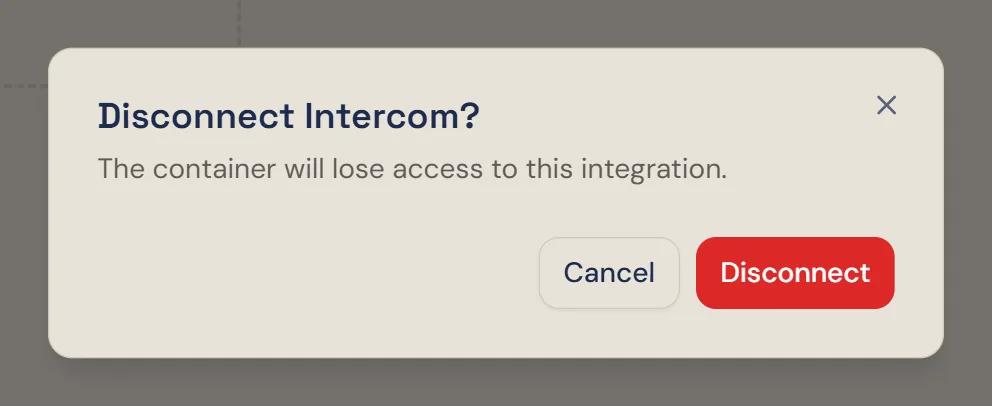
Disconnecting removes the token from Winston but the app still exists in Intercom. To make sure the token can no longer be used, delete the Winston app in the Developer Hub as well.
If something does not work
For other connections, see Connect your tools. Anything else, see Troubleshooting or contact Support from the dashboard.