Connect Monday.com
Connecting Monday.com lets Winston look up your boards, items and updates and report on them. You copy your personal API token from monday.com, then paste it into Winston. This page shows each screen.
Before you start
- You need to be an Owner or Admin in Winston.
- Decide which monday.com user Winston should act as. A personal API token carries that user's permissions: Winston sees the boards that user can see, and nothing more. A shared user such as winston@yourcompany.com often works best.
1. Copy your API token from monday.com
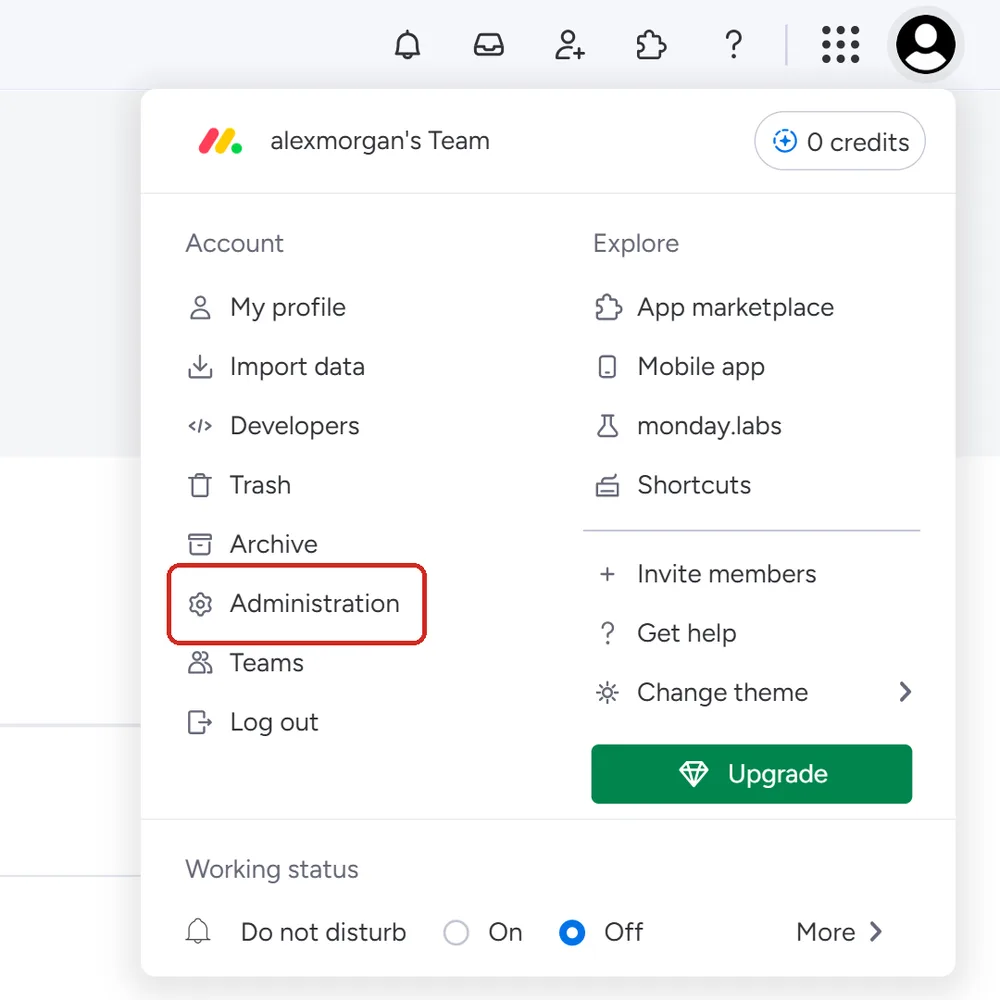
Sign in to monday.com as the user Winston should act as. Choose your profile picture in the top-right corner, then Administration.
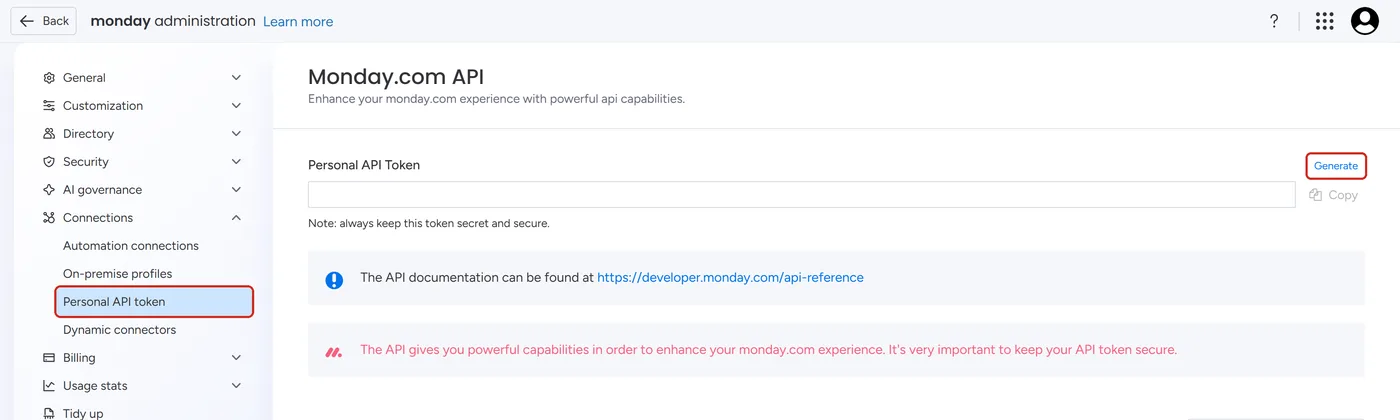
Under Connections, choose Personal API token. If the Personal API Token box is empty, choose Generate. Then choose Copy and go straight on to the next step.
If you are not a monday.com admin, Administration is not in your menu. Choose Developers from the same menu instead. It opens the monday Developer Center in a new tab; choose API token in its left menu and copy the token from there. It is the same personal token.
If the box already holds a token, copy it rather than generating a new one. A new token replaces the old one, so any other tool that uses the old one would need the new one too.
2. Paste it into Winston
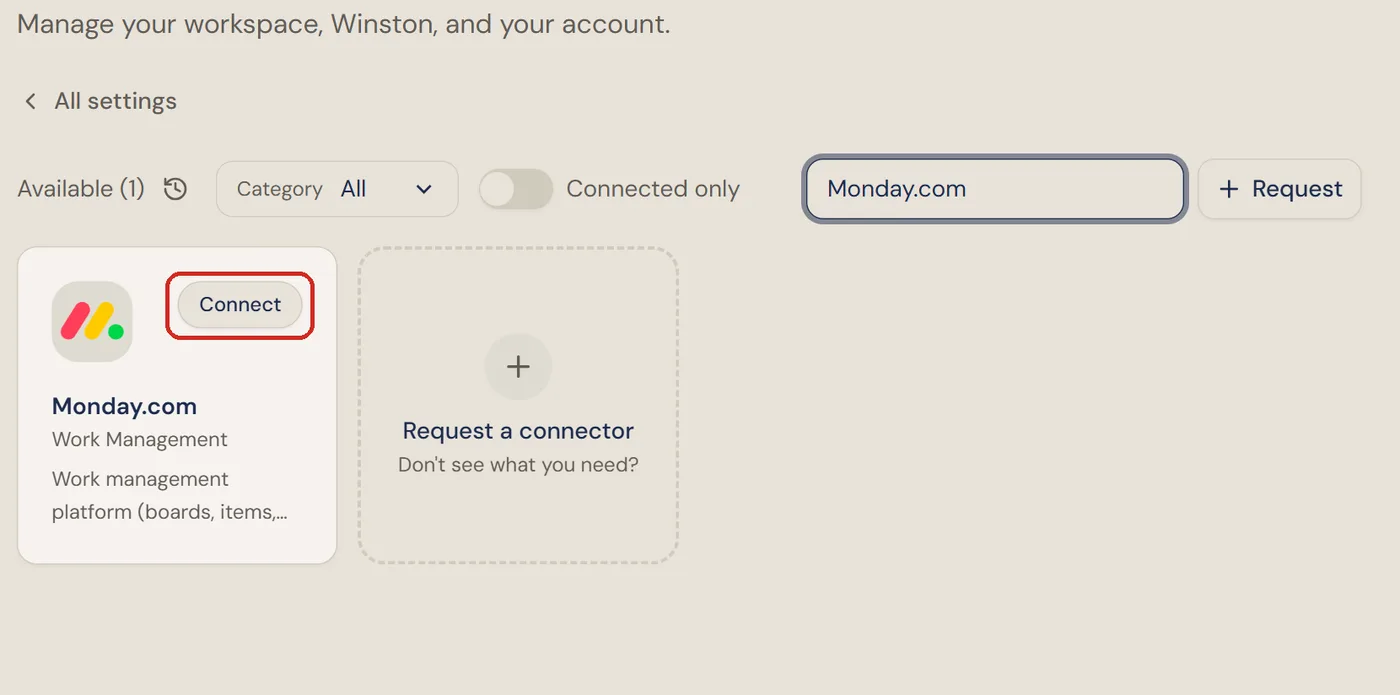
In Winston, open Settings → Connections, find the Monday.com card (under Work Management, or type "Monday" into the search box) and choose Connect.
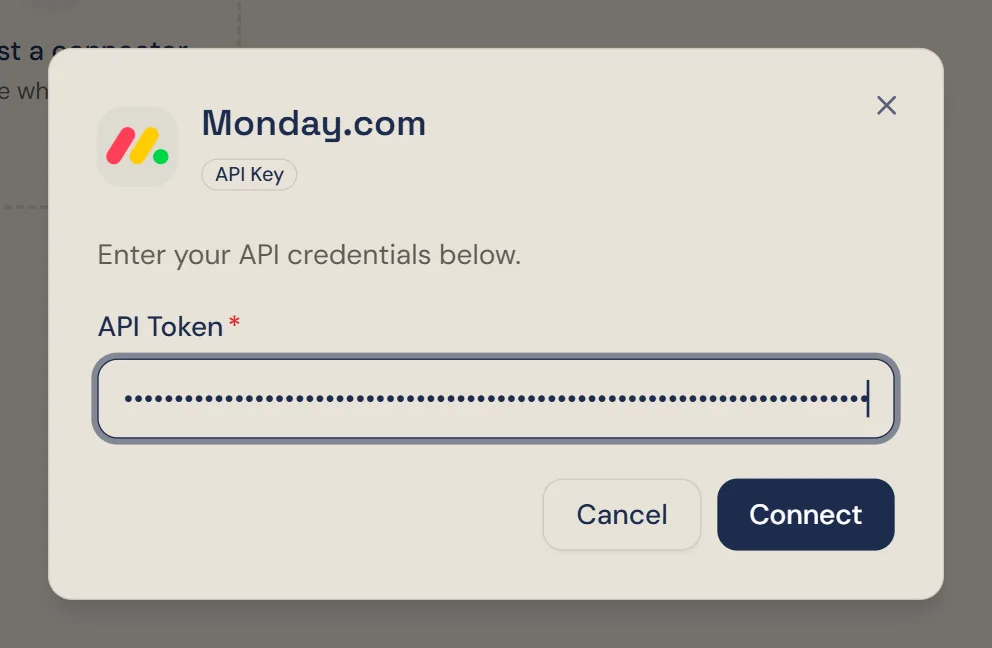
The dialog has one field, API Token. Paste the token and choose Connect. Winston shows it only as dots.
3. Check it is connected
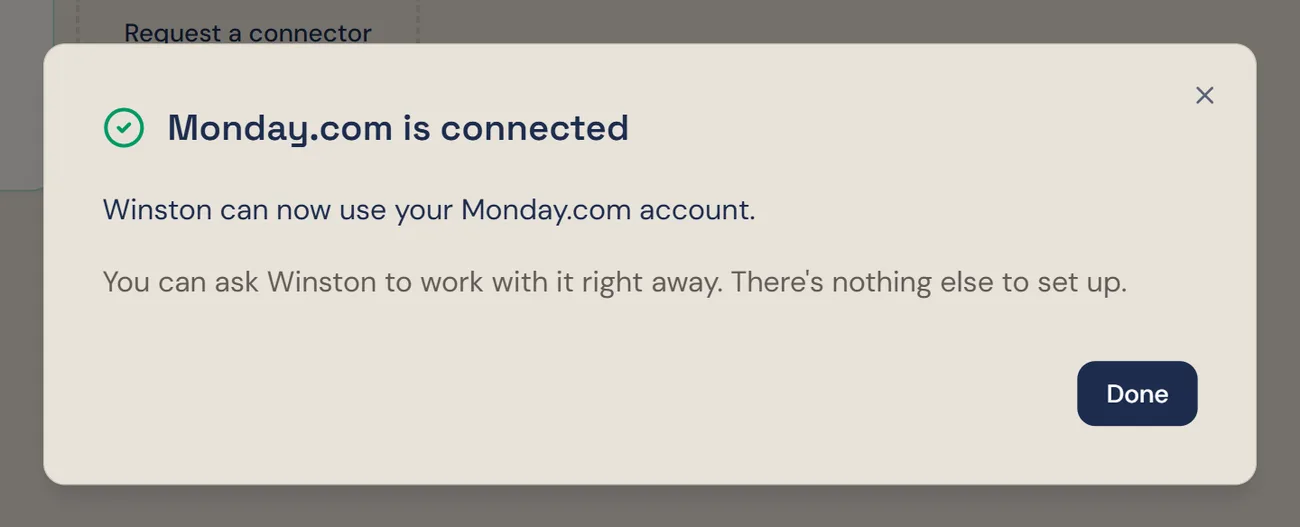
Winston checks the token with monday.com and confirms with Monday.com is connected. Choose Done.
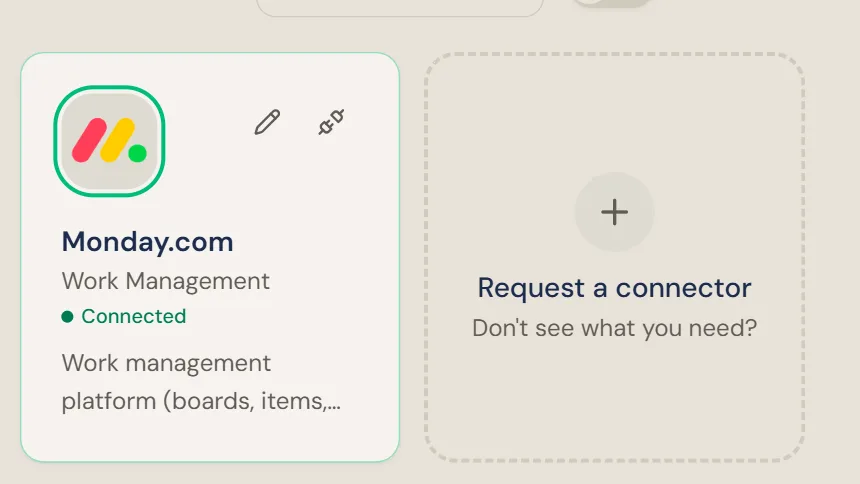
Then ask Winston a small read-only question in Chat, for example "Which monday.com account are you connected as, and what are the names of my boards?" Winston names the user and account and lists the boards that user can see. If a board you expected is missing, see the table below.
Replace the token
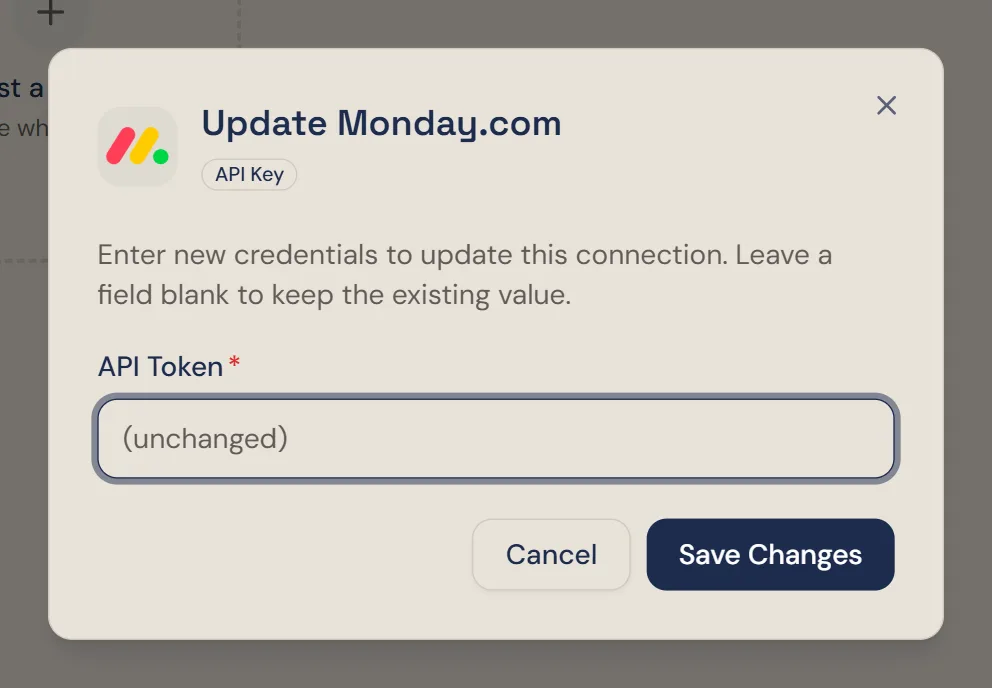
If you generate a new token in monday.com, Winston's connection stops working until you give it the new one. Choose the pencil on the Monday.com card, paste the new token into API Token and choose Save Changes. Leaving the field blank keeps the token Winston already has.
Disconnect
To stop Winston using monday.com, choose the plug icon on the Monday.com card and confirm Disconnect. This applies to the whole workspace.
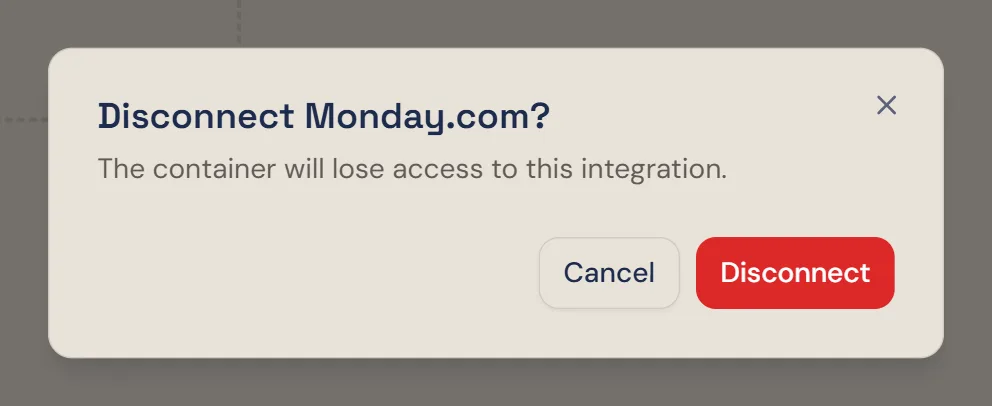
Disconnecting removes the token from Winston but does not cancel it in monday.com. To make sure it can no longer be used anywhere, generate a new token in monday.com as well. The token is personal and is often shared with other integrations: generating a new one breaks every tool that still uses the old token, so give them the new one too.
If something does not work
For other connections, see Connect your tools. Anything else, see Troubleshooting or contact Support from the dashboard.