Connect Airtable
Connecting Airtable lets Winston look up, filter and report on the records in your Airtable bases, and add or change records when you ask it to. You create a personal access token in Airtable, then paste it into Winston. This page shows each screen.
Before you start
- You need to be an Owner or Admin in Winston.
- Use an Airtable account that can open the bases Winston should work with. A token can only reach bases its account can reach.
- Decide whether Winston should only read your bases, or also add and change records. You choose this when you create the token, not in Winston.
1. Create a personal access token
Sign in to Airtable and go to airtable.com/create/tokens (Builder Hub → Personal access tokens). Choose Create token and fill in the form:
- Name: something you'll recognize, such as Winston. Airtable shows it in record revision history when Winston changes a record.
- Scopes: choose Add a scope and add
data.records:readandschema.bases:read. Winston needs both to find your bases and read them. Adddata.records:writeas well if Winston should be able to add, change or delete records. - Access: choose Add a base and pick each base Winston should see. Add all resources also works, but gives Winston every base the account can open, including ones added later.
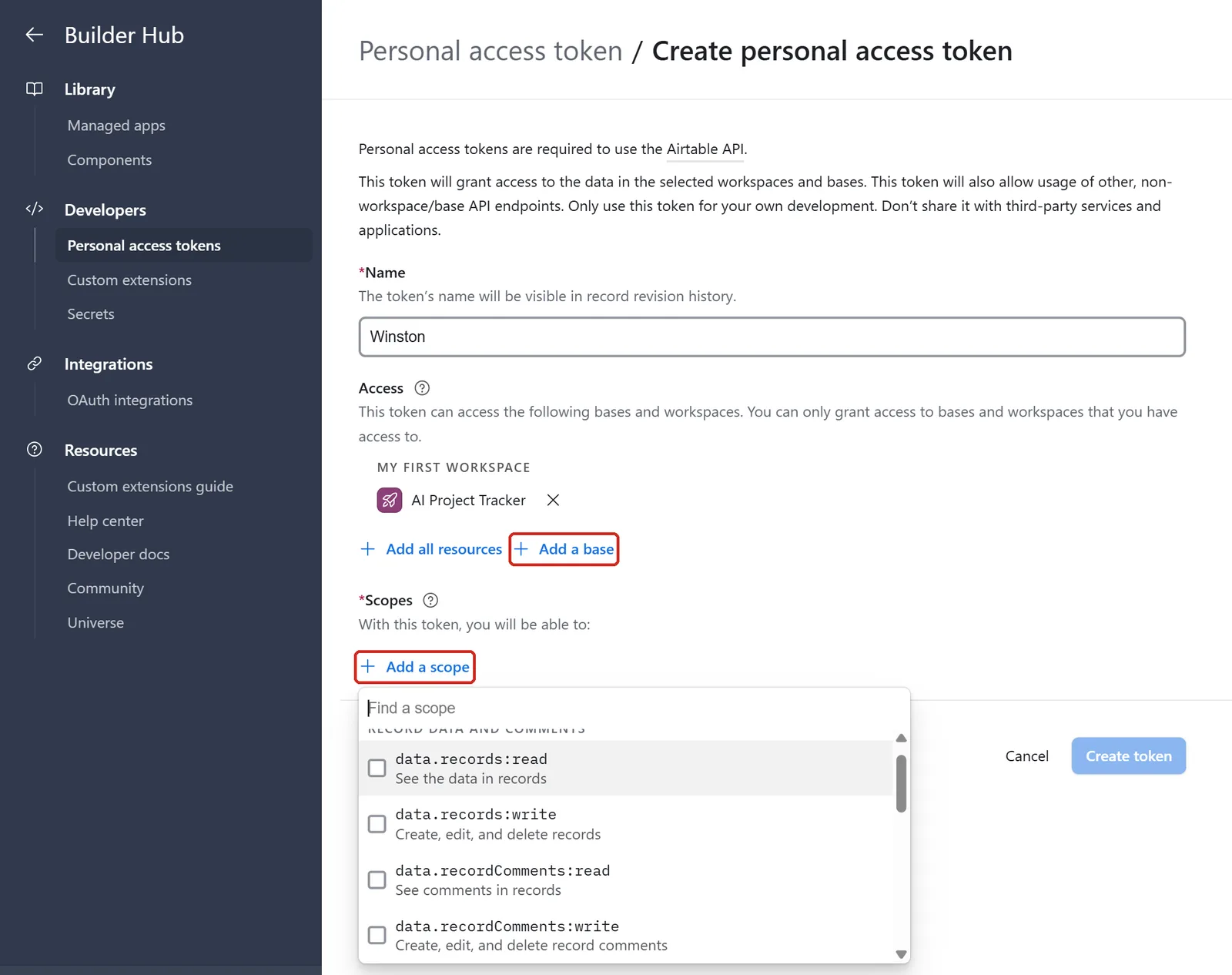
Choose Create token. Airtable shows the token once. Copy it with the copy button and go straight on to the next step.
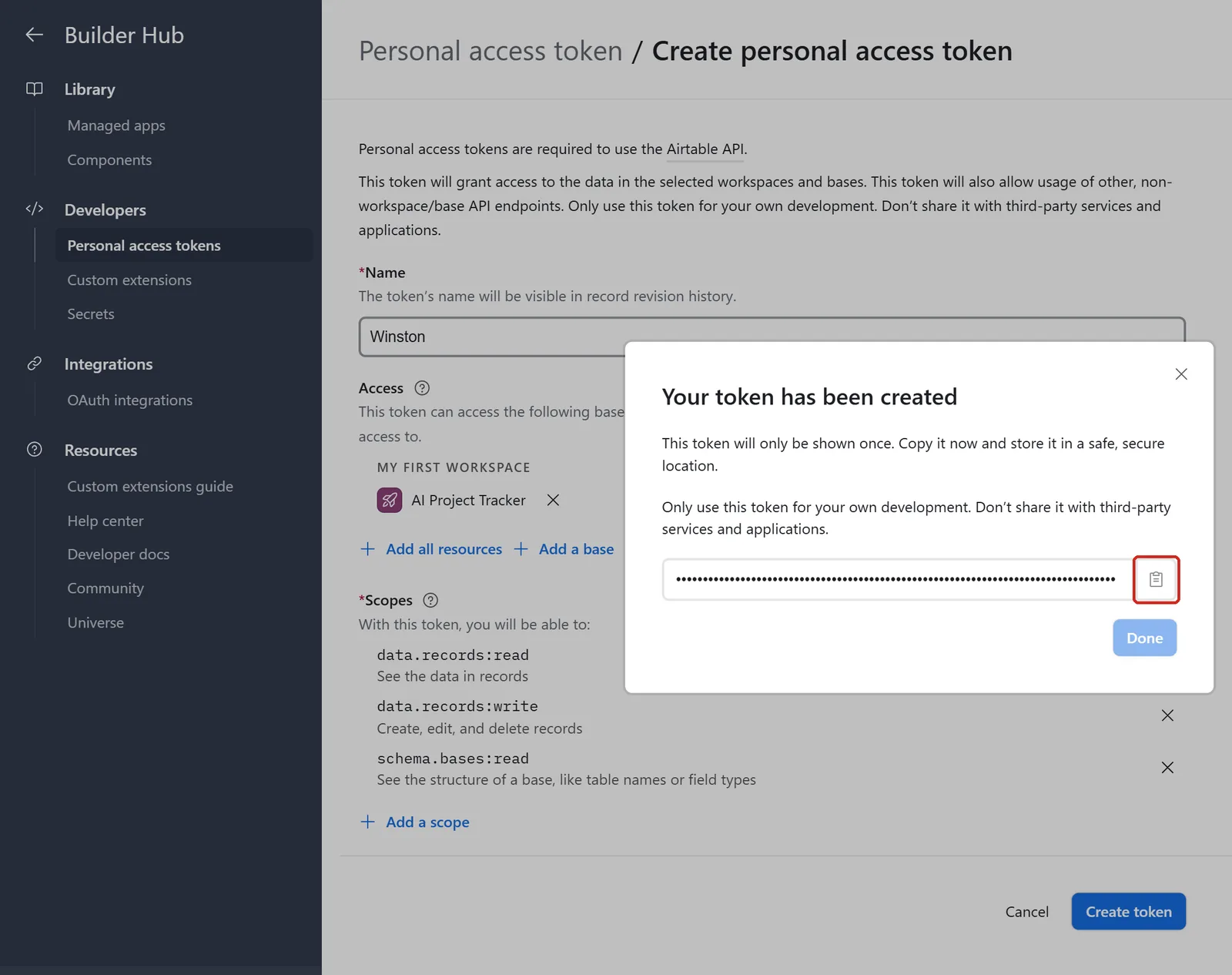
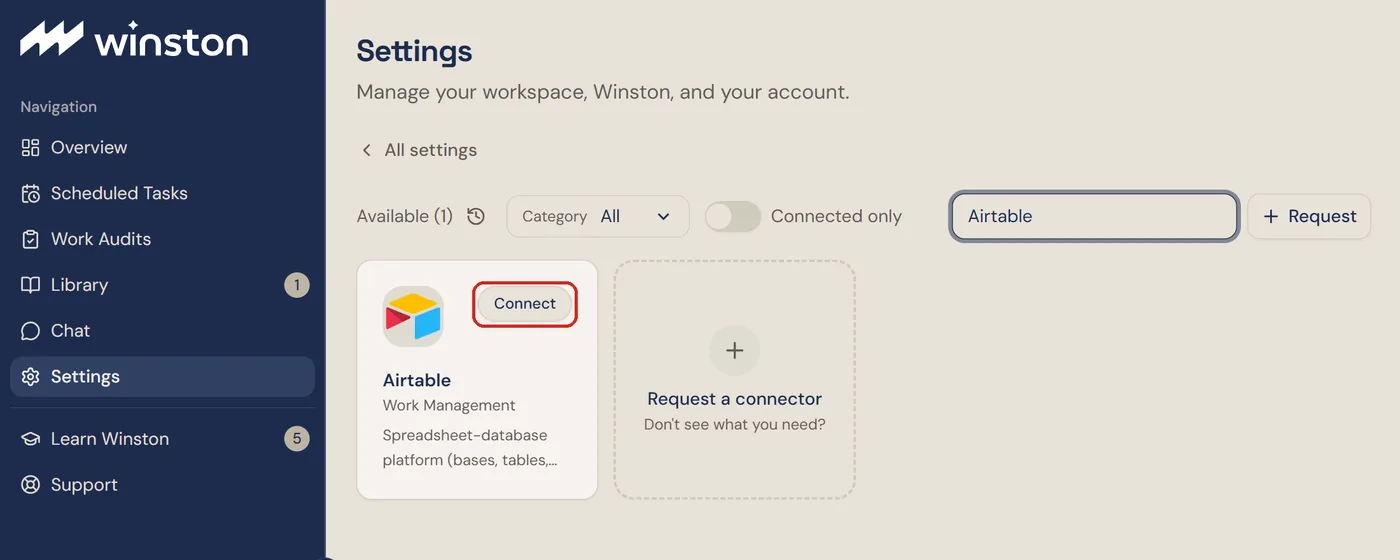
2. Connect it in Winston
In Winston, open Settings → Connections, find the Airtable card (under Work Management, or type "Airtable" into the search box) and choose Connect.
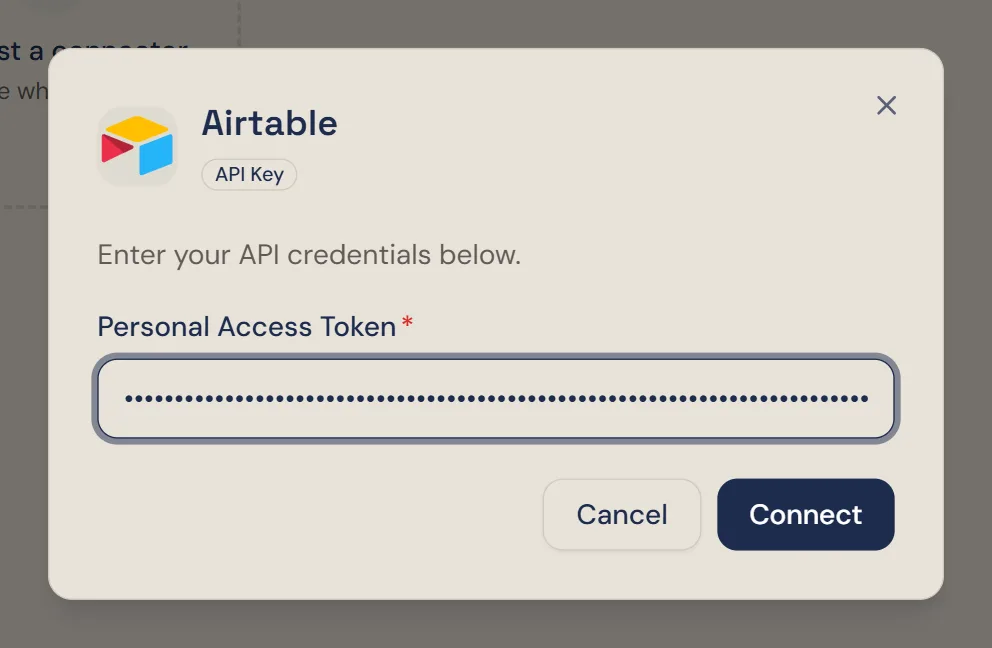
Paste the token into Personal Access Token and choose Connect. You don't pick a base here: Winston sees every base the token allows and asks which one you mean when it needs to.
3. Check it is connected
The dialog changes to Airtable is connected. Choose Done. Nothing else needs to be set up.
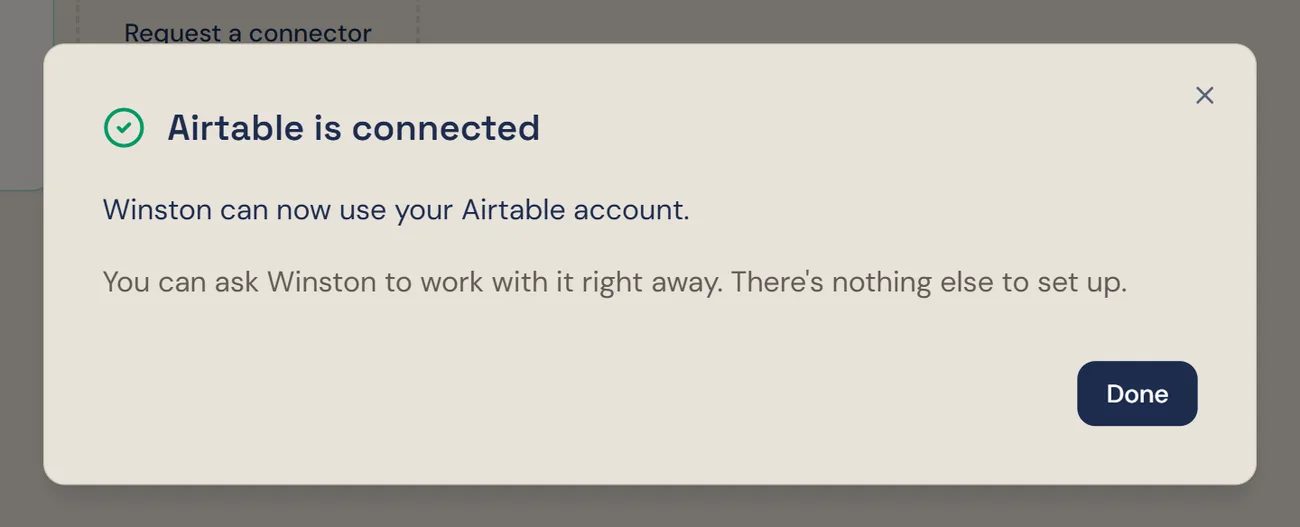
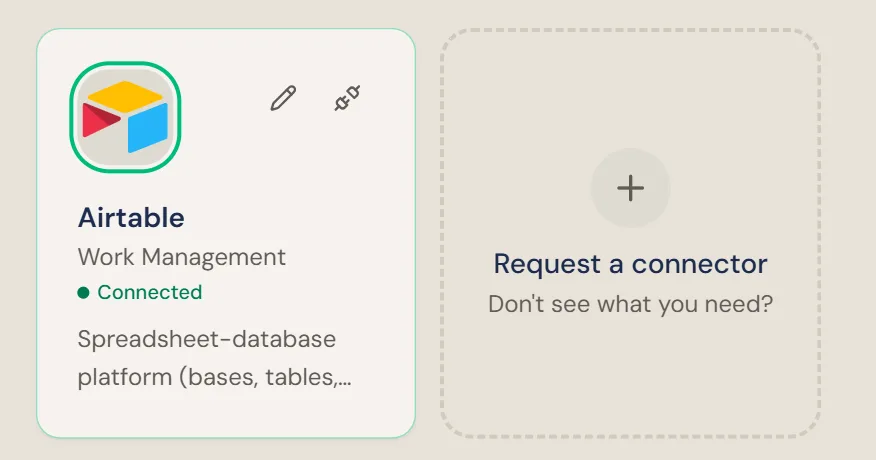
Then ask Winston a small read-only question in Chat, for example "Which Airtable bases can you see?" It lists the bases the token allows. If one is missing, add it to the token in Airtable (see below).
Asking about Airtable works like any other question in Chat. Before adding, changing or deleting records, Winston says exactly what it will change and waits for you to confirm. See Asking Winston and Review and approve.
Change the bases or scopes
To give Winston another base, or to allow or stop changes, edit the token in Airtable: open Personal access tokens, choose the token, and add or remove bases and scopes. Winston picks up the change on its next request; you don't need to do anything in Winston.
Replace the token
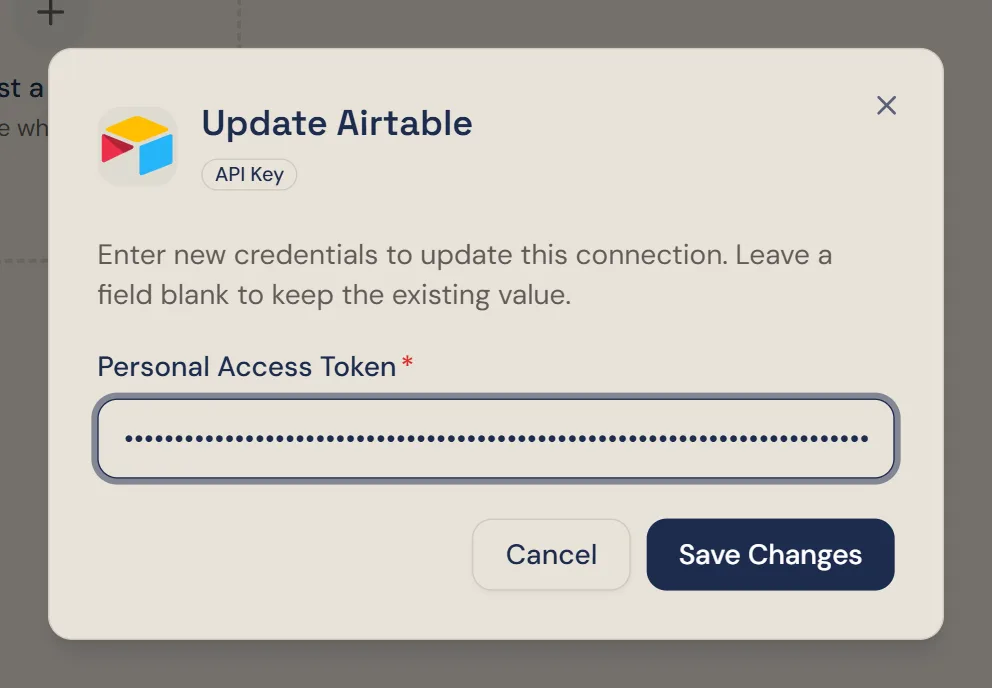
If the token is lost, leaked or deleted, create a new one as above. Then choose the pencil on the Airtable card, paste the new token and choose Save Changes. Delete the old token in Airtable afterwards.
Disconnect
To stop Winston using Airtable, choose the plug icon on the Airtable card and confirm Disconnect. This applies to the whole workspace.
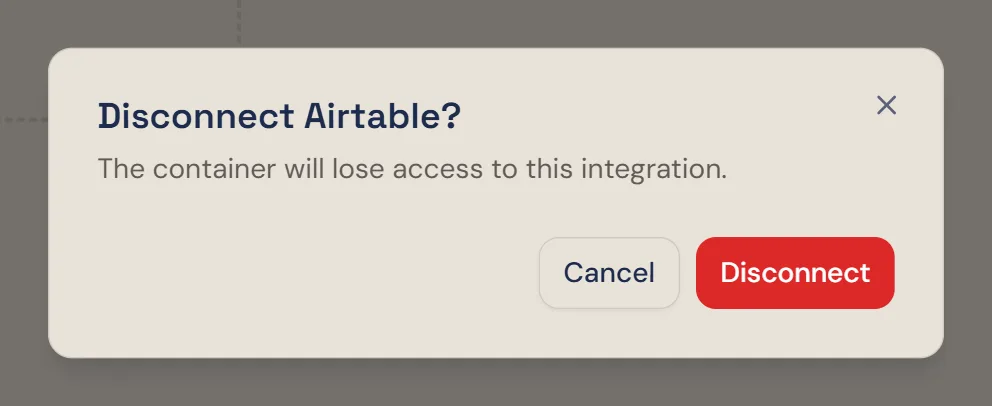
Disconnecting in Winston doesn't change anything in Airtable. To make sure the token can't be used again, delete it under Personal access tokens in Airtable.
If something does not work
For other connections, see Connect your tools. Anything else, see Troubleshooting or contact Support from the dashboard.