Connect Microsoft 365
Connecting Microsoft 365 lets Winston work with Outlook mail, OneDrive, SharePoint, and Word, Excel and PowerPoint files. It takes one click in Winston and a Microsoft sign-in. This page shows each screen.
Before you start
- You need to be an Owner or Admin in Winston.
- Decide which Microsoft account Winston should use. Winston acts as that account: email is sent from it and files are saved to its OneDrive. A shared account such as winston@yourcompany.com often works best.
- The account needs a mailbox (a Microsoft 365 license that includes Exchange Online) for Outlook, and OneDrive or SharePoint for files. It does not need a Microsoft admin role.
- Allow your browser to open a popup from Winston. The Microsoft sign-in happens in it.
Microsoft 365 is a separate card from Microsoft Teams. Teams lets your team chat with Winston; Microsoft 365 lets Winston work with mail and files. For Teams, see Use Winston in Microsoft Teams.
1. Connect it in Winston
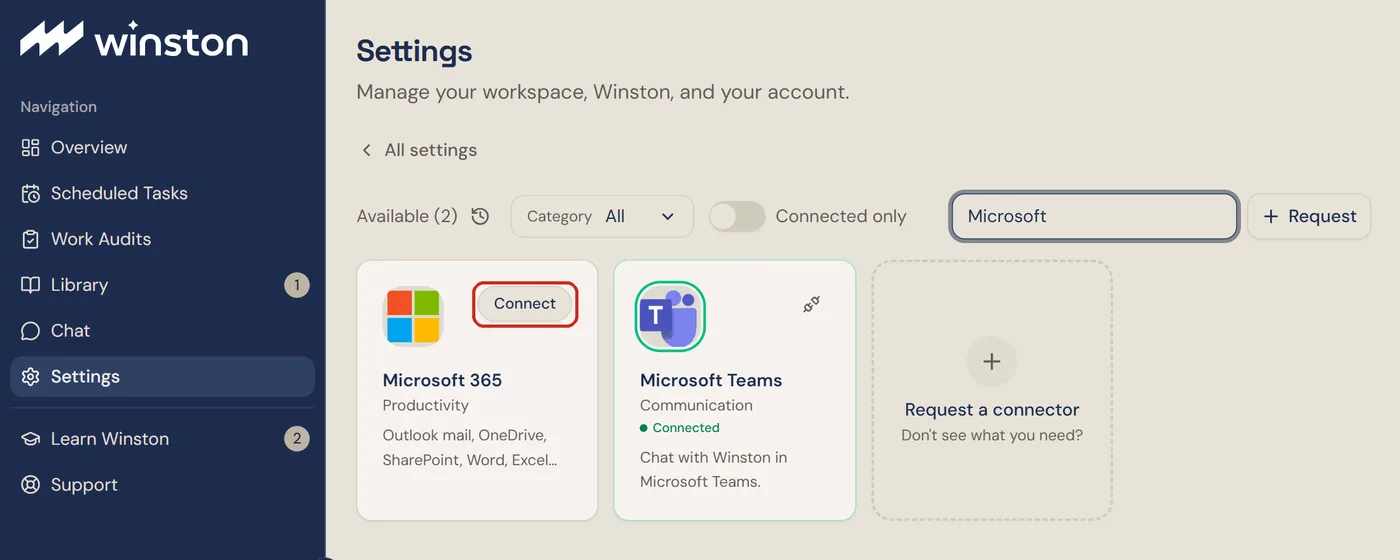
In Winston, open Settings → Connections, find the Microsoft 365 card (under Productivity, or type "Microsoft" into the search box) and choose Connect.
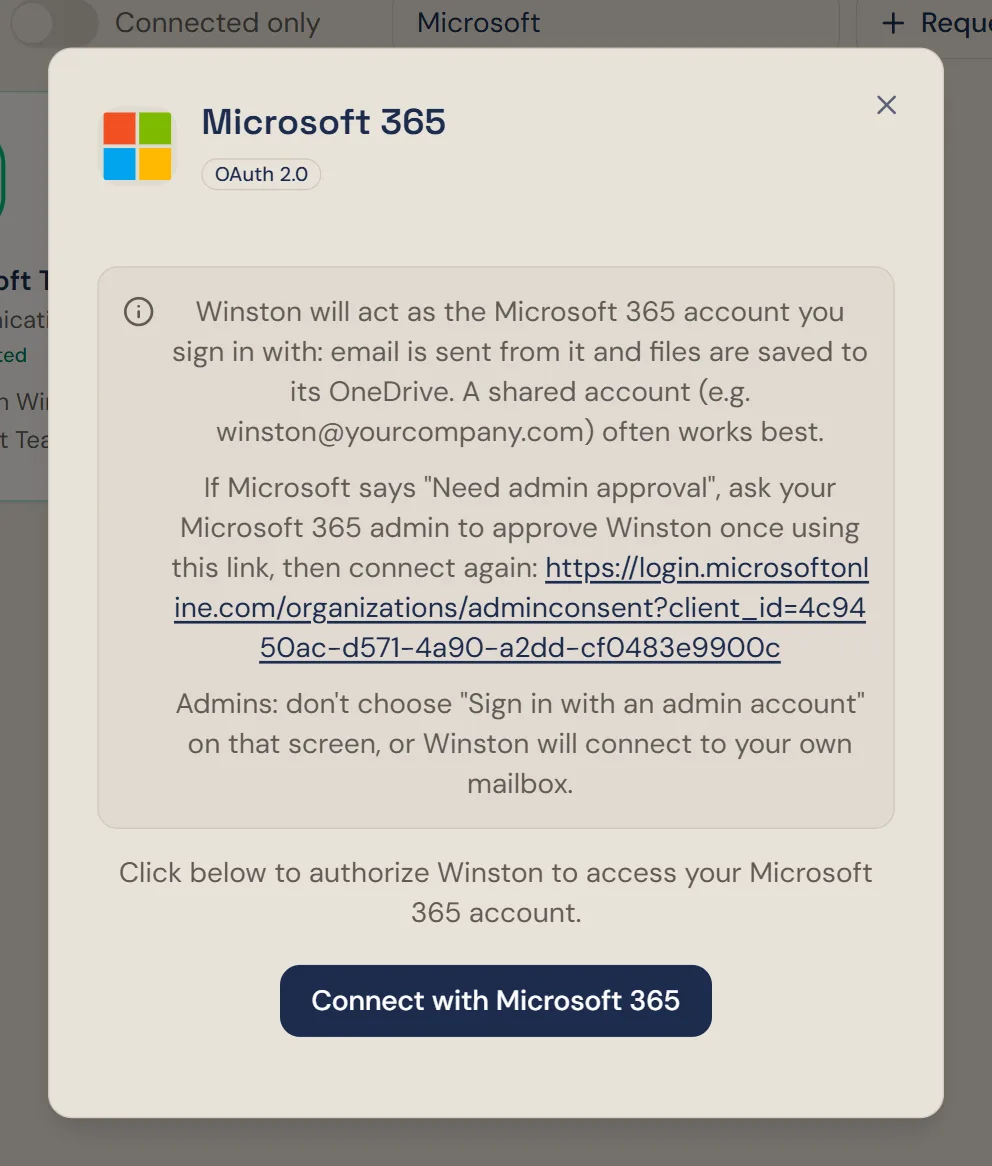
The dialog is badged OAuth 2.0: Winston never sees the Microsoft password, only an authorization Microsoft can withdraw. It repeats which account Winston will act as and carries an approval link for your Microsoft 365 admin, which you only need if Microsoft asks for admin approval (see below). Choose Connect with Microsoft 365.
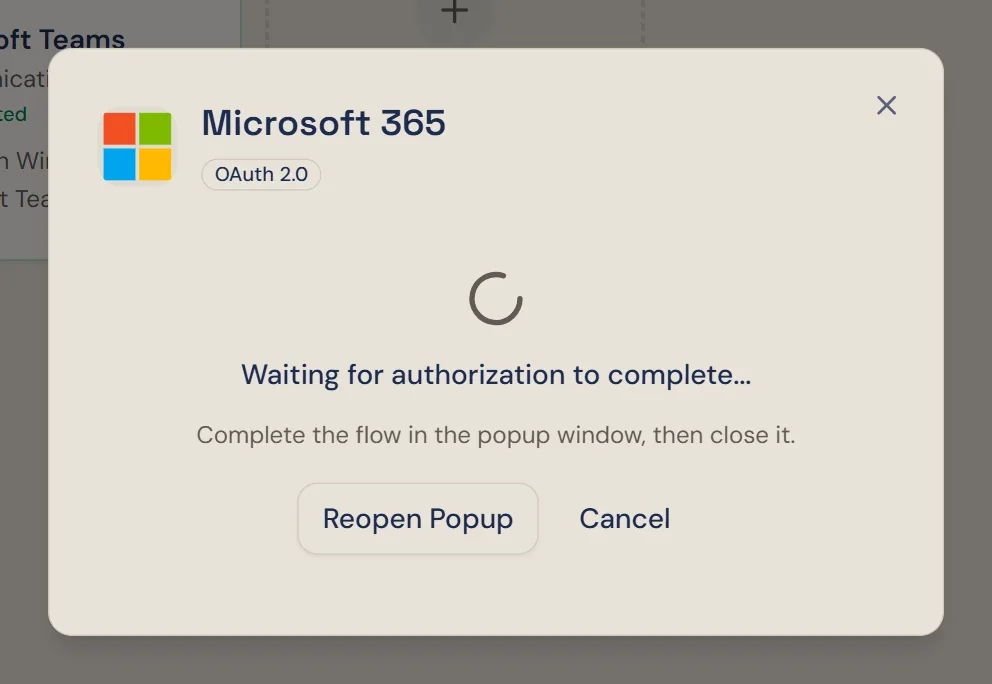
2. Sign in at Microsoft
While the sign-in windows are open, the dialog in Winston waits. If the window was blocked or you closed it early, choose Reopen Popup.
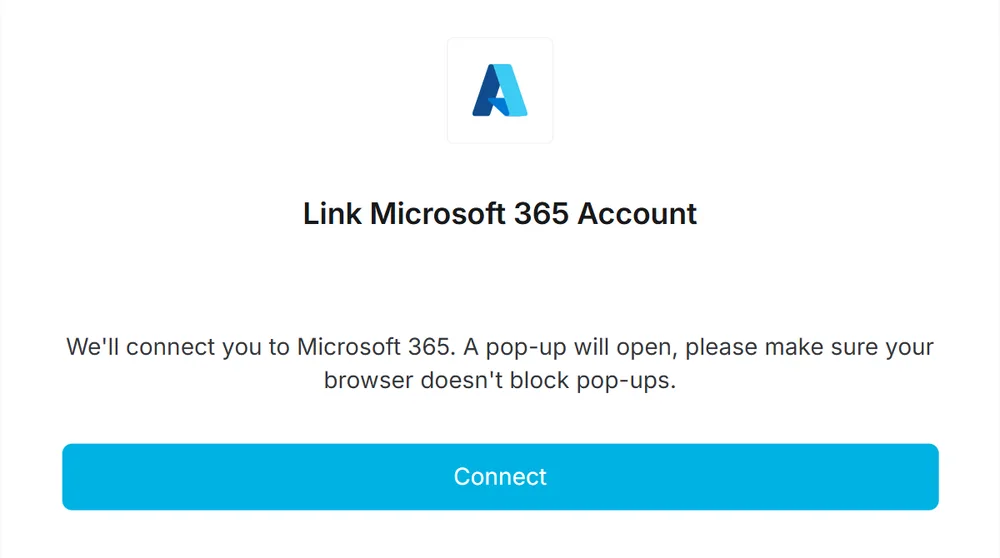
A small window opens, headed Link Microsoft 365 Account. Choose Connect. It opens Microsoft's sign-in in another window and shows Connecting… until you finish.
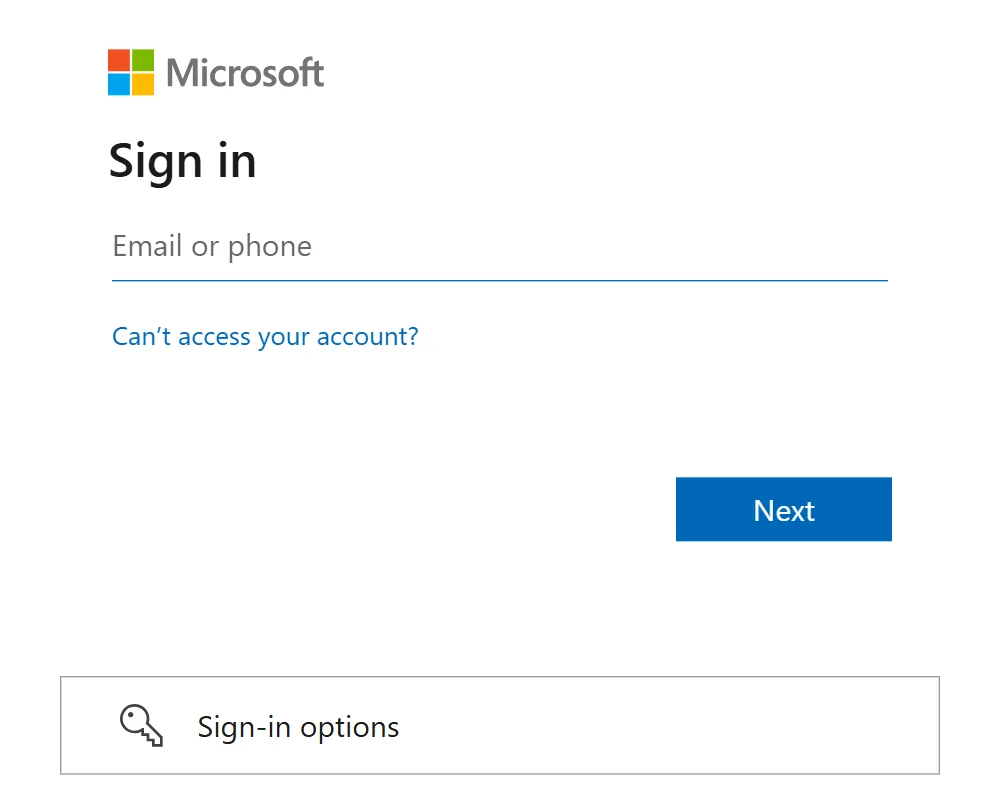
Sign in as the account Winston should use. Microsoft then asks for that account's password, passkey or other sign-in method, depending on how your organization set it up.
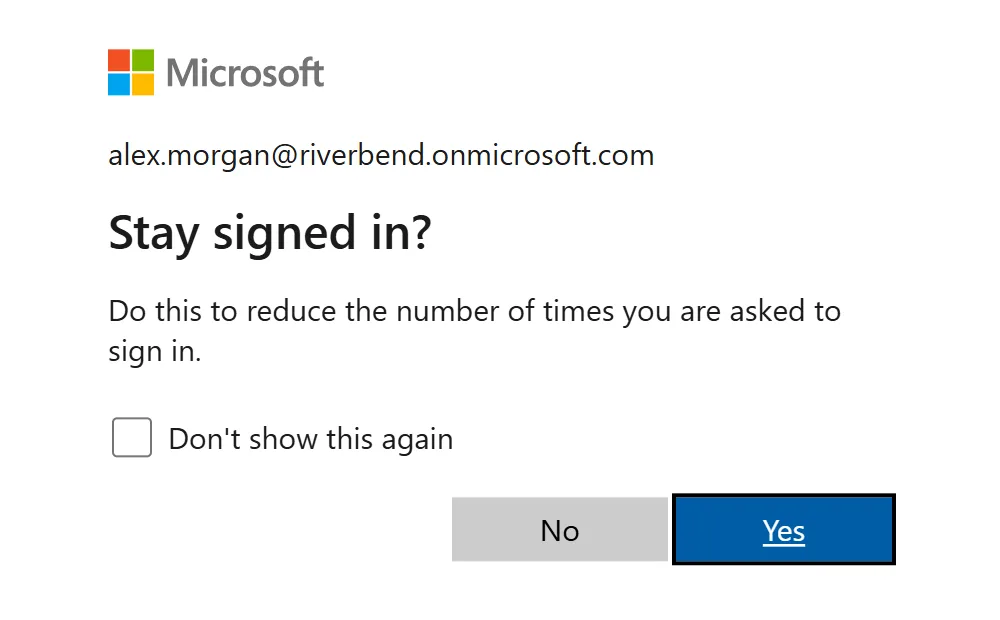
Microsoft may ask Stay signed in?. Either answer works; it only affects your browser, not the connection.
The first time an account connects, Microsoft may also show a Permissions requested page listing what Winston will be able to reach. Read it and choose Accept. Accounts that have approved Winston before skip this page.
3. Check it is connected
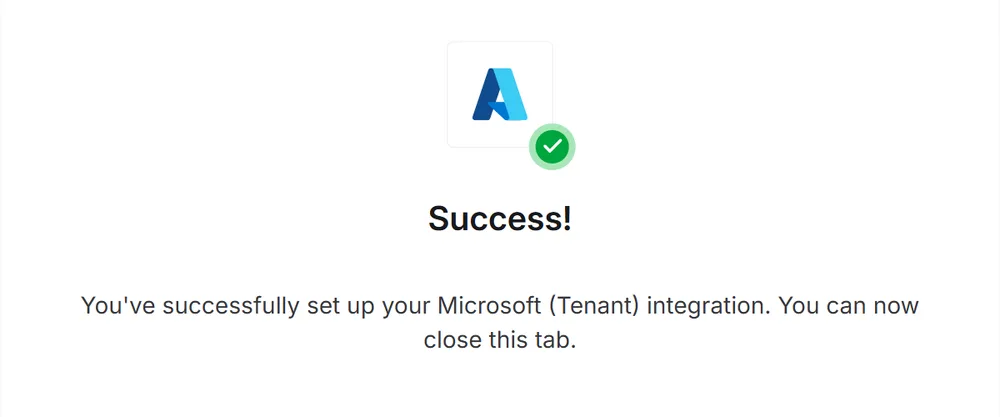
The link window reports Success and closes on its own.
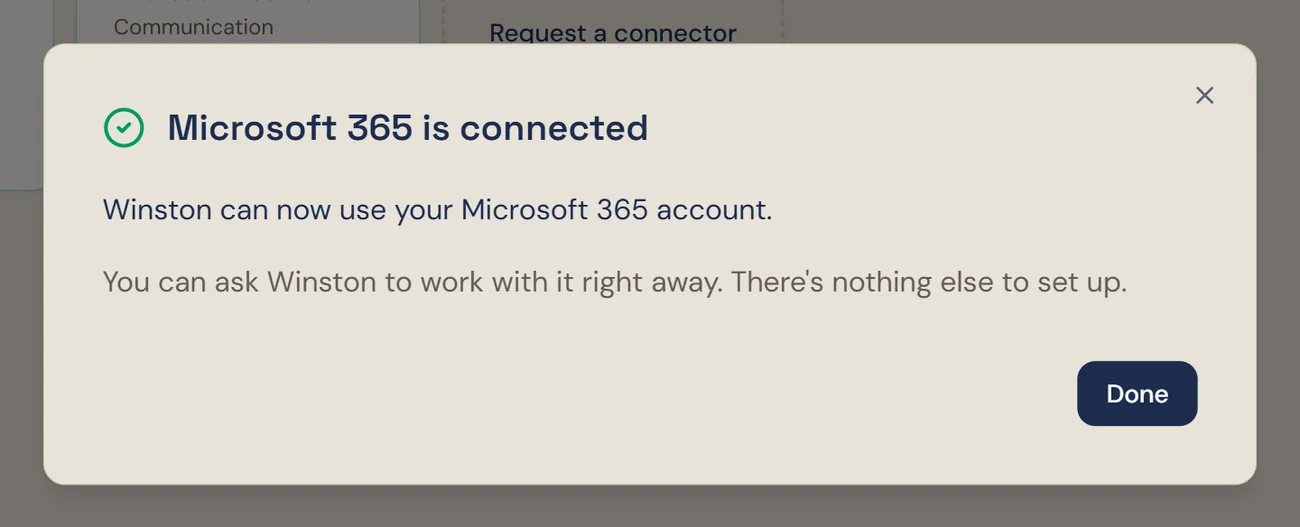
Back in Winston the dialog changes to Microsoft 365 is connected. Choose Done. Nothing else needs to be set up.
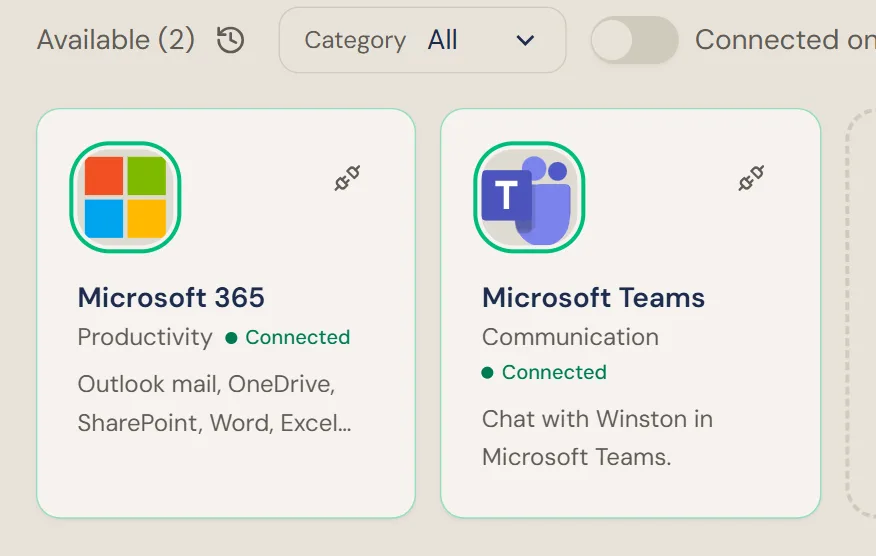
Then ask Winston a small read-only question in Chat to confirm it reached the right account, for example "Which Microsoft account are you connected as, and what are the subjects of my three latest emails?" or "List the folders in my OneDrive." Winston names the account it is using. If it is the wrong one, disconnect and connect again signed in as the right account.
Asking for mail or files works like any other question in Chat, with the same rules about what needs reviewing before anything is sent or changed. See Asking Winston and Review and approve.
If Microsoft says "Need admin approval"
Some organizations only let an administrator approve new apps. In that case Microsoft shows Need admin approval instead of letting you continue. Close the window, and send your Microsoft 365 admin the approval link from Winston's Microsoft 365 dialog. They open it once and approve Winston for the organization. Then choose Connect with Microsoft 365 again and sign in as the account Winston should use.
Disconnect
To stop Winston using the account, choose the plug icon on the Microsoft 365 card and confirm Disconnect. This applies to the whole workspace.
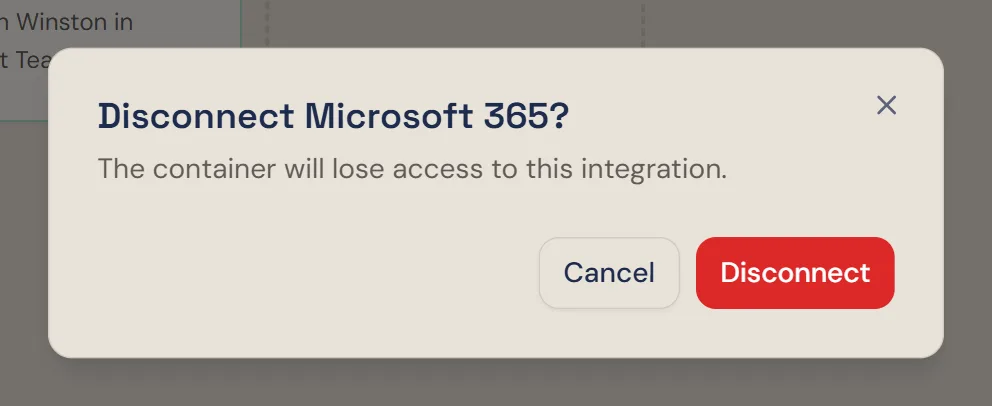
Disconnecting in Winston does not withdraw the approval on Microsoft's side. To do that as well, the account's owner removes Winston at myapps.microsoft.com, or an admin removes it in the Microsoft Entra admin center. To switch to a different account, disconnect first and run the steps above again with the other account.
If something does not work
For other connections, see Connect your tools. Anything else, see Troubleshooting or contact Support from the dashboard.