The screens
Use the left menu to move between Winston's main work areas. Available items can vary by workspace and role.
Overview
Your starting point for findings that may need attention. A card carries its own actions: expand its products, ask Winston about it with the main button (Get the plan, Prepare, Fix it), or use the ⋯ menu to snooze, dismiss, tune or email. Check the source date before you act. Watching and Edit control monitoring priorities. The coverage line counts how many checks ran, and Details lists each check under its area with its own state and the time it last ran. The resolved-findings control shows items no longer reported as active. Winston updates, top right, lists recent product changes.
Your skills provides an entry point for reusable work. See Overview for the full walkthrough.
Scheduled Tasks
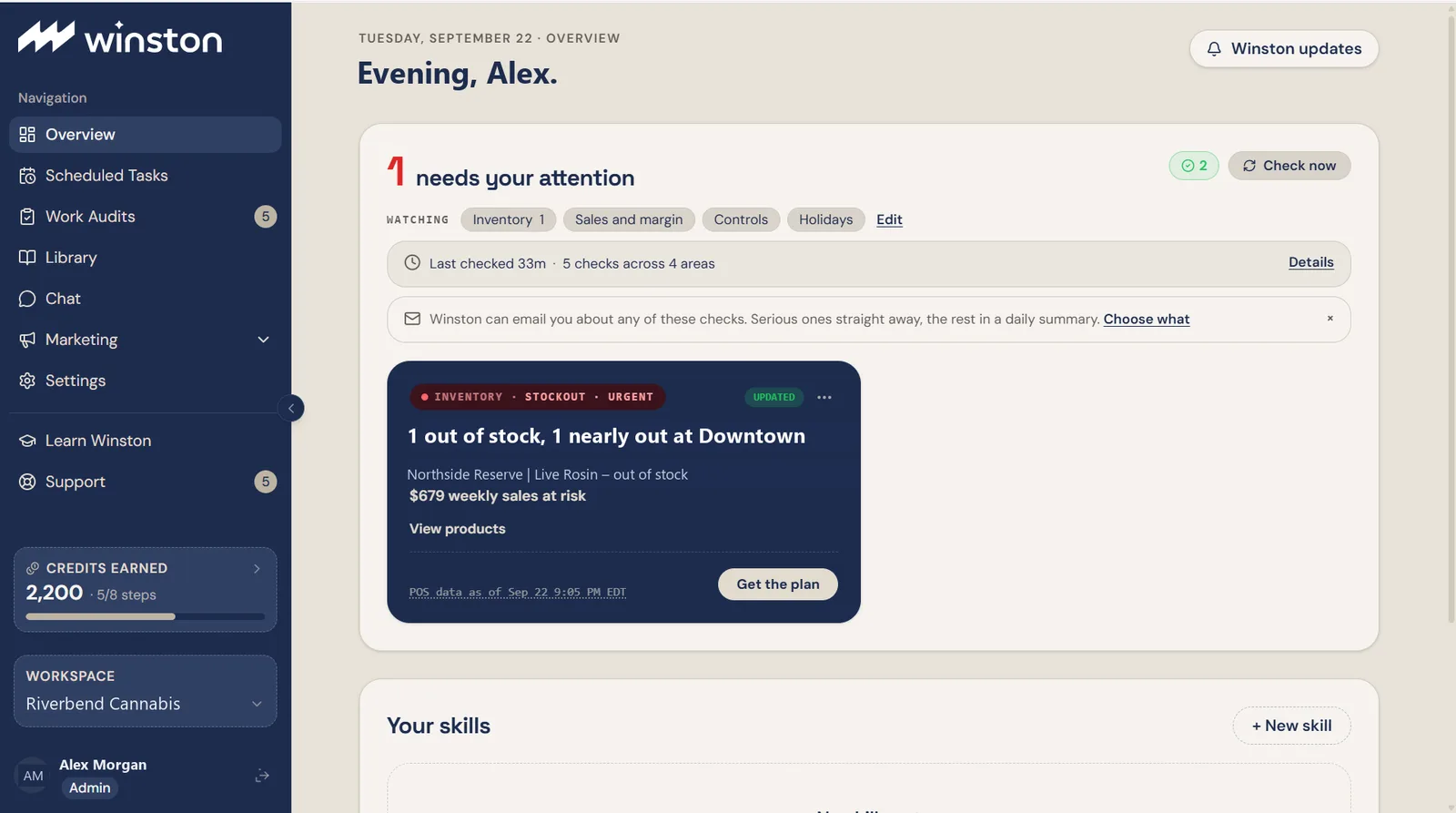
Recurring jobs and their enabled state, schedule and delivery configuration. The schedule is shown as a cron expression with its timezone. Confirm the saved schedule, timezone and destination when setting up or changing a job. If a Next value is shown, check it against the intended schedule; if it is missing or invalid, ask Winston to confirm the saved next run. See Automation.
Work Audits
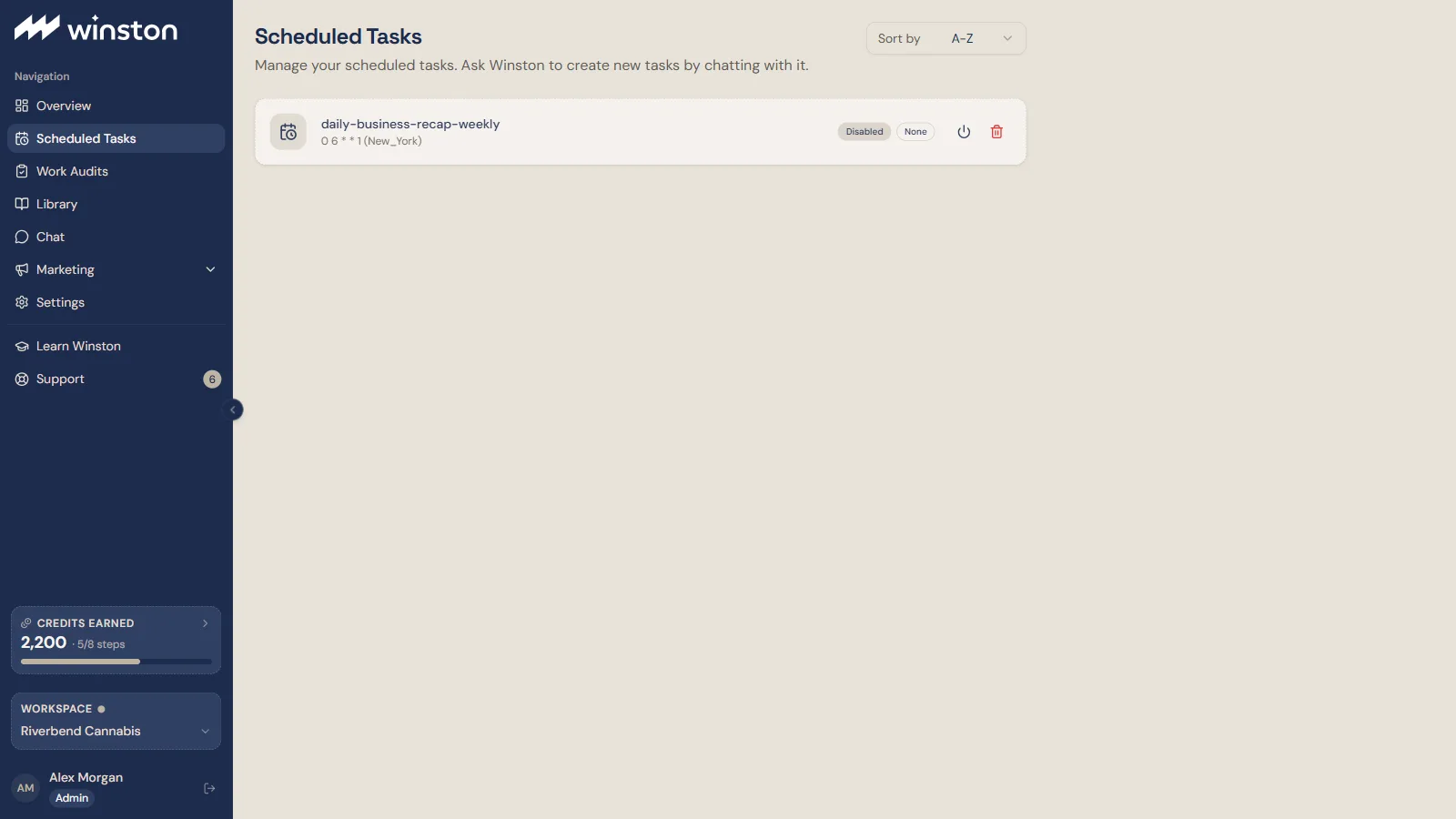
Work routed for review, with status tabs and actions such as Approve, Reject and Edit in Chat. The list opens on the last 30 days; change the period to see older items. Read the proposed action and preview before deciding. Work Audits is not proof that every possible action in Winston is approval-gated. The full walkthrough is on Review and approve.
 12
12- 1The status tabs: Suggestions, Pending, Completed, Rejected.
- 2Approve, Reject, or Edit in Chat.
Library
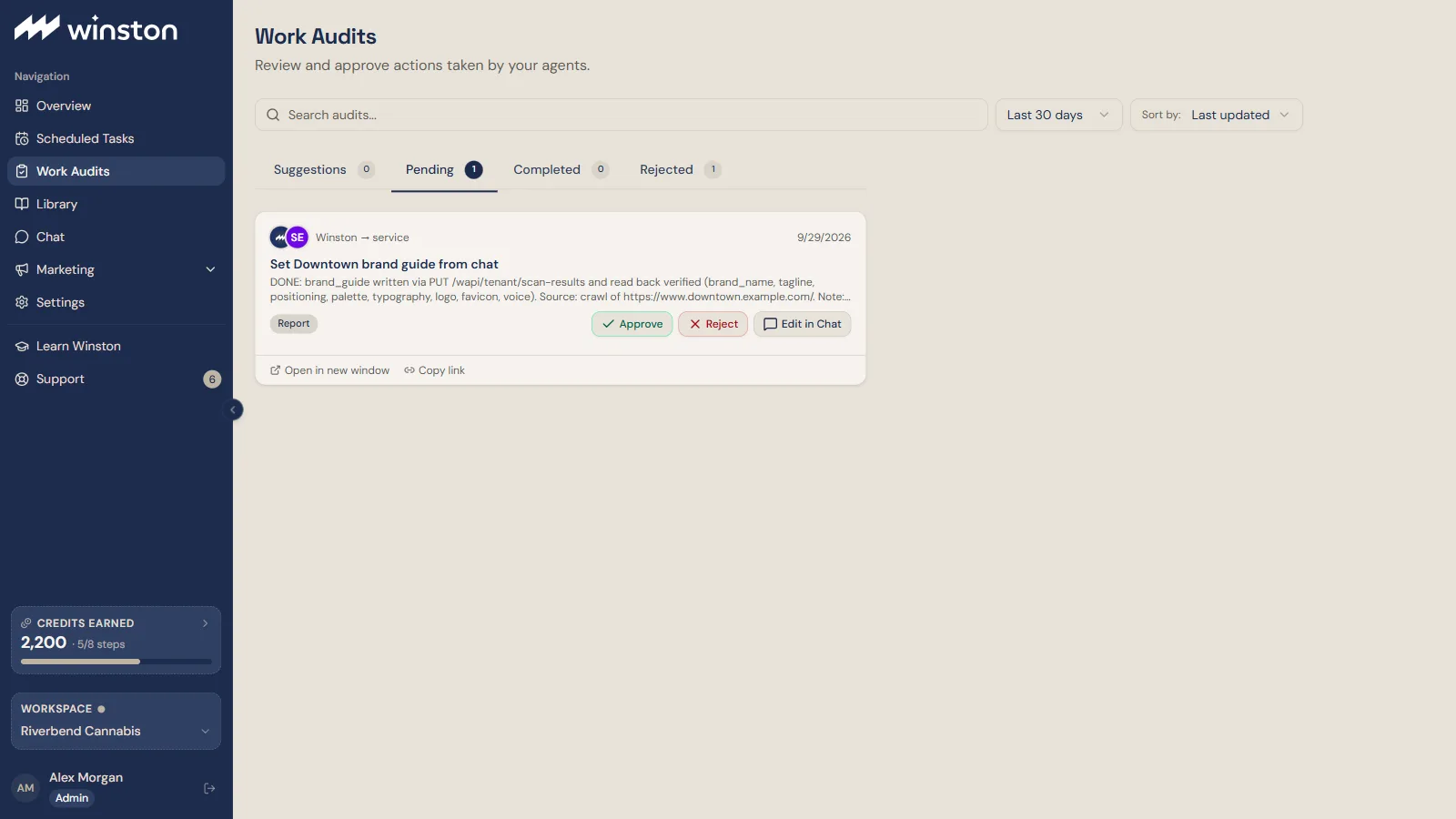
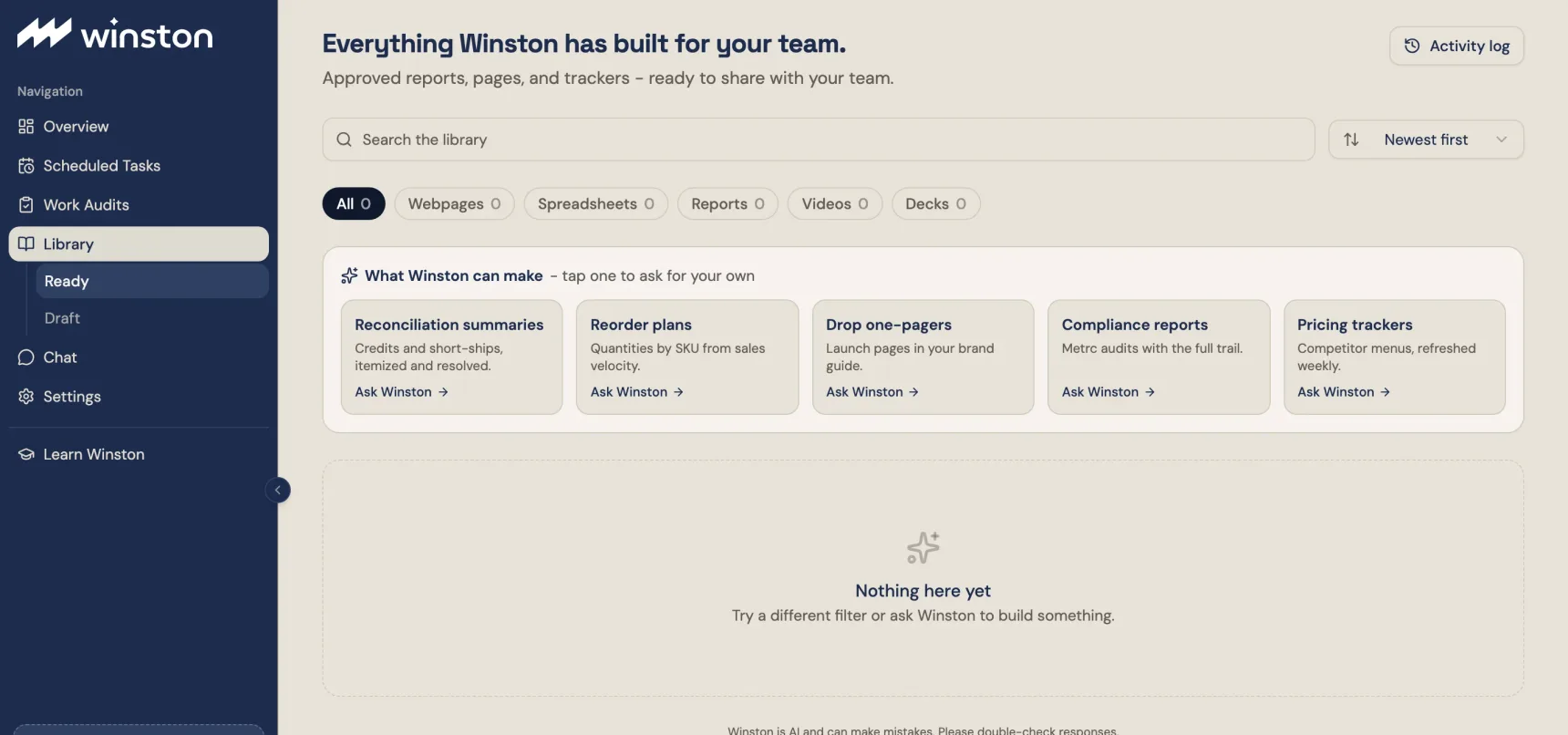
Saved outputs such as reports, webpages, spreadsheets, decks and videos. Open the actual output to check its status and sharing settings. Use its related conversation when requesting changes.
 1
1- 1Filter the shelf by type: webpages, spreadsheets, reports, videos, decks.
Chat
Ask questions, refine results and follow work in a conversation. The sessions list can show All conversations in the workspace or only Mine. Check the current workspace and session before continuing. Use New Chat for a separate topic and restate critical scope when needed. Files Winston produces appear as links in the reply. See Asking Winston.
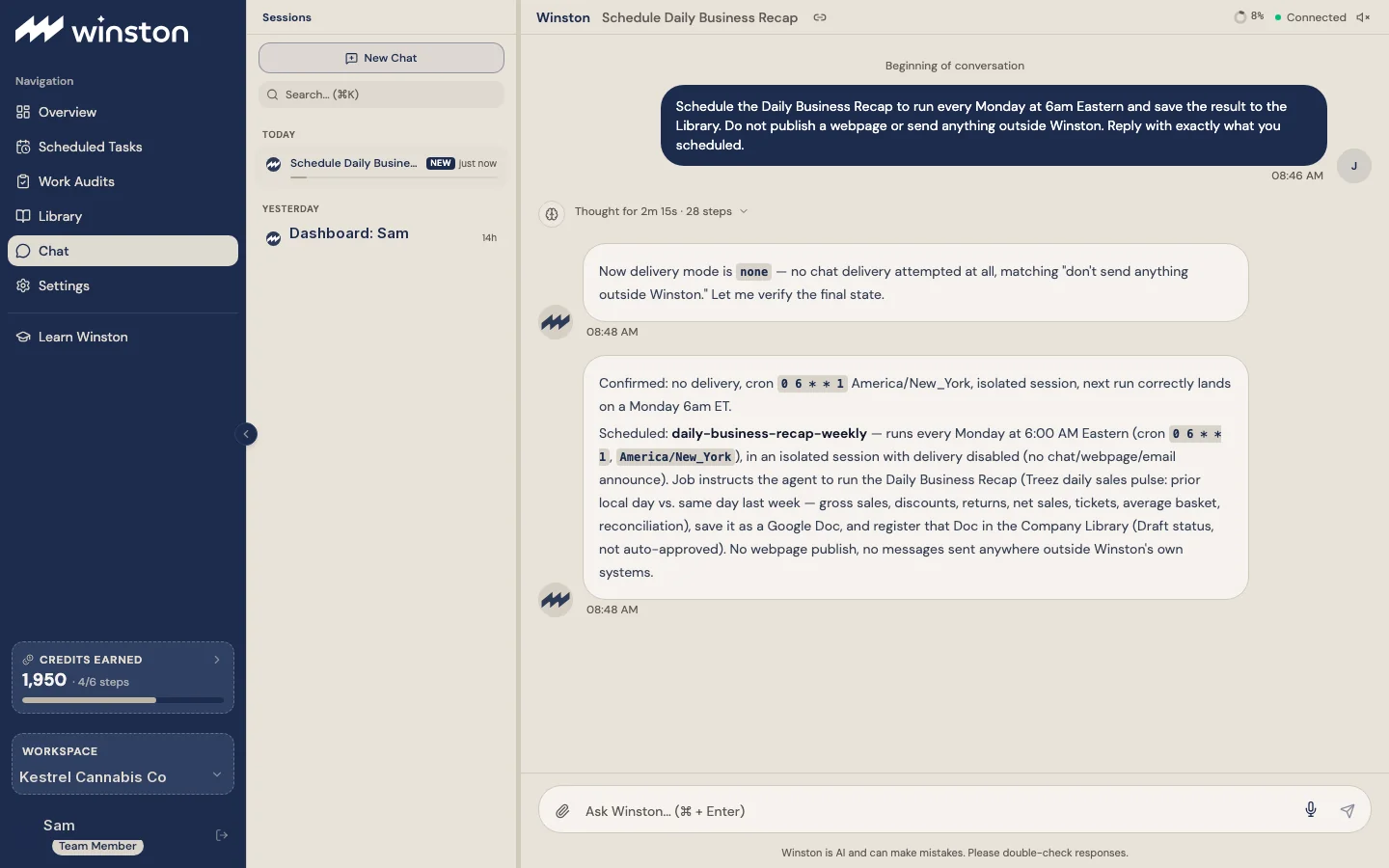 123
123- 1The sessions list: past conversations, searchable.
- 2Thought for… is Winston's working notes, safe to skip.
- 3The Ask Winston box: type here and send.
Settings
Settings is in three groups. Workspace: Connections, Members (roles, invitations, and where the owner hands the workspace over), Data Warehouse, Workspace. Winston & Billing: Agents, Skills, Insights, Billing, Usage. Account: Profile, Appearance. Insights holds what Winston learned from your website (brand guide, business type, SEO audit) and your onboarding answers; Skills lists every skill the workspace can use. Which rows you see depends on your role, and an admin can help when a required control is unavailable.
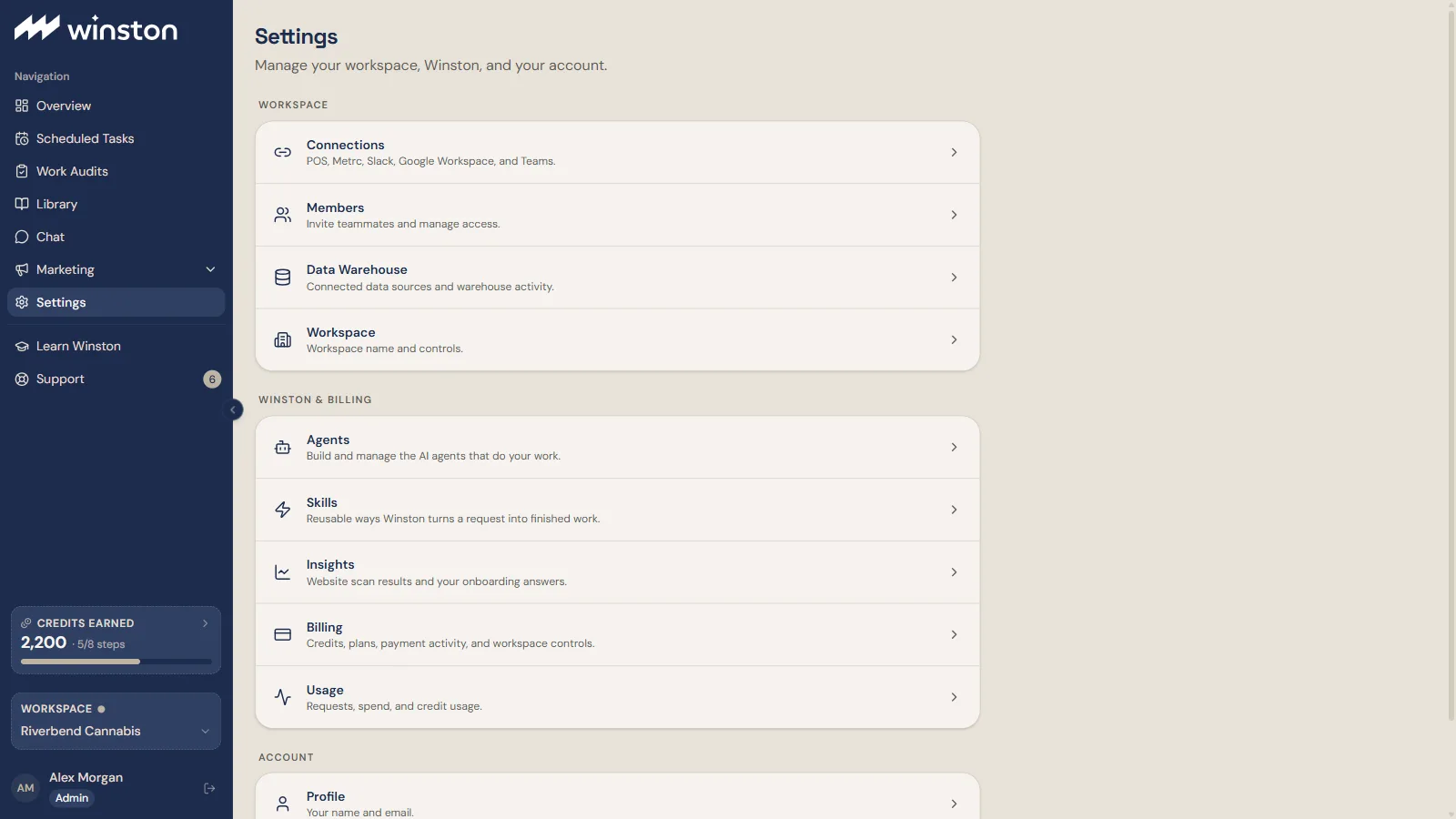 12
12- 1Connections: every connector you can link, and the ones already live.
- 2Billing and Usage: your plan and payment method, and what you have spent.
Learn Winston
Starter prompts with descriptions and What to expect. The page leads with a few prompts picked from your setup answers (Edit answers changes them), then Show all prompts opens the full catalog, with a For you filter and sort by name, recommended or most run. Or ask your own takes you to Chat. Search by the job you want done; unavailable prompts may require a connection. The descriptions are listed in this guide's Prompt library.
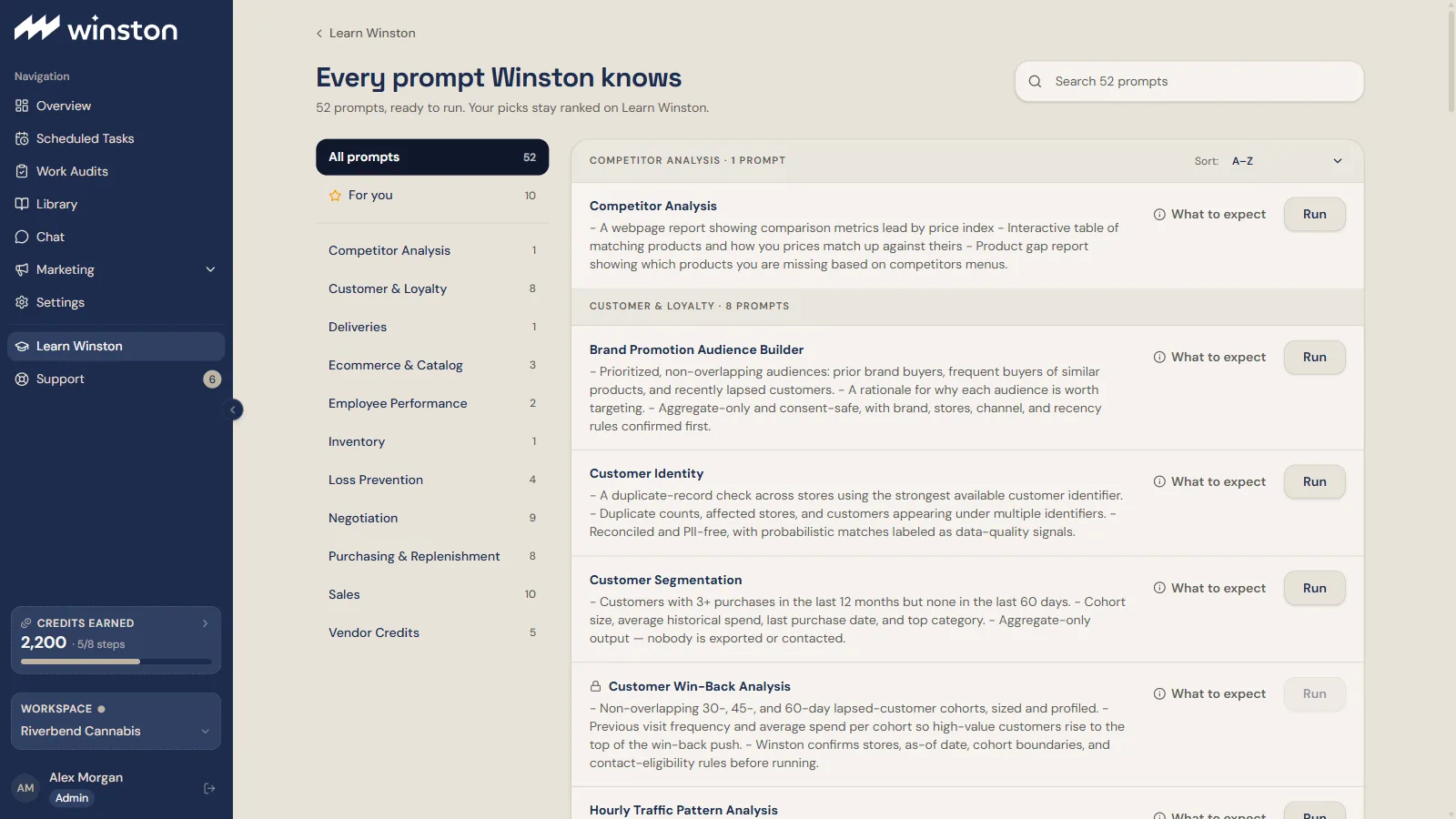 1
1- 1A padlock means the prompt needs a connection you have not made yet.
Support and other workspace tools
Use Support for help with a specific error or result; it opens a ticket drawer, and a link in a support email opens the same ticket. Some workspaces also expose Marketing or administrative tools. Their presence does not mean every related workflow or automatic monitor is enabled.
The lower part of the menu shows the Credits earned bar, which opens Earn credits, the workspace switcher and your account. Confirm the workspace before starting work or changing settings.