Connect Brave Search
Connecting Brave Search lets Winston search the web when a question needs something your other connections don't hold, such as a competitor's website, a news story or a rule change. You create an API key in Brave's Search API dashboard, then paste it into Winston. This page shows each screen.
Before you start
- You need to be an Owner or Admin in Winston.
- If the Brave Search card in Settings → Connections already shows Connected, web search is already set up and there is nothing to do.
- You need a Brave Search API account with the Search plan active. Sign up at api-dashboard.search.brave.com, then subscribe under Plans → Available plans. Brave asks for a payment card when you subscribe; check its current pricing there. Brave won't create keys until a plan is active.
1. Create an API key in Brave
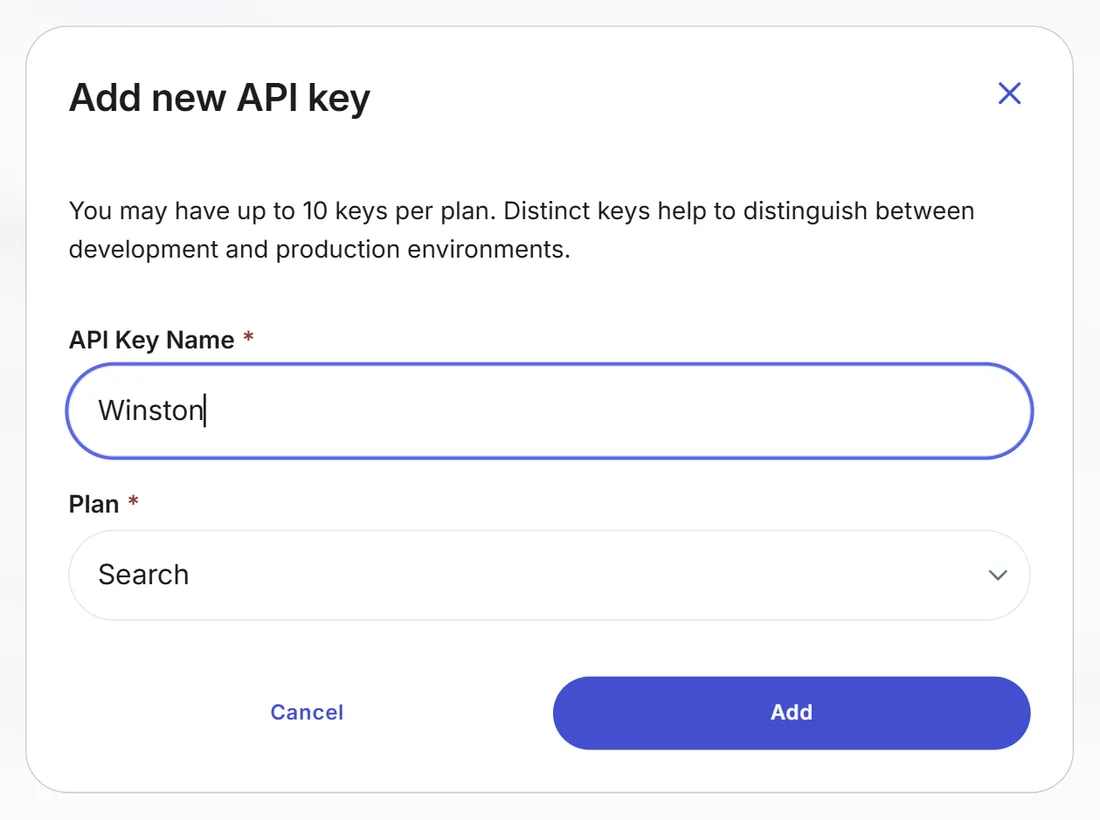
In Brave's dashboard, open API keys and choose Add API key. Give it a name you'll recognize, such as Winston, leave Plan on Search and choose Add.
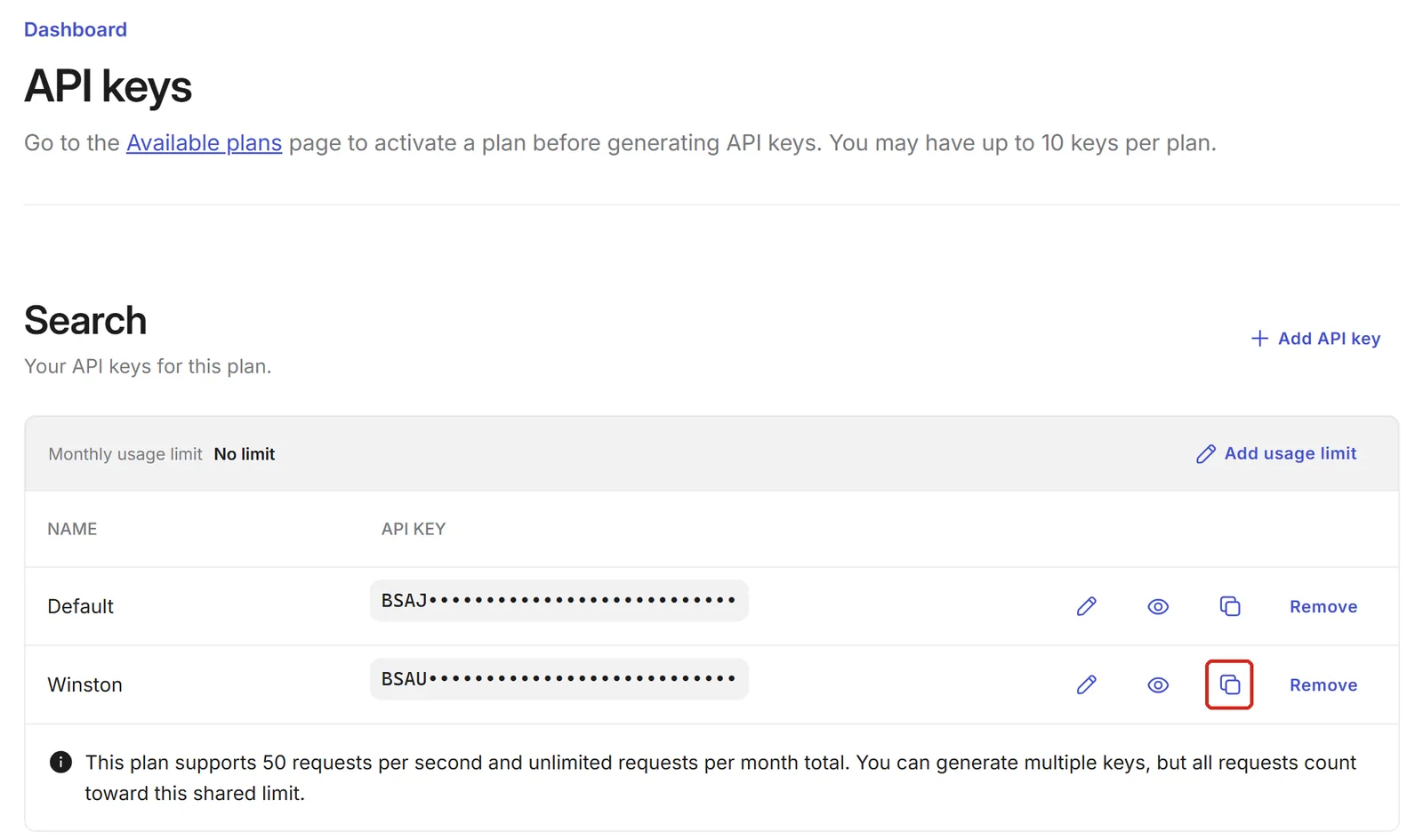
The new key appears in the list with only its first characters showing. Choose the copy button on its row and go straight on to the next step. Here you can also choose Add usage limit to stop the plan's keys after a set amount of use each month.
2. Connect it in Winston
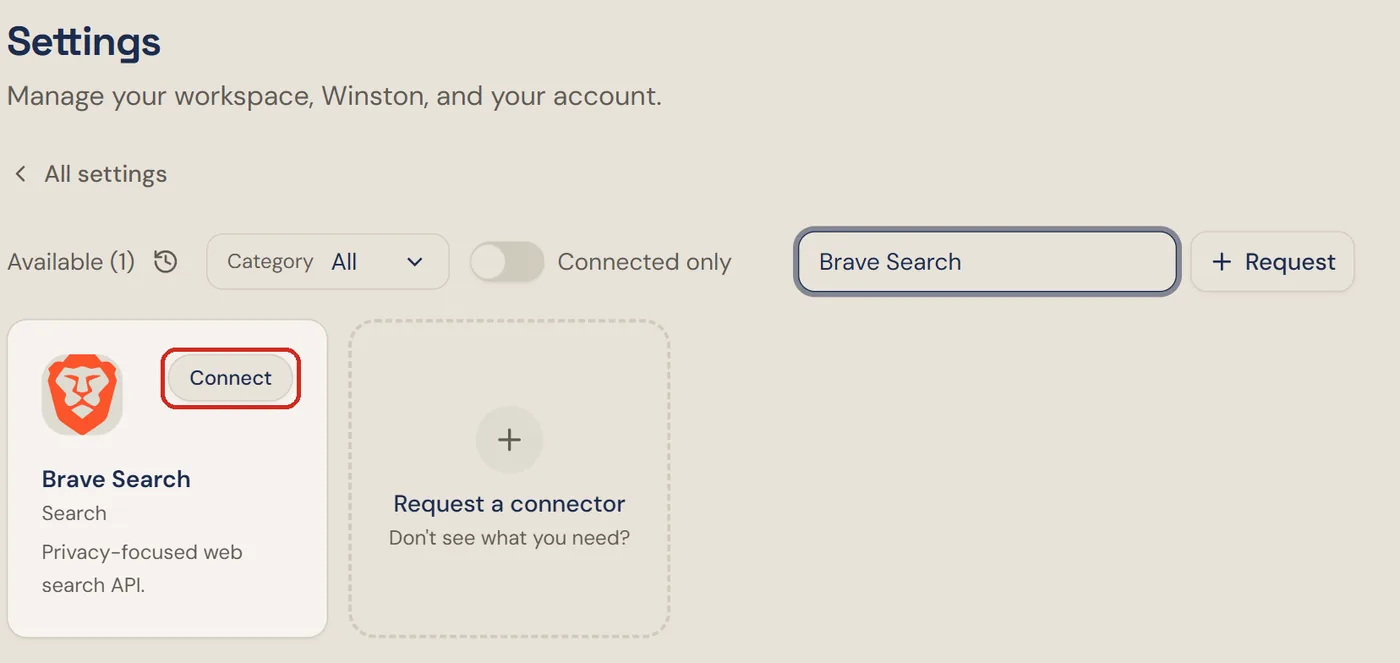
In Winston, open Settings → Connections, find the Brave Search card (under Search, or type "Brave" into the search box) and choose Connect.
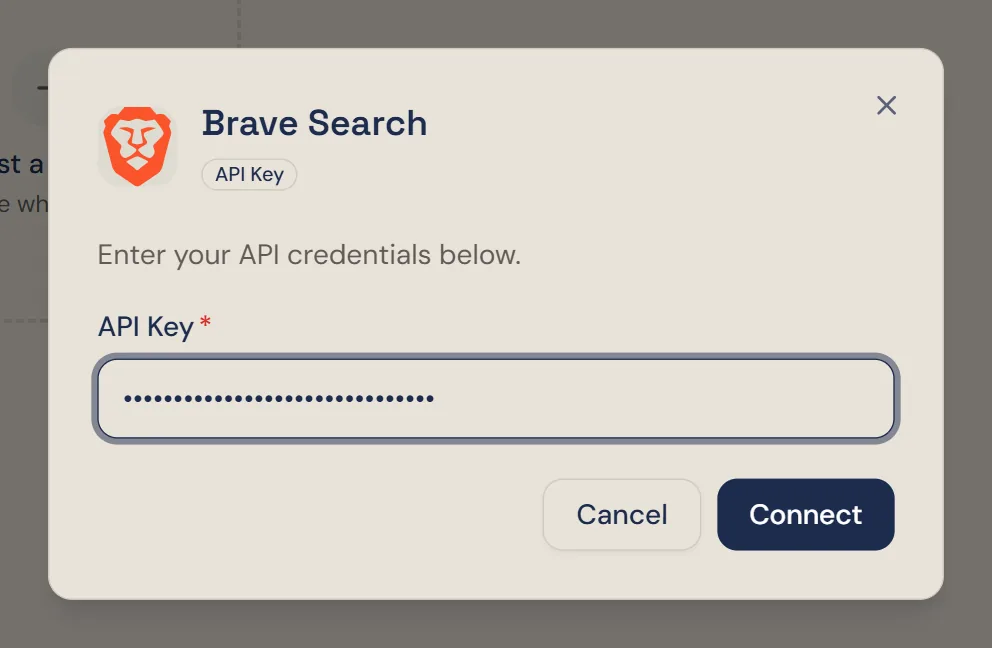
Paste the key into API Key and choose Connect.
3. Check it is connected
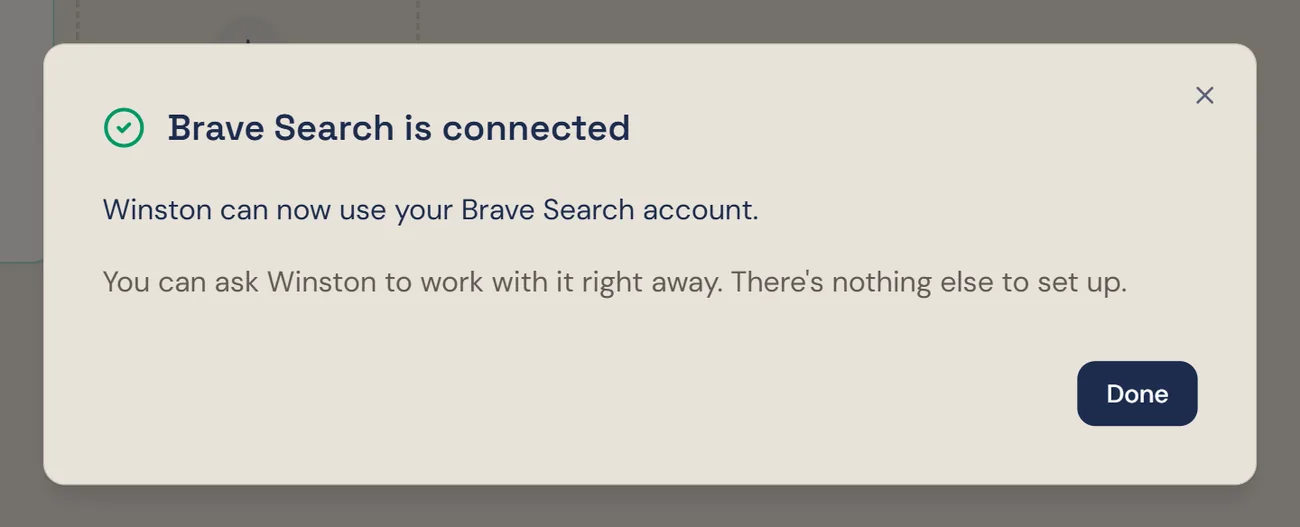
The dialog changes to Brave Search is connected. Choose Done. Nothing else needs to be set up.
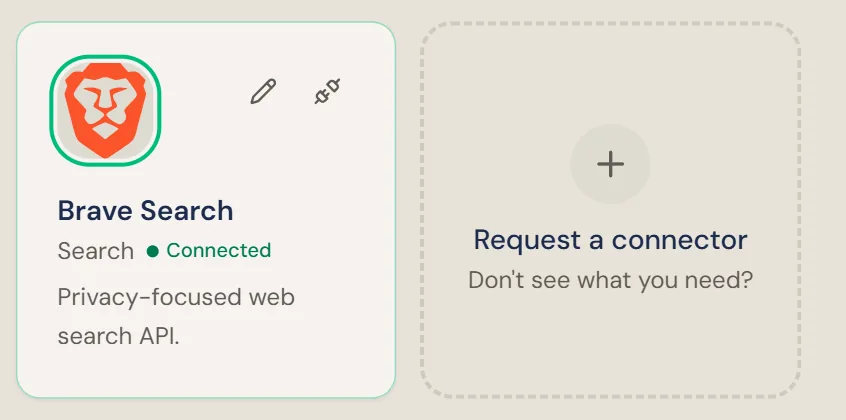
Then ask Winston something only the web can answer, for example "Search the web for this week's cannabis news in Michigan." The answer should point to the pages it found. Asking for web results works like any other question in Chat; see Asking Winston.
Replace the key
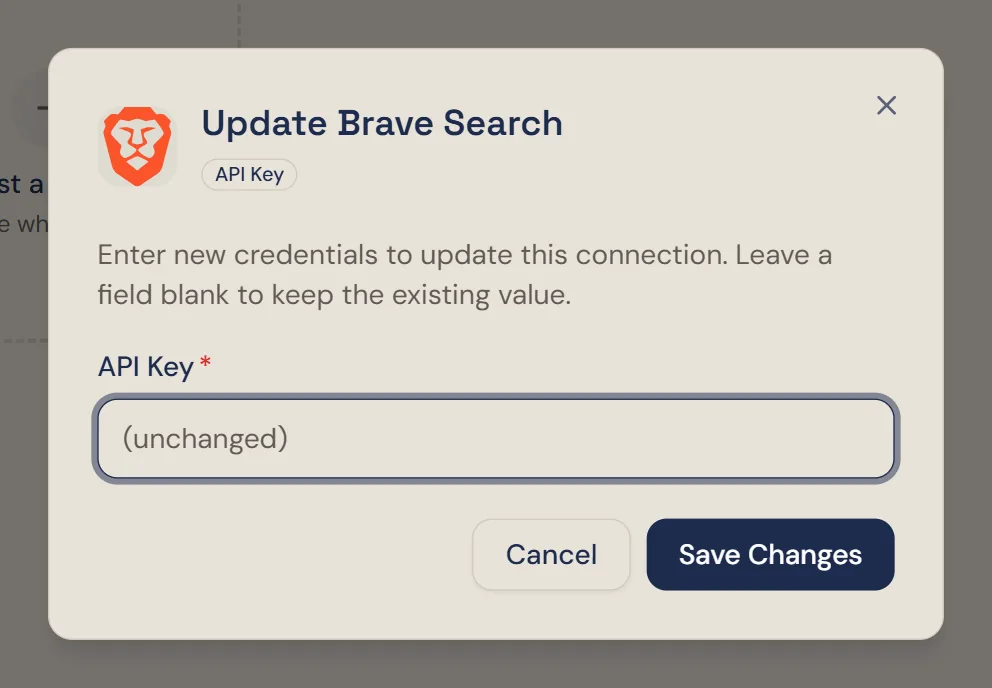
If the key is lost, leaked or removed, create a new one in Brave as above. Then choose the pencil on the Brave Search card, paste the new key and choose Save Changes. Remove the old key in Brave afterwards; Brave stops it working straight away.
Disconnect
To stop Winston searching the web with this key, choose the plug icon on the Brave Search card and confirm Disconnect. This applies to the whole workspace.
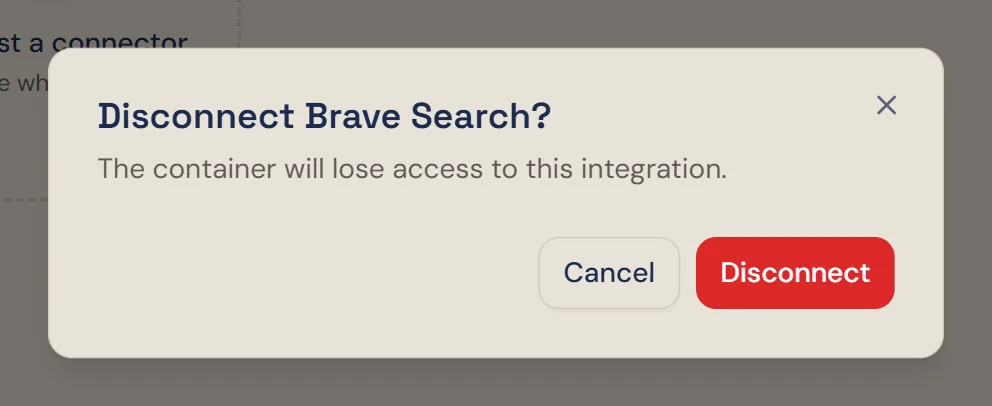
Disconnecting in Winston doesn't change anything in Brave. To make sure the key can't be used again, choose Remove on its row under API keys in Brave.
If something does not work
For other connections, see Connect your tools. Anything else, see Troubleshooting or contact Support from the dashboard.