
Text Winston by iMessage
Link your iPhone once and you can text Winston from Messages the way you would ask it in Chat. The link is yours, not the workspace's: each person links their own phone, and nobody else sees it. Linking takes one code and one text, and this page shows each screen.
Before you start
- You need an iPhone with iMessage turned on. Android phones and plain SMS texts do not work.
- Any member can link a phone. You do not need to be an Owner or Admin, because the link belongs to you rather than to the workspace.
- One phone links to one Winston account at a time. If your phone is already linked to another account or workspace, disconnect it there first.
- Have the phone with you. The code is texted from it, and whichever phone sends the text is the one that gets linked.
1. Open Text Winston
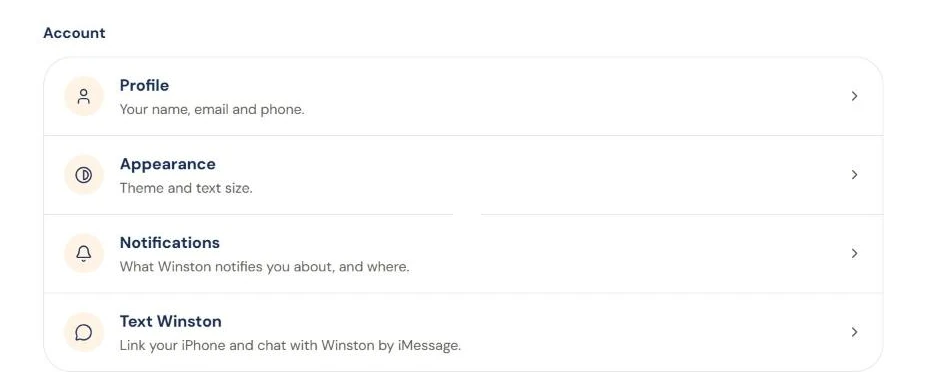
Open Settings and scroll to the Account section at the bottom. Choose Text Winston.
2. Get a link code
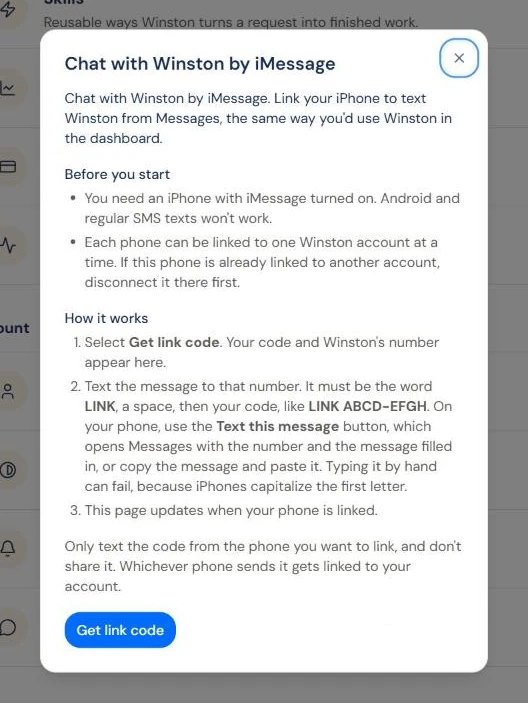
A dialog headed Chat with Winston by iMessage opens. Read the two notes under Before you start, then choose Get link code.
3. Text the code to Winston
The dialog shows a message, LINK followed by an eight-character code, and Winston's phone number. The code lasts ten minutes, and the countdown under it shows how long is left.
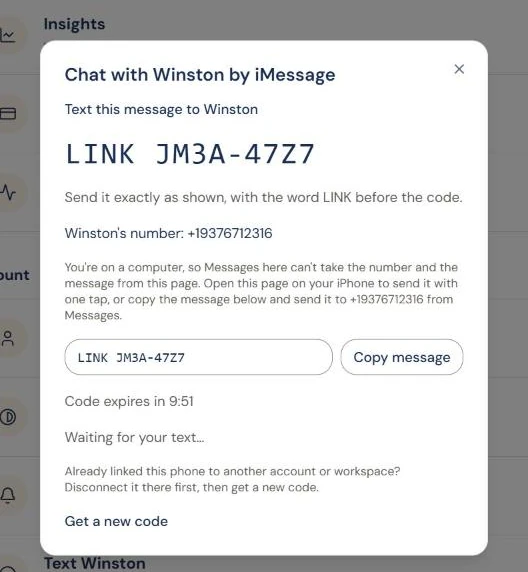
Send that message, exactly as shown, from your iPhone:
- On a computer, start a new message on your iPhone to Winston's number and send the word LINK, a space, then the code. Copy message copies the text if your iPhone and computer share a clipboard.
- On your iPhone, open this same dialog in the phone's browser and choose Text this message. Messages opens with the number and the text already filled in; send it.
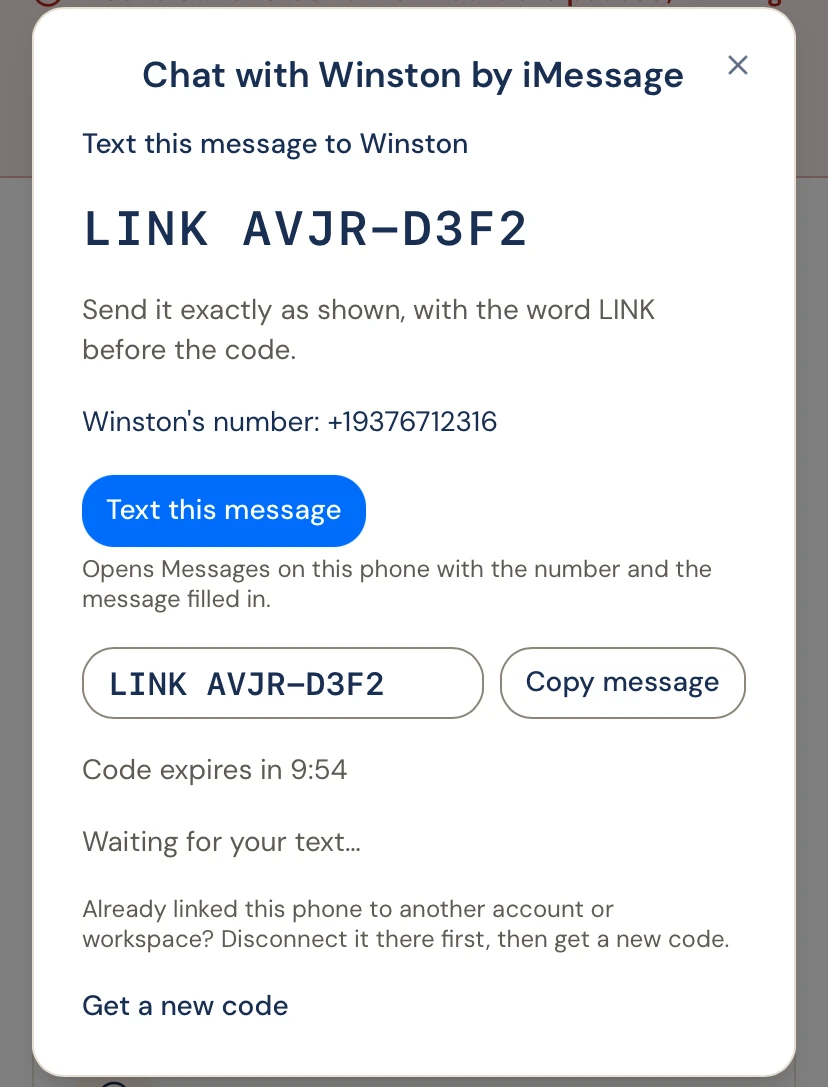
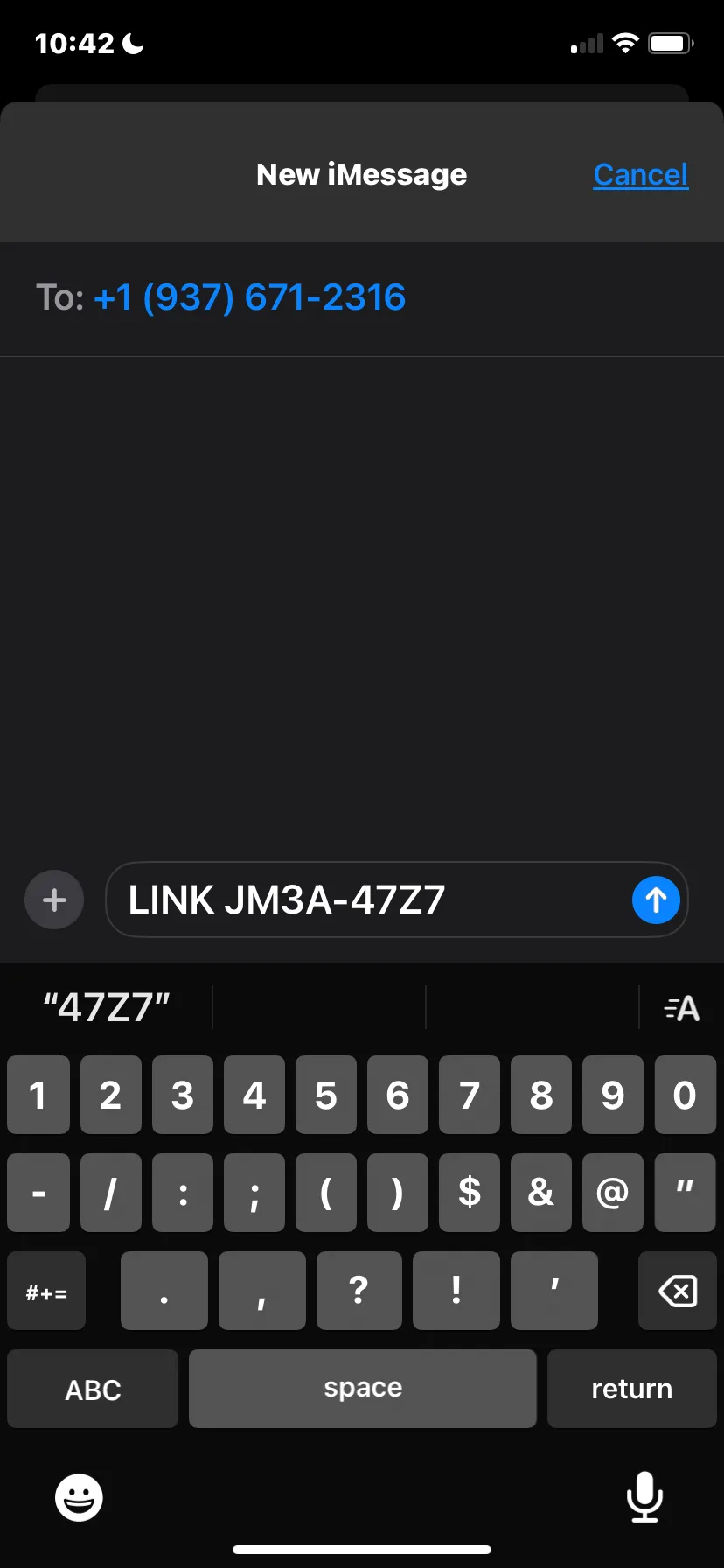
If you type the message by hand, check it before you send: iPhones like to change the capitals and autocorrect the code. Get a new code in the dialog issues another if this one runs out.
4. Your iPhone is linked
Within a few seconds Winston answers in the thread: Your phone is linked to Winston. Text here anytime to start chatting.
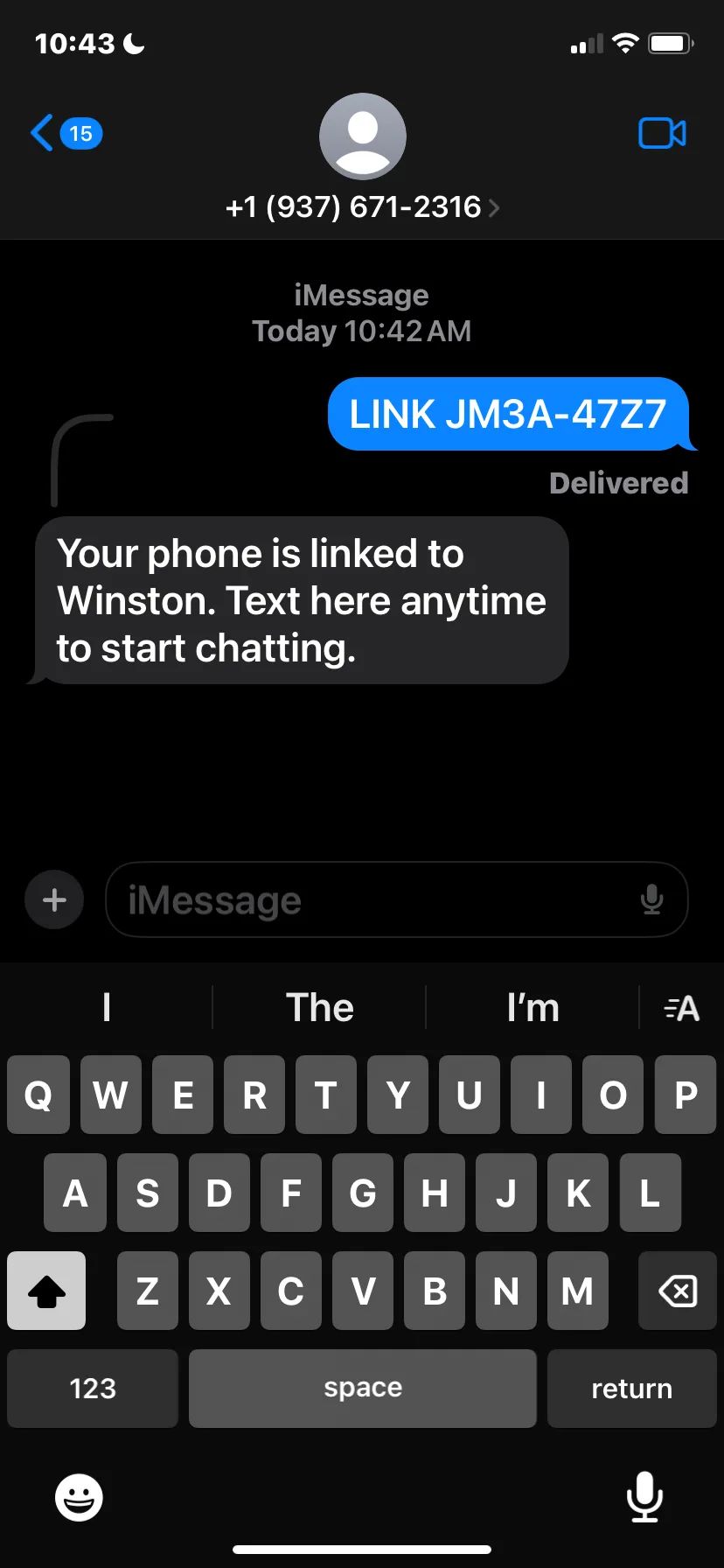
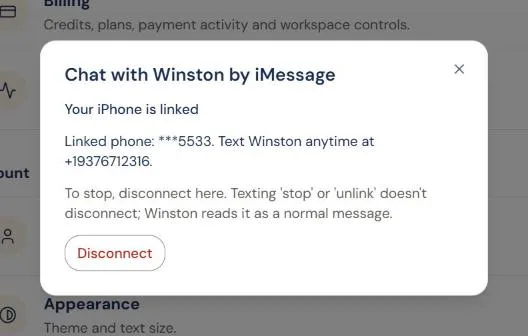
The dialog in Winston changes on its own to Your iPhone is linked, with the last digits of your phone and Winston's number. Save that number as a contact so the thread is easy to find. Nothing else needs to be set up.
5. Text Winston
In Messages, open the thread with Winston's number and ask the way you would in Chat: yesterday's sales, what is low on stock, a category breakdown. Winston replies in the same thread, from the workspace you were signed in to when you linked, with the same connected data and the same rules about what needs reviewing before anything happens. See Asking Winston and Review and approve.
Disconnect or change phones
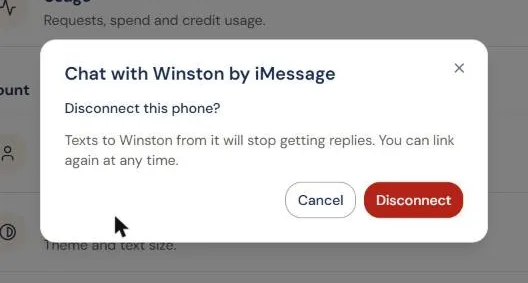
Open Settings → Text Winston again, choose Disconnect, and confirm. Texts from that phone stop getting replies. To move to a new phone, disconnect the old one and link the new one with a fresh code.
To pause without unlinking, text STOP or UNSUBSCRIBE to Winston. That stops Winston from chatting with you on that phone. Text START to let Winston chat with you again. The phone stays linked the whole time; only Disconnect unlinks it.
If something goes wrong
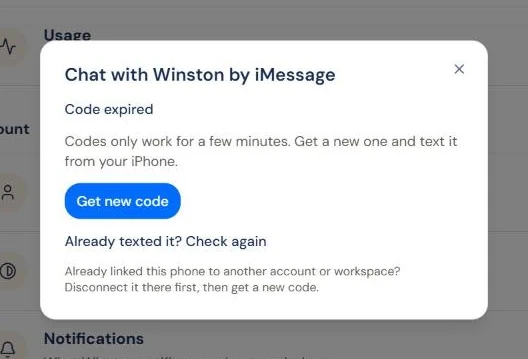
For other connections, see Connect your tools. For Winston in your team's chat tools rather than your own phone, see Use Winston in Slack and Use Winston in Microsoft Teams.