
Receive invoices in bulk with Invoice Intake
Invoice Intake is the page for receiving invoices in bulk. Drop the invoice PDFs and their METRC manifests on it, and Winston pairs them, matches the lines to your catalog and prepares a receiving draft for each one. You review and approve each draft before anything is submitted to your POS.
For a single invoice you can still attach the file in Chat. Use Invoice Intake when you want every invoice in one list, with its status and the next step it needs from you. Chat takes one invoice per chat; here each invoice gets its own row and its own chat, and the rules you saved apply to all of them.
Before you start
- Your POS is connected. Invoices are matched against your catalog and submitted into your POS, so the page stays locked until a point-of-sale connection exists. The connection also needs permission to create invoices and products, not only to read them.
- METRC is connected, if your state uses it. Winston uses METRC to verify the package labels and the receipt, and to check whether those packages were already received. Connect it before you add invoices; without it, an invoice may stop before it is finished. See Connect your tools.
- Your stores are set up for invoices. The first time, the page shows No stores configured. Choose Set up stores and Winston walks you through each store in Chat, including how you want new products named.
- The workspace has credits. Processing an invoice uses credits, and a long invoice with many new products uses more. The page locks when the balance reaches zero.
- The invoice is not already in your POS. If someone started a draft of the same invoice in the POS, Winston stops rather than prepare a second copy. Decide whether to correct, keep or remove that draft first. See If the invoice is already in your POS.
1. Open Invoice Intake
Choose Work Audits in the sidebar, then Invoice Intake beneath it. If the entry is not there, Invoice Intake has not been turned on for your workspace yet; ask Support.
2. Add your files
Drop files anywhere on the page, or choose Add invoices. You can add:
- Invoice PDFs.
- METRC manifest PDFs. Add them in the same drop as the invoices and Winston pairs each manifest with its invoice. A manifest inside the invoice PDF is recognized too.
- Optionally, a spreadsheet (CSV, TSV, XLS or XLSX) that lists one invoice per row. It does not need fixed column names. Rows can point to a PDF by a public link, including a Google Drive file shared with anyone who has the link.
One drop takes up to 50 files of up to 25 MB each. While Winston reads the files, a progress strip sits above the list. Files that could not be read, or that are neither an invoice nor a manifest, are listed above the table with the reason.
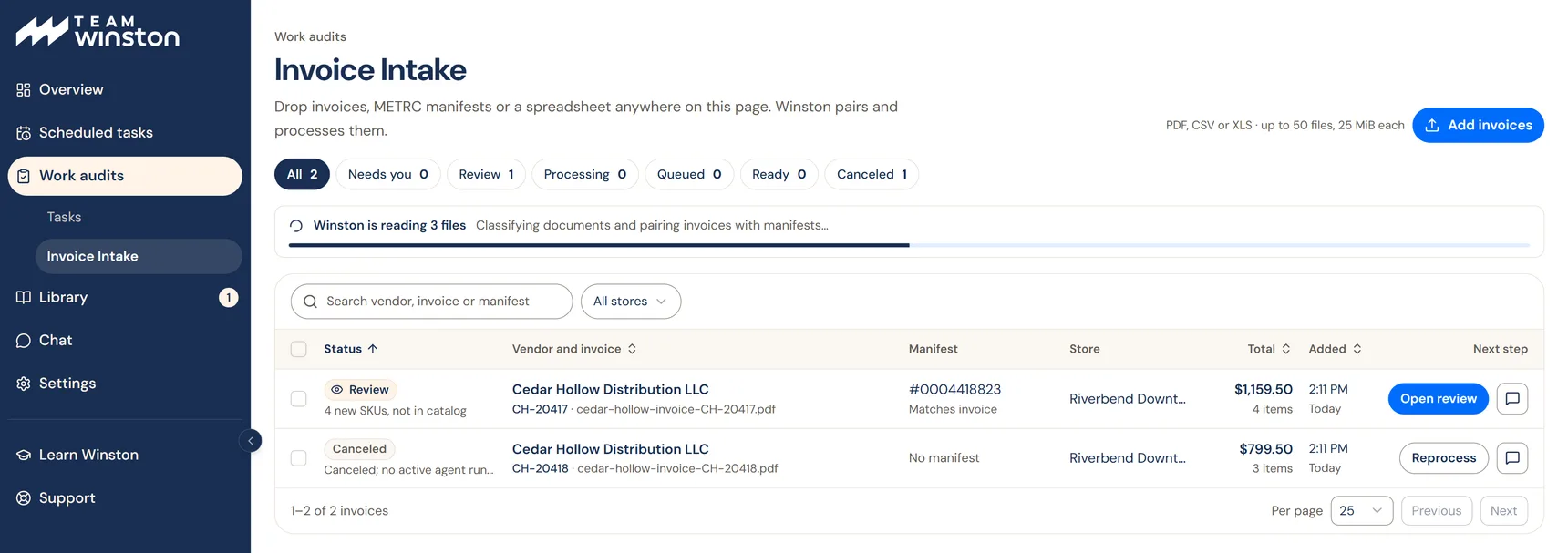
3. Answer anything under Needs you
Each invoice becomes one row. A row waits under Needs you when Winston cannot continue without an answer:
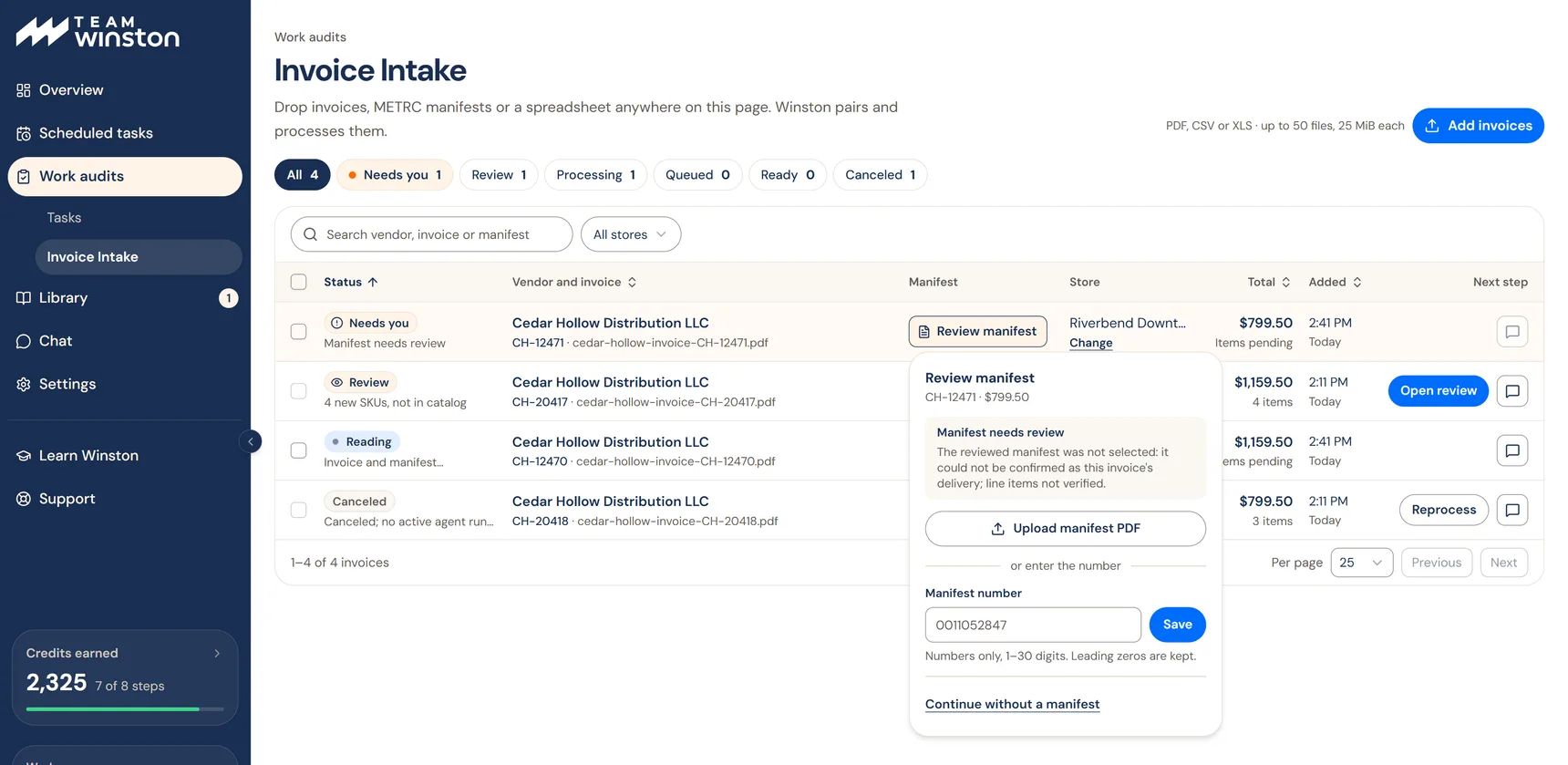
4. Let Winston process
Once a row has its store and manifest, it is Queued and then moves through four stages: Reading the invoice and manifest, Comparing them, Matching the lines to your catalog and Drafting the receiving draft. Even a short invoice takes several minutes, and invoices are processed in turn, so a large batch takes a while. You can leave the page; the list keeps its place.
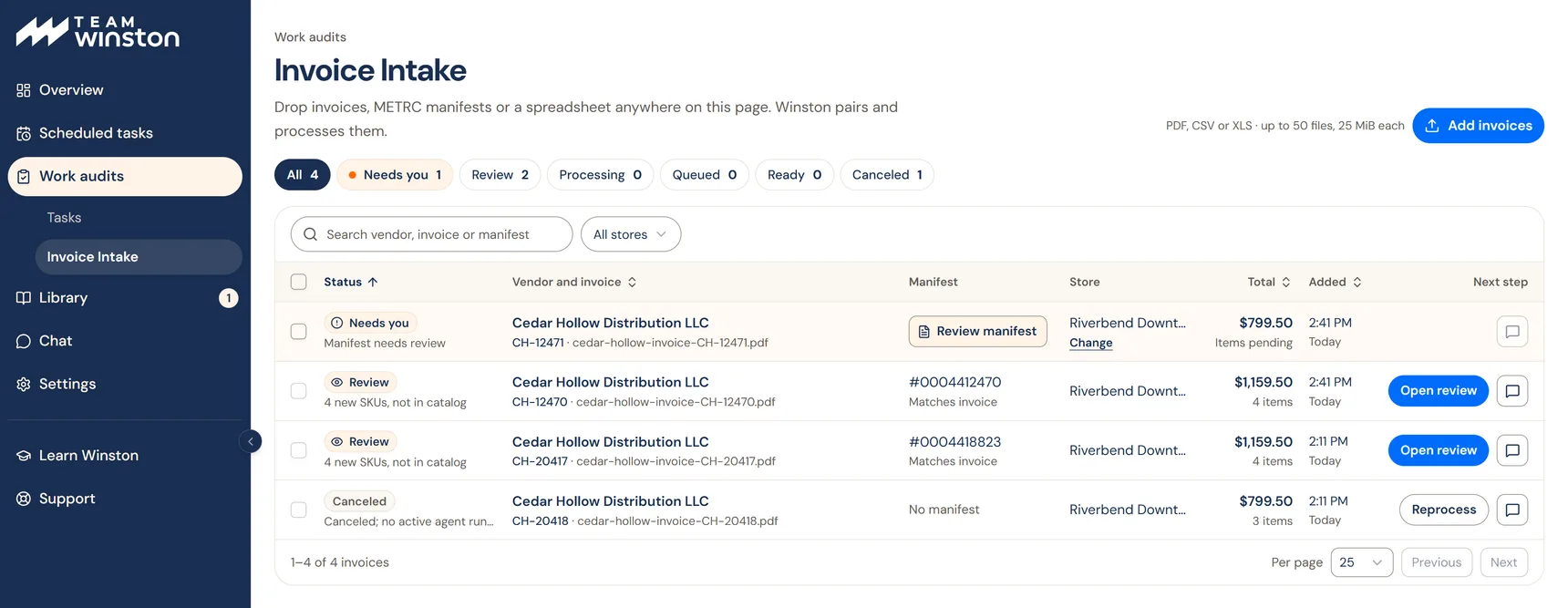
5. Review and approve
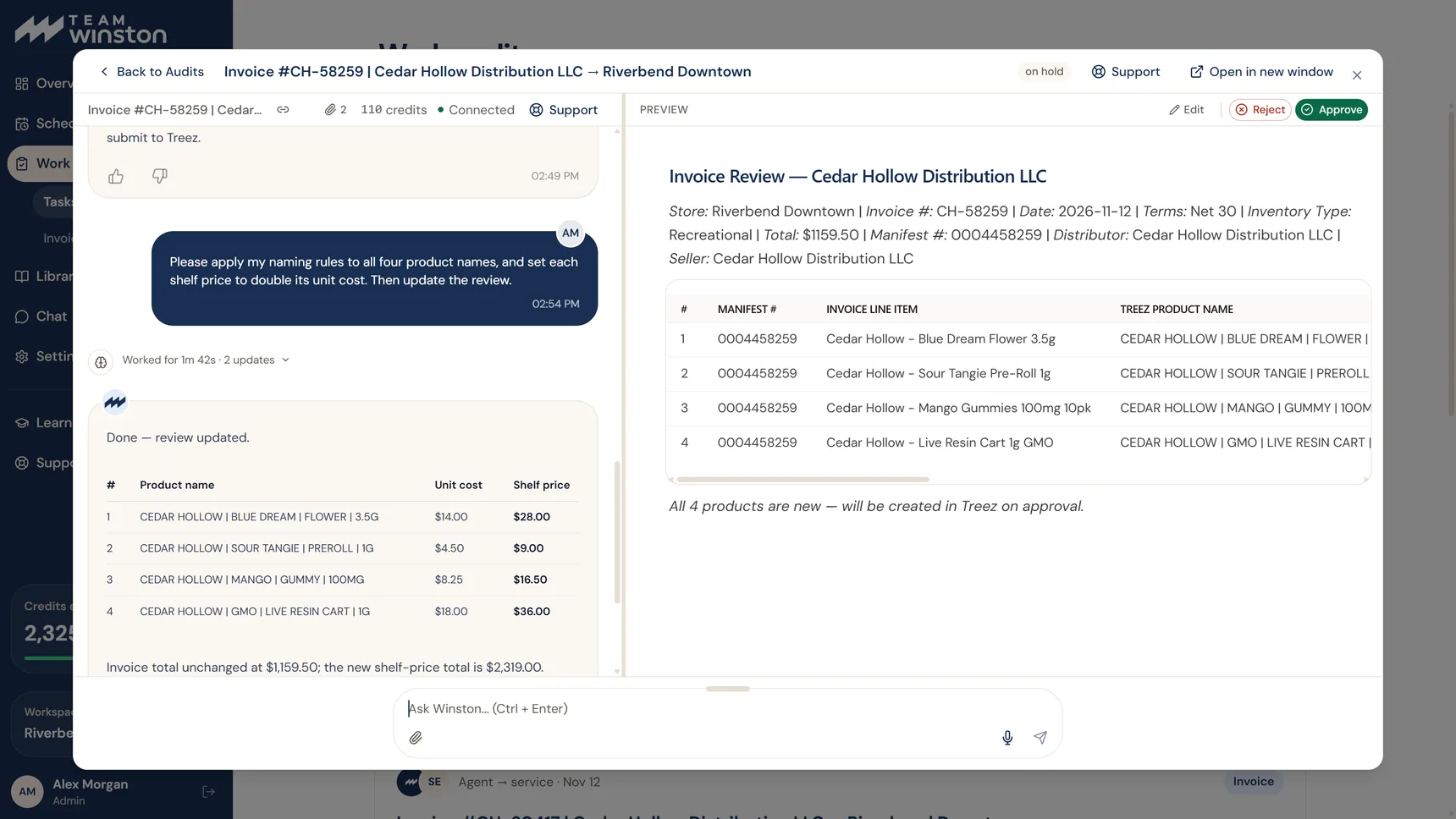
A finished row is either Ready, where every line matched with no issues, or Review, where some lines need a decision. Choose Open review. The review opens with the chat on the left and the invoice draft on the right, and Edit, Reject and Approve at the top right.
Read the notes Winston leaves in the chat before you look at the draft. They list what it could not do: checks it could not run, prices it could not suggest, naming rules it could not apply. Then check the vendor, the store, every product match, quantities and costs the same way you would for any invoice; see Review an invoice. To change something, ask in the chat and the draft updates.
Nothing is submitted to your POS until you approve. Products that are new to your catalog are created in the POS at that point too, not before. After the submission Winston offers to enrich the products and gathers any rule suggestions; see What happens after you approve.
After you approve, confirm that the invoice exists in your POS. Ready, approved and created in the POS are three different states.
Cancel or reprocess an invoice
Tick the checkbox on any unfinished invoice and choose Cancel invoice. Canceling stops further work and keeps the row, its documents and its chat. It does not undo work that already finished. A canceled row shows Reprocess, which picks up from the existing documents and chat rather than starting over.